Chats
In the chat you work through your project with a model, which reads, searches and writes its documents when you ask. Each project keeps its own chats.
Start a chat
Section titled “Start a chat”Type in the box at the bottom of the chat and press Enter to send; Shift Enter starts a new line. On a phone, Return starts a new line and the send arrow sends. A message you haven’t sent stays in the box, even through a reload.
- New chat, the + at the top of the chat, opens a fresh one. The model names it from your first message.
- Esc, or the stop button, stops a reply. What it wrote stays.
- To add a turn without asking for a reply, click the arrow beside send and choose Add as user or Add as assistant, or press ⌘ Enter or ⌥ Enter (Ctrl Enter or Alt Enter on Windows and Linux). Write the model’s side yourself to show it what you want.
The chat list
Section titled “The chat list”Click the Chats icon at the far left. The most recent chat is first, and Search chats… searches titles and messages. On a phone, the arrow at the top left of a chat goes back to the list.
Click ⋮ on a chat, or right-click it, to Rename, Export or Delete it. Import a chat, the upload arrow at the top of the list, brings an exported chat into the open project. It takes SillyTavern chats too, and files each under its character’s card when the card is in the project.
Profiles
Section titled “Profiles”A profile sets how a chat starts: its system prompt, its tools, Project context and its author’s note. The chat’s profile is named at the top of the chat. Click it to choose another, and the chat takes that profile’s settings in place of its own.
New chats start on the project’s Default profile, set in Project settings. A project that hasn’t chosen one uses Profile for new chats in Settings › System, and chats on a character card start on Profile for character cards there.
- Default: brainstorm and revise, with the run of the project.
- Roleplay: a scene with one character, in their voice. The model can use the project’s documents and nothing else. See Roleplay.
- Roleplay (NSFW): Roleplay, with the explicit themes you opt into in its author’s note. Turn on Settings › System › Enable NSFW chat profiles to use it. It then takes Roleplay’s place, and chats on Roleplay run on it until you turn the switch off.
- Blank: no system prompt, no tools, no project. The model as it comes.
Save changes to a profile
Section titled “Save changes to a profile”Whatever you change in a chat’s settings changes that chat only. To start new chats with the same changes, click Save to profile, the disk beside the profile’s name. It shows only while the chat differs from its profile. Chats already on the profile keep their own settings.
The built-in profiles can’t be changed. Saving to one makes a copy named after it, such as Default - Custom, and moves the chat onto it. Where the built-in was the profile chats start on, the copy takes its place.
In the ⋮ menu beside the profile:
- New profile makes a profile from this chat’s settings and moves the chat onto it. A copy of one of your own is numbered, such as Notes (2).
- Reset to profile puts the chat back as its profile has it.
- Rename profile and Delete profile work on your own profiles. Deleting one sends its chats back to the project’s default. You can also right-click a profile in either list of profiles.
Chat settings
Section titled “Chat settings”Click the gear in the message box. The settings take the chat’s place until you click the arrow at the top.
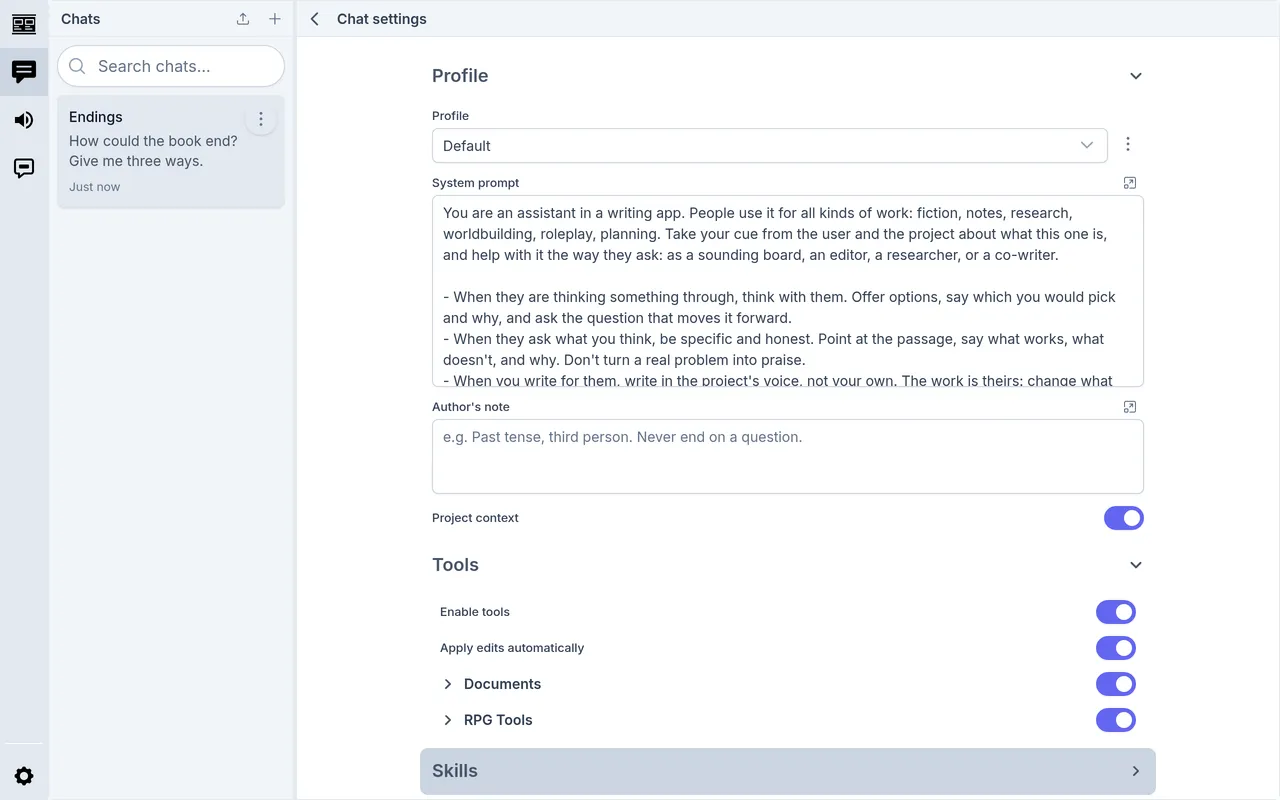
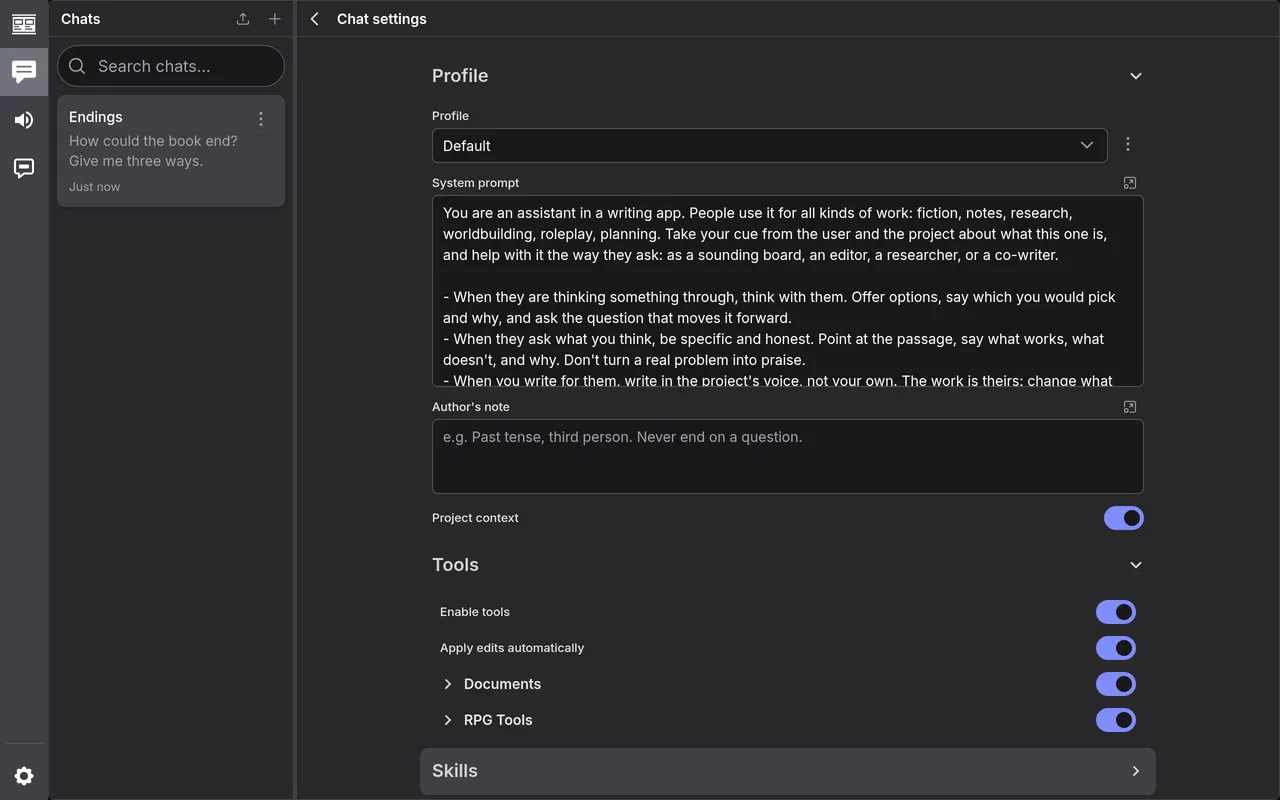
- System prompt tells the model what it’s there to do. It starts as the profile’s; the reset button beside it goes back to the profile’s.
- Author’s note is this chat’s own, and goes with each message you send. Put standing instructions here: a tense, a point of view, things to avoid. Open in editor, beside either one, opens it as a tab in the editor.
- Project context sends, with every message, the project’s name, its summary from Project settings, how many documents it holds, and the documents you pinned. Turn it off for a chat that has nothing to do with the project.
- AI, further down, is the model and how it generates, shared by every chat; see AI Providers. Voices sets the Assistant voice and Your voice that read turns aloud; see Narration.
Roleplay
Section titled “Roleplay”Roleplay holds what a chat on a character card brings with it. It shows in roleplay chats: chats on a card, and chats on Roleplay or on the Profile for character cards. It belongs to the chat: Save to profile leaves it out, and switching profiles keeps it.
- User and Character are the names
{{user}}and{{char}}become in what the model reads. Left empty, the model reads the macro as written. A new name counts from your next message; what’s been said keeps the old one. - System prompt goes after the chat’s system prompt, and Post-history
instructions after its author’s note. A chat on a card starts with the
card’s. Where either says
{{original}}, the chat’s own goes there instead.
Tools lists what the model can use, in groups. Switch off a group, or one tool in it, to keep it from the model; hover a tool to see what it does. Enable tools switches Documents and RPG Tools together.
- Documents: listing, searching, reading, creating, editing, renaming and moving the project’s documents, and reading and resolving your comments. To let the model read but not write, leave Read document, Describe document, List documents and Search documents on, and switch off the rest.
- RPG Tools: dice, the oracle, tables, tarot and names, for games.
- Web: searching the web and reading pages, once you’ve connected a search service. See Web Search.
- Each MCP server you’ve connected has a group of its own.
Apply edits automatically is for every chat. Switch it off, and the model’s changes to documents wait in the chat, showing what goes and what comes in, until you click Accept or Reject.
If the switches are greyed out, Allow tool use is off under Generation in Settings › AI.
Skills
Section titled “Skills”Skills lists every skill, with a switch for each one the model can call. Interpret and Write, marked Experimental, start off. Compact has no switch, as only you call it. Open a skill to change its Prompt for this chat (more). A skill the model has loaded says Loaded; Drop lets it go at the next summary.
What the model sees of your project
Section titled “What the model sees of your project”The model doesn’t get the whole project with every message. It gets what Project context sends, and finds the rest itself: it lists, searches and reads documents as it needs them. Click the tool calls box above a reply to see what it looked at; a path there opens that document, and so does a link to a document in a reply. To point the model at a document, right-click the document, choose Copy path, and paste the path into your message.
Pin documents
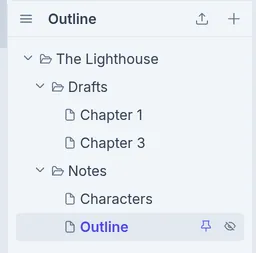
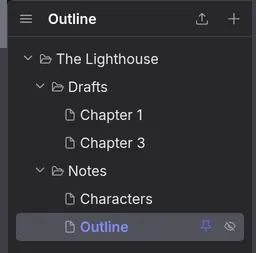
Section titled “Pin documents”Pin what the model should always have in front of it: an outline, a style guide, the chapter you’re on. Hover the document in the outline and click the pin; on a phone, long-press it and choose Pin to chat. A pinned document’s title shows in colour, and goes to the model whole with every message, so a long one costs on every turn. Pin a folder to pin everything in it. A pin belongs to the chat you made it in.
Hide documents
Section titled “Hide documents”The eye beside the pin hides a document or a folder from the open chat: the model can’t list, search or read it. To hide one from every chat, right-click it and choose Hide from all chats.
A turn’s buttons
Section titled “A turn’s buttons”- Copy, and Read aloud once a speech service is set up for narration.
- Edit turn or Edit message, the pencil, changes what was said, without asking for a new reply. ⌘ Enter (Ctrl Enter on Windows and Linux) saves, and Esc cancels.
- Regenerate reply, the circular arrow on a reply, asks the model again. Send again, the arrow on your turn, asks again for its reply, or for one where there is none.
- Previous answer and Next answer step through the last reply’s answers, as 2 / 3. Each answer’s changes to documents come and go with it.
- ⋯ holds Show raw (the turn as the model is sent it), Summarize up
to here (below), Delete turn or Delete
message, and:
- Fork from here: copies the chat up to that turn into a new chat, named with - forked on the end.
- Rewind to here: after asking, removes the turns after it and undoes their changes to documents, except passages you’ve edited since.
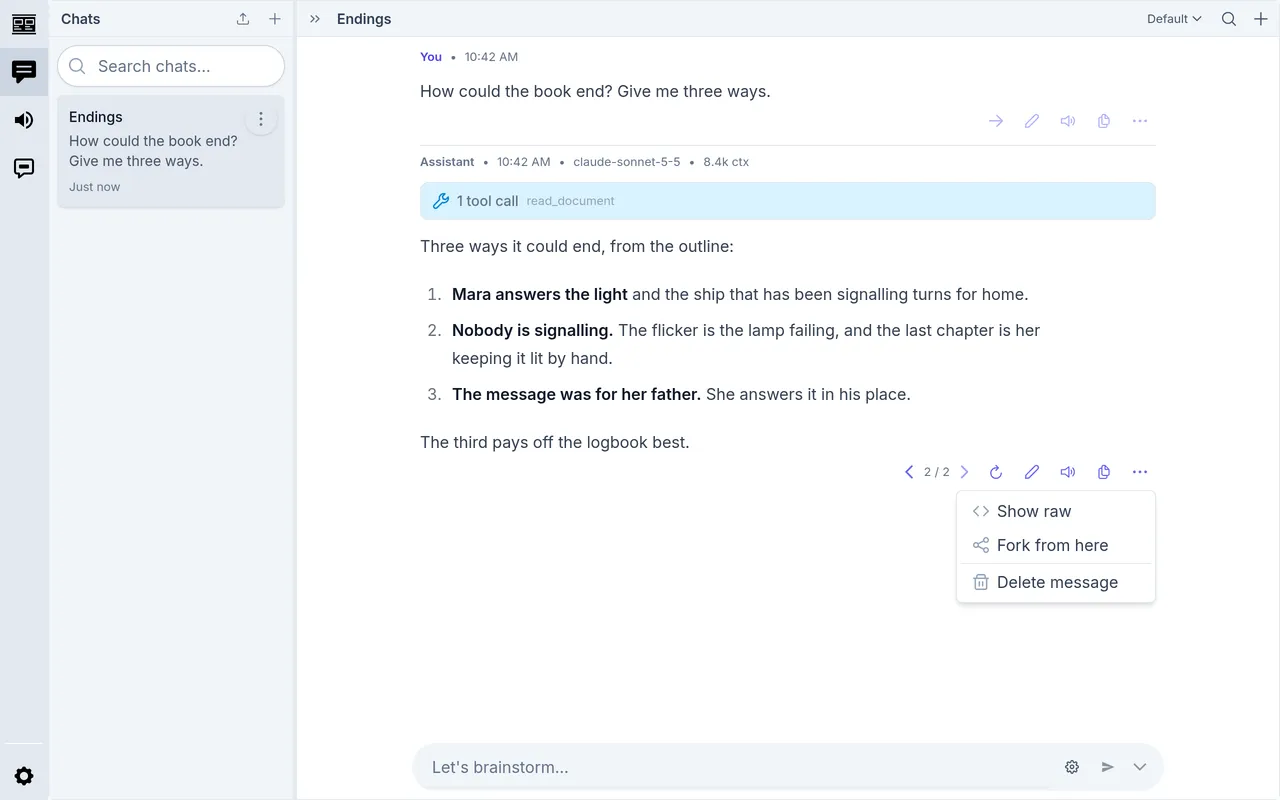
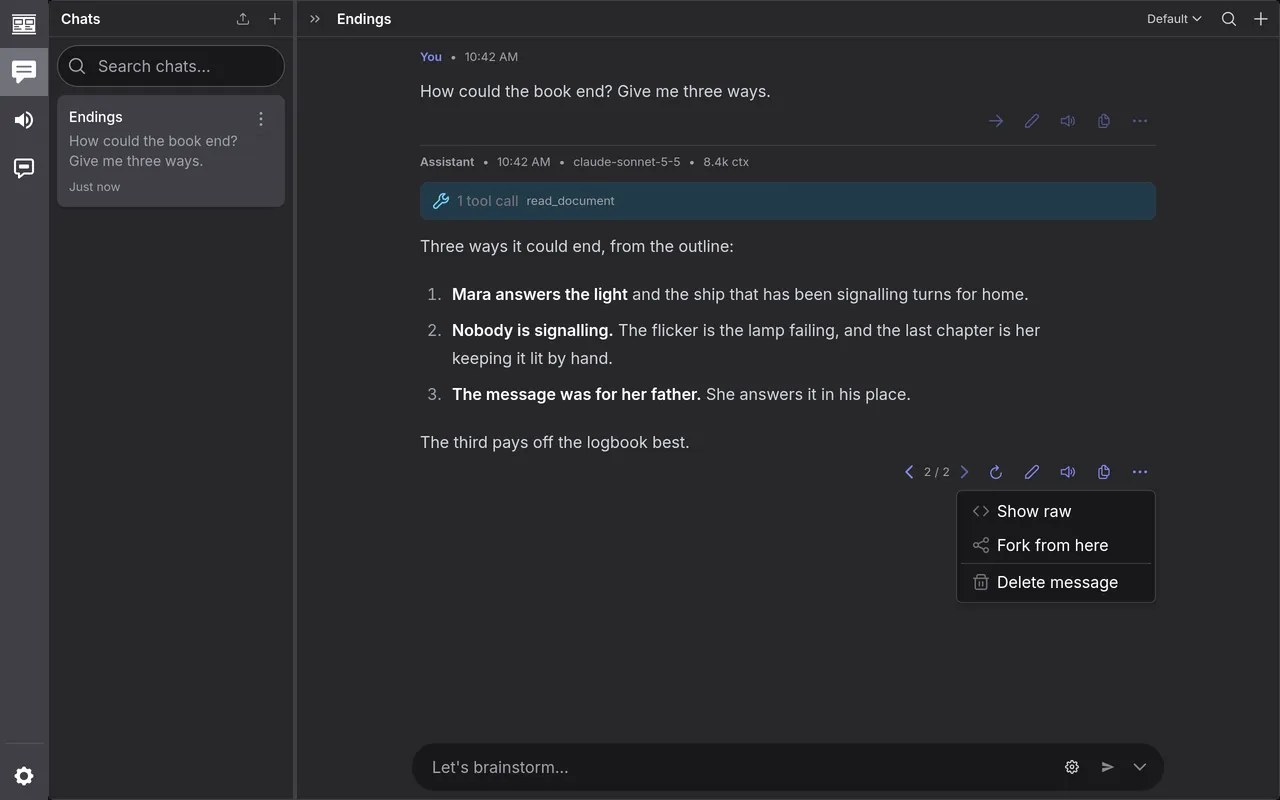
Regenerating an earlier reply removes the turns after it and undoes their changes to documents, so it asks first. To keep them, Fork from here and regenerate in the fork.
A reply’s header names its model and, as ctx, the size of the conversation it was sent; hover it for the tokens. Thought for, above a reply, opens the model’s thinking. A reply that fails says why, with Retry.
Commands
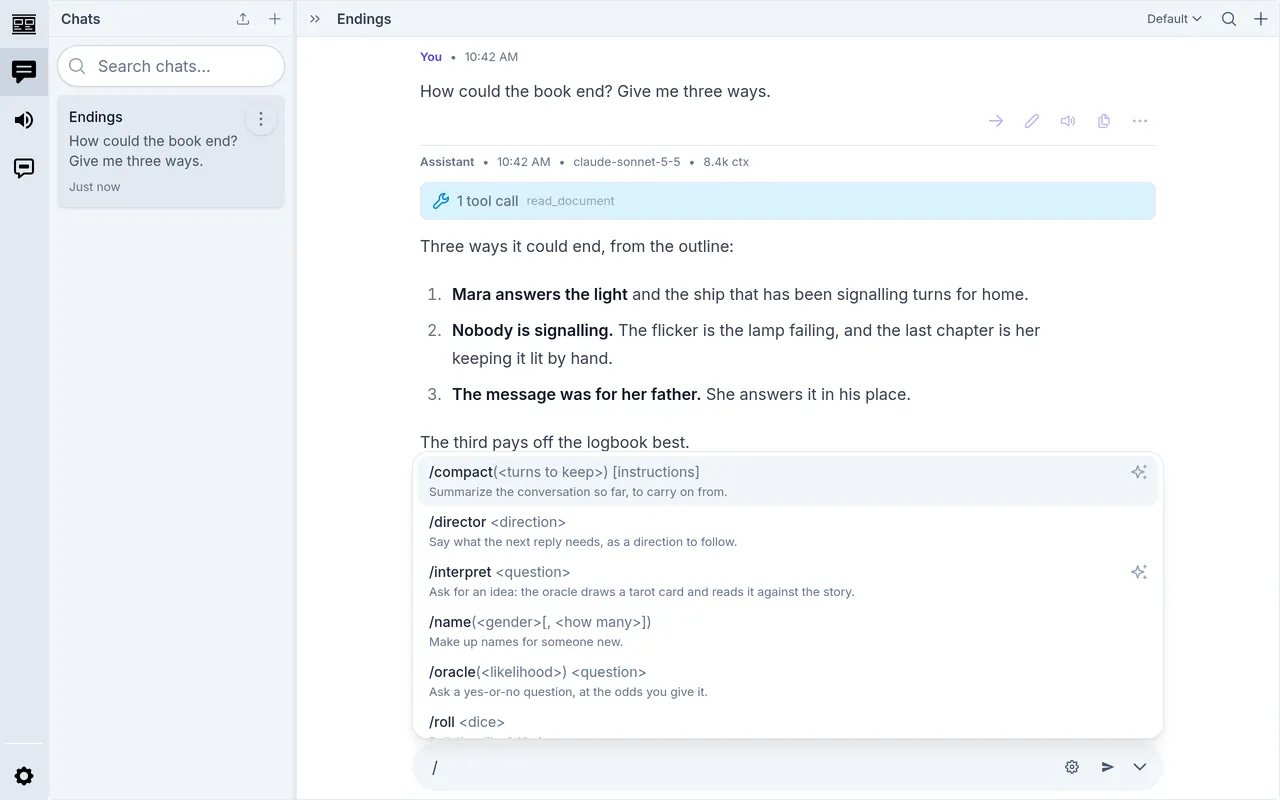
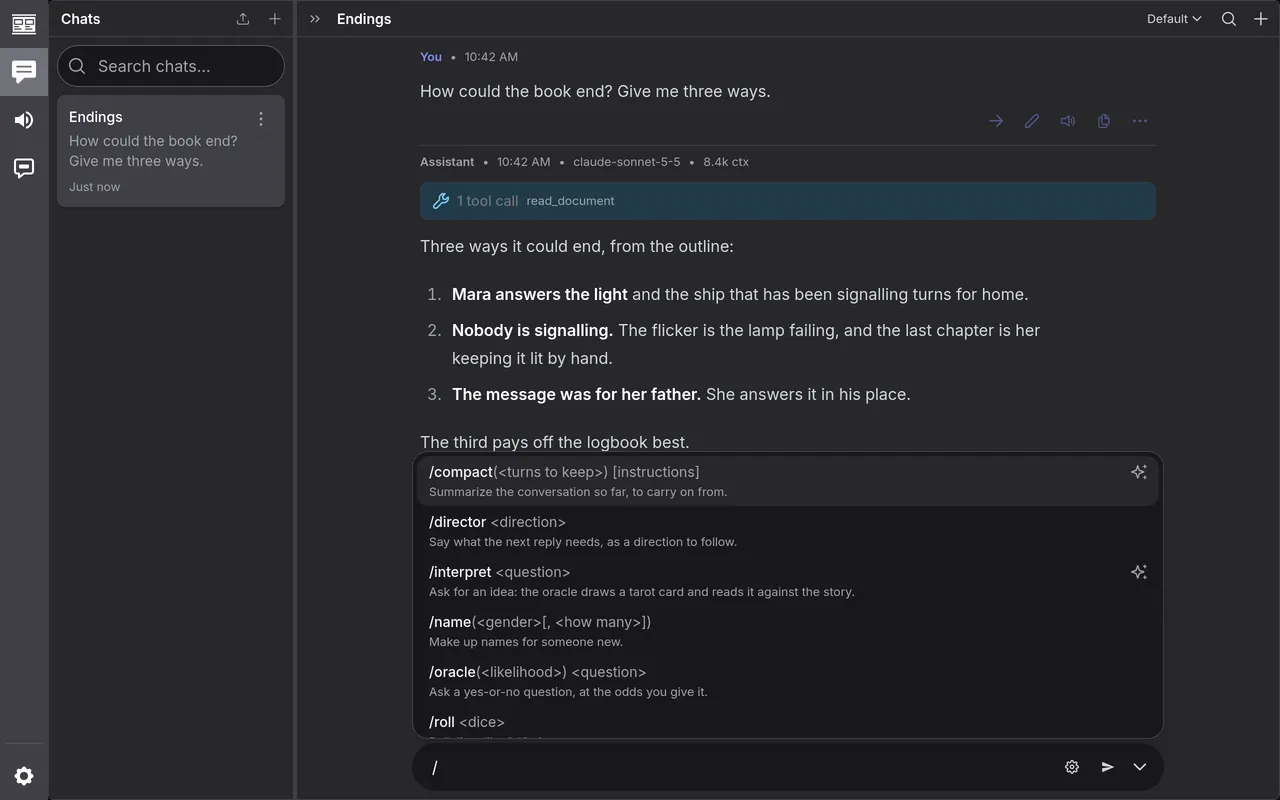
Section titled “Commands”Type / at the start of a line for the commands. Keep typing to narrow the
list; Tab or Enter finishes the name, and Esc
closes the list. The sparkles mark the ones that call the model.
| Type | And |
|---|---|
/roll 3d6+2 | It rolls the dice. |
/oracle(likely) Is the door locked? | It answers yes or no at the odds you give, from nearly_impossible, very_unlikely, unlikely, fifty_fifty, likely, very_likely and nearly_certain. Leave them off for 50/50. |
/roll-table "a knife" "a letter" "nothing" | It picks one of the options. |
/tarot(1, full) Will she forgive him? | It draws cards: 3 from the major arcana unless you say how many (up to 10) or full for the whole deck. The question is optional. |
/name(female, 3) | It makes up names, female or male, up to 25. |
/director Wrap this scene up. | It tells the model what the next reply needs. |
@cody I hide in the closet. | It says what someone in the scene says or does. |
/interpret What is the innkeeper afraid of? | The model draws a tarot card and reads it against the story, for an idea. |
/write The storm reaches the lighthouse. | The model writes the prose from the project’s notes, as its reply. |
/compact | The model summarizes the chat; see below. |
A command’s answer goes into your turn, and the model takes it as settled;
/write and /compact answer in turns of their own. A message of nothing but
commands gets no reply, so you can settle things before you say what you do;
@ lines and your saved prompts do ask for one.
Ask again on an answer asks again, and Edit command changes the
question but keeps the answer. Your own skills, and the prompts of
MCP servers you’ve connected, are in the list too.
Compact a long chat
Section titled “Compact a long chat”Every turn sends the whole chat so far, so a long chat gets slower and costs
more, and can outgrow what the model can read at once. Type /compact and the
model writes a summary to stand in for the turns before it. The turns stay for
you to read, dimmed under a line that says how many were compacted. The chat’s
first message always stays as it is.
/compact(4)keeps the last four turns as they are, under the summary.- Words after it say what to keep:
/compact Keep the heist; the tavern can go. - Summarize up to here, in a turn’s ⋯ menu, summarizes everything above that turn.
Each summary folds in the one before, so the newest tells the whole story. Edit it like any turn. Delete it, and the model goes back to the summary before, or to the whole chat. To change how a profile summarizes, change Compact’s Prompt under Skills.
Find in a chat
Section titled “Find in a chat”Press ⌘ F (Ctrl F on Windows and Linux) in the chat, or click Find in chat, the magnifier at the top. It finds in the whole chat, and works as find does in the editor.