Research
The model in a chat can read what you import, search the web, and write and edit the documents in your project. This guide follows one piece of research from start to finish: a design doc on adding real-time collaboration to a Markdown editor, built from two papers and a web search, then commented on, reviewed and revised.
It was done with Claude Opus 5.5 through Anthropic. Any model that calls tools well works the same way.
Turn on web search
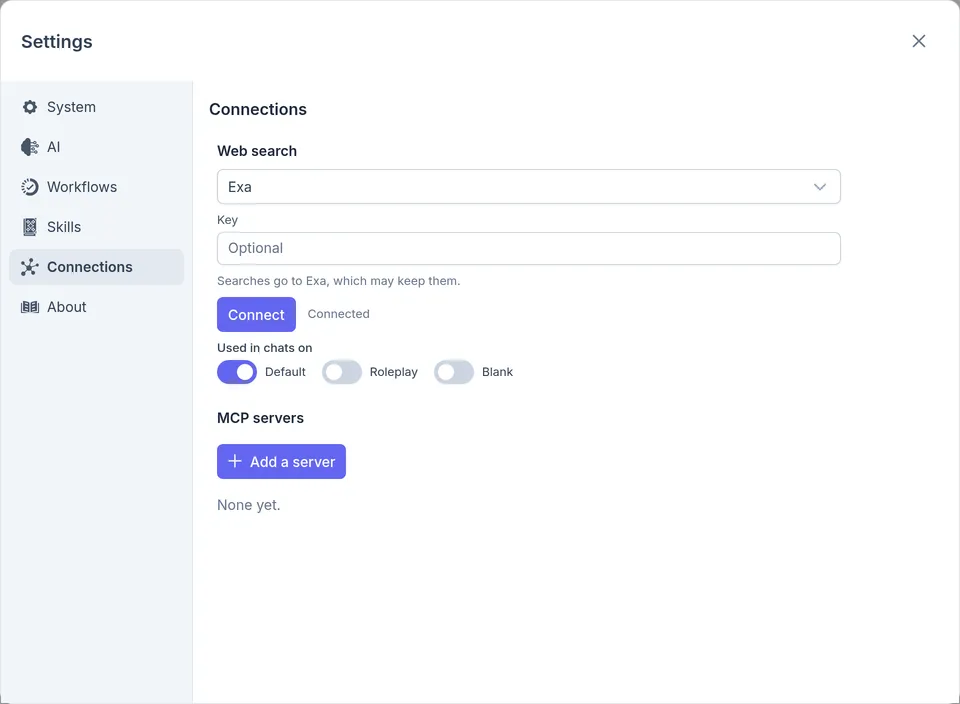
Section titled “Turn on web search”Open Settings › Connections, and under Web search choose Exa. Exa searches without a key, up to a limit; to lift it, paste a key from Exa in Key and click Connect. Check that Default is on under Used in chats on, so chats on the Default profile can search.
Web Search covers the other services, Kagi and Brave.
Bring in your sources
Section titled “Bring in your sources”Make a project, and a folder in it called Sources. Right-click the folder, choose Import › Files…, and choose your PDFs. inksprite takes the text out of each one for the model, and shows its pages when you open it.
This guide imports two papers from Ink & Switch: Local-first software and Peritext.
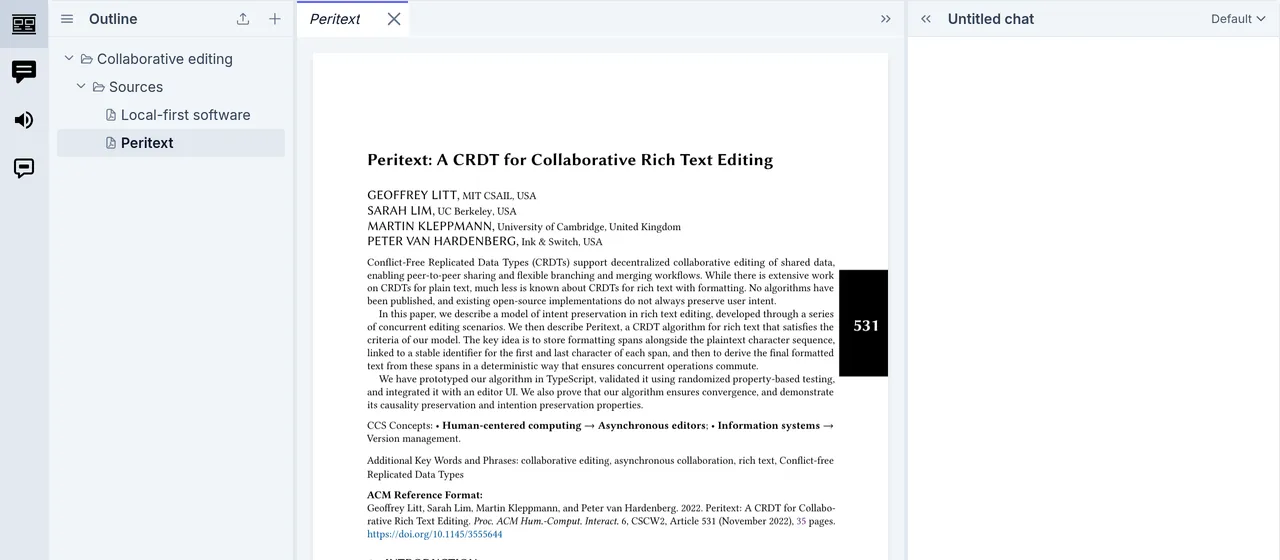
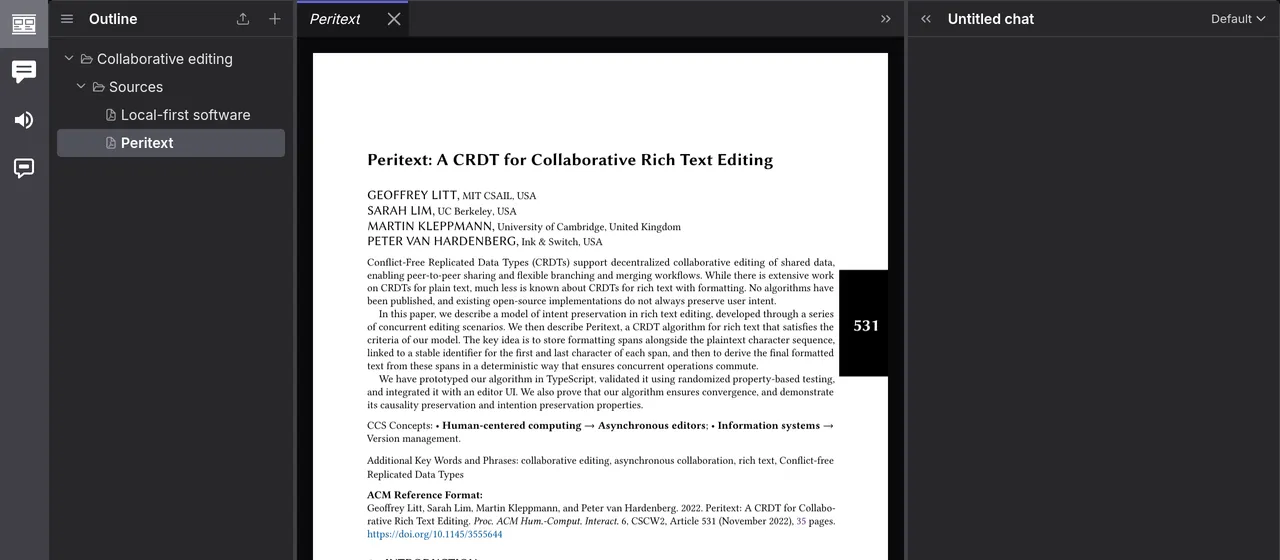
PDFs, Images, and Ebooks has more on what imports and how.
Summarize them
Section titled “Summarize them”Ask in the chat:
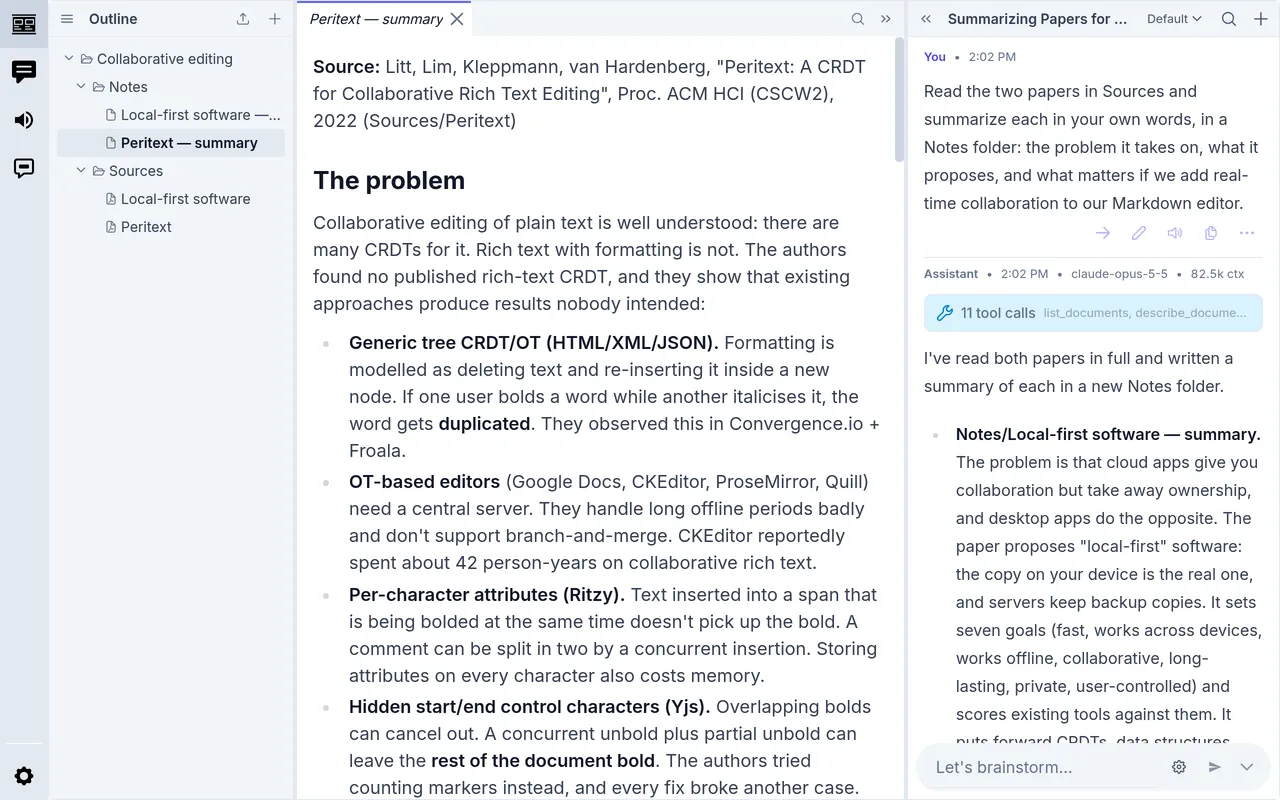
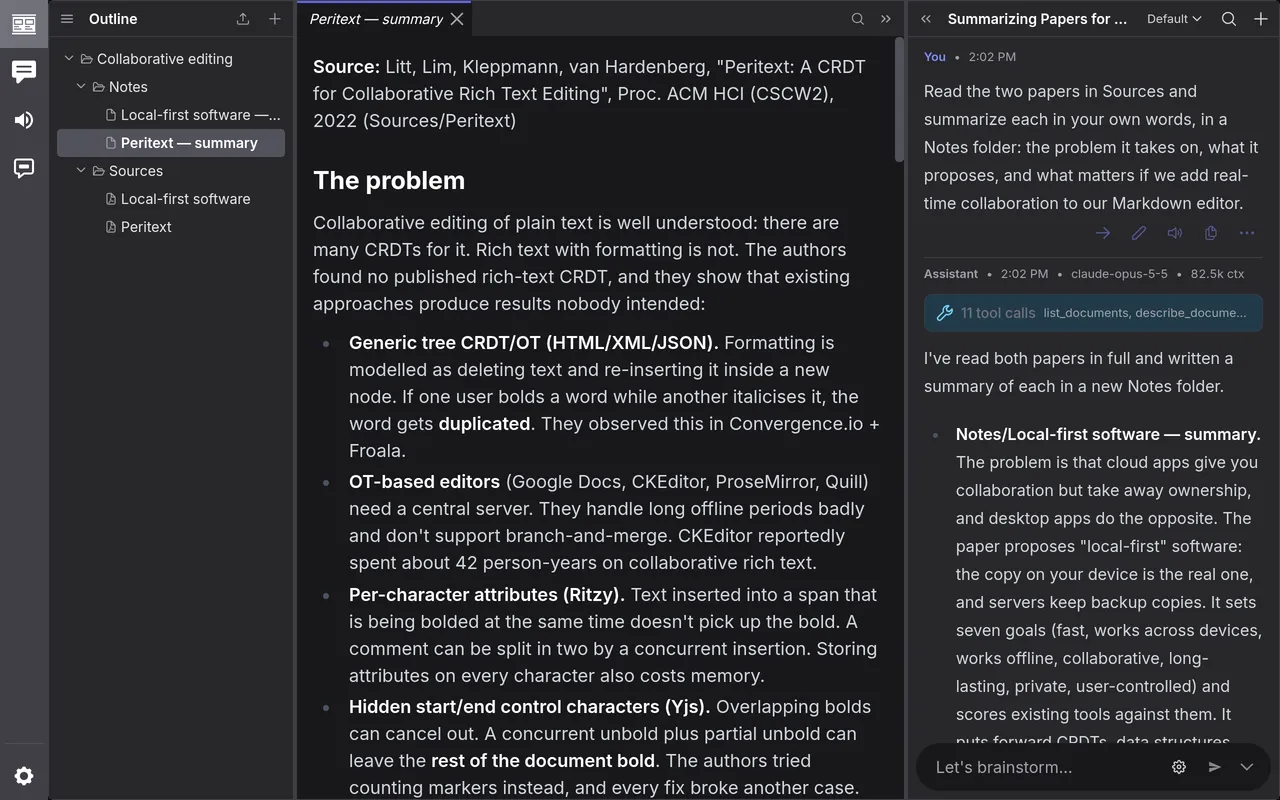
Read the two papers in Sources and summarize each in your own words, in a Notes folder: the problem it takes on, what it proposes, and what matters if we add real-time collaboration to our Markdown editor.
The model looked at each paper’s outline, read both in full, a part at a time, and wrote a note on each. Asking for its own words keeps it from quoting the papers at length.
Search the web
Section titled “Search the web”The papers are a few years old. To see where things stand now, ask:
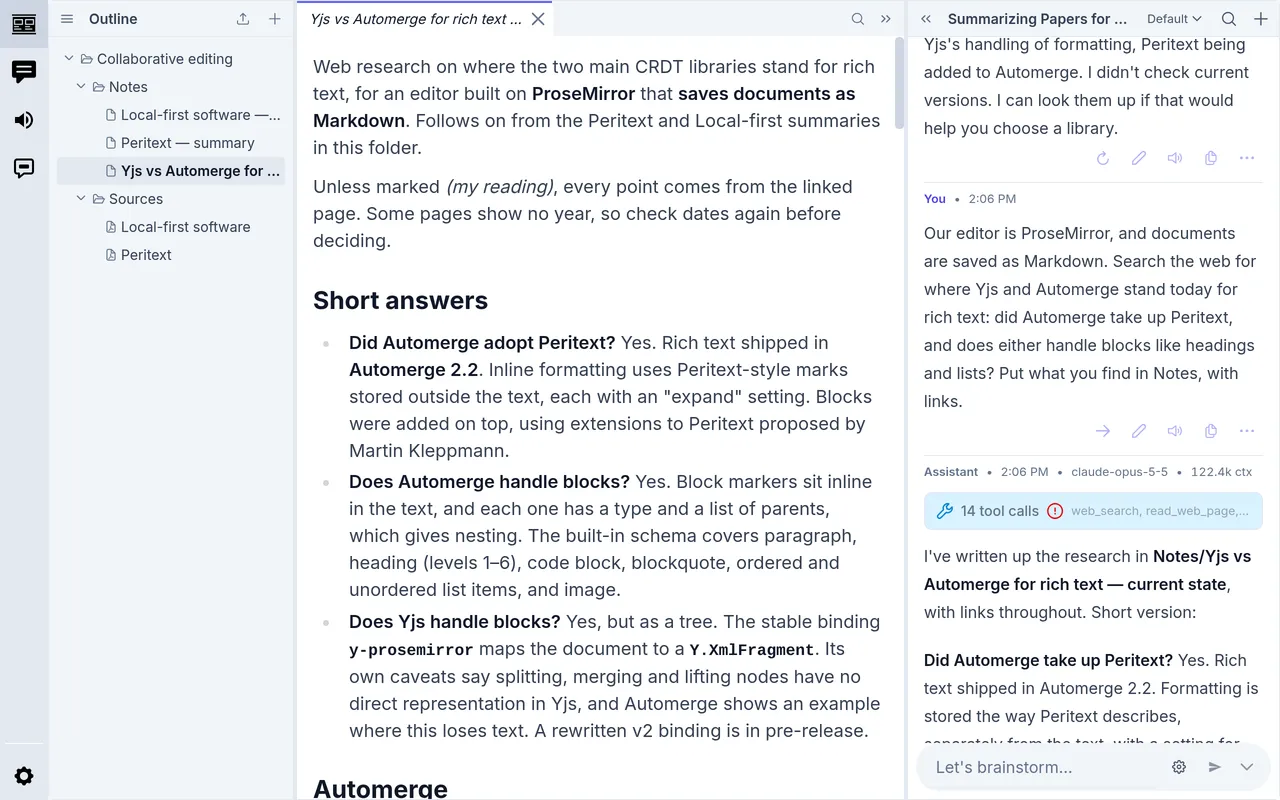
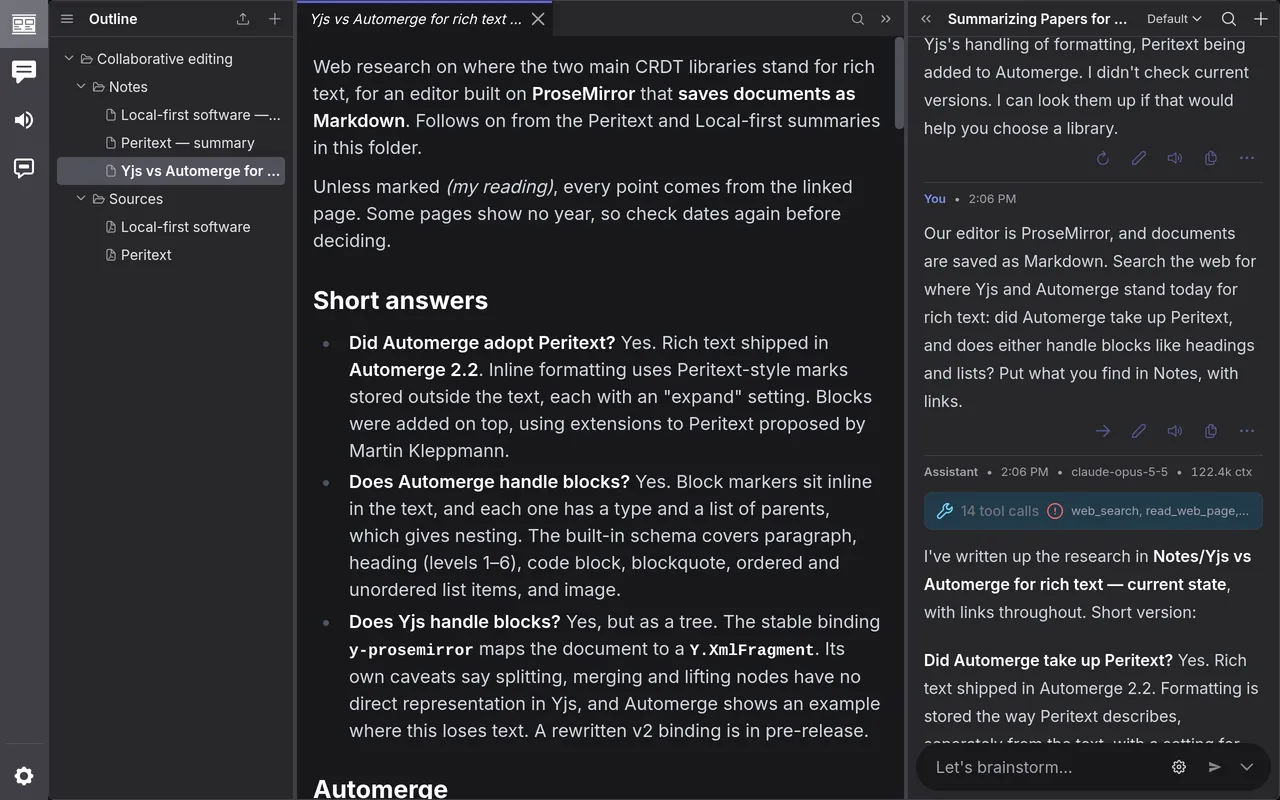
Our editor is ProseMirror, and documents are saved as Markdown. Search the web for where Yjs and Automerge stand today for rich text: did Automerge take up Peritext, and does either handle blocks like headings and lists? Put what you find in Notes, with links.
It ran five searches, read eight pages, and wrote a note with a link beside each finding. Click 14 tool calls above its reply to see each search and page. Two of the searches ran into Exa’s free limit, and the model said so in its reply.
Write the draft
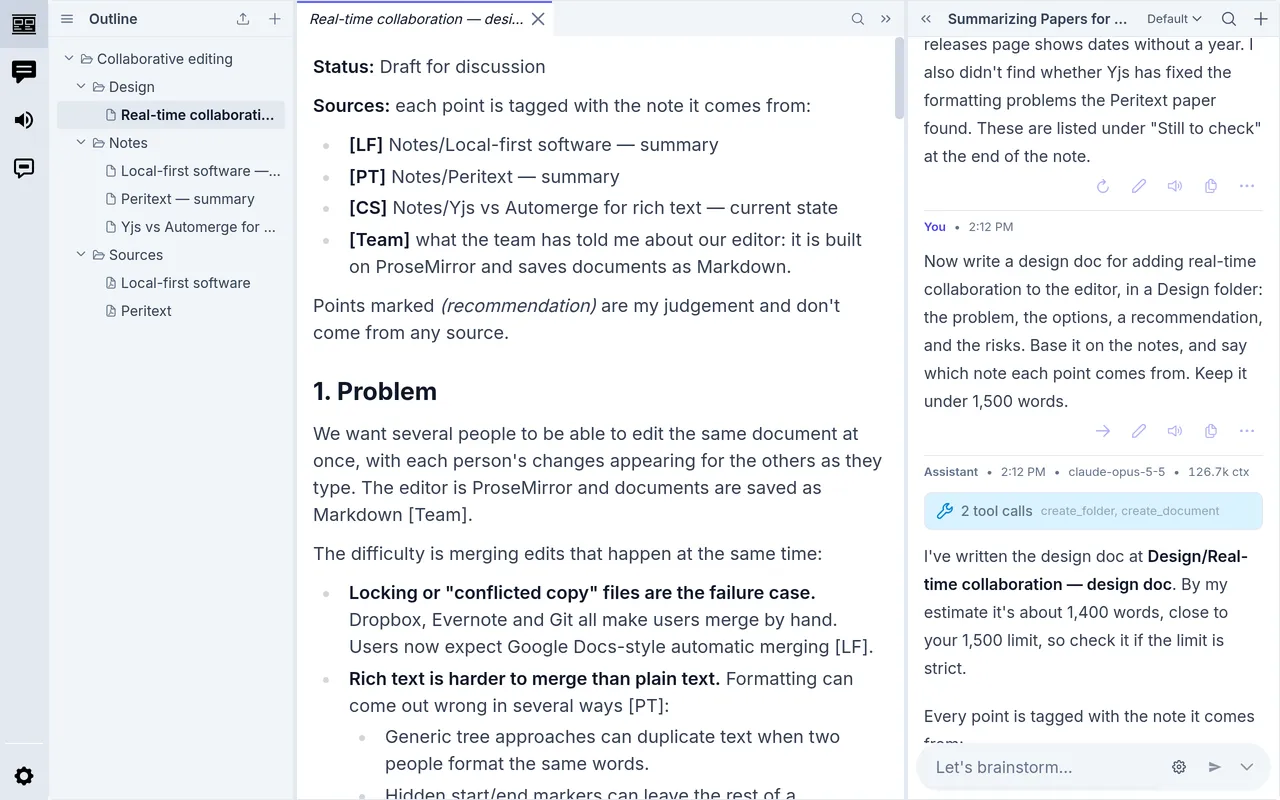
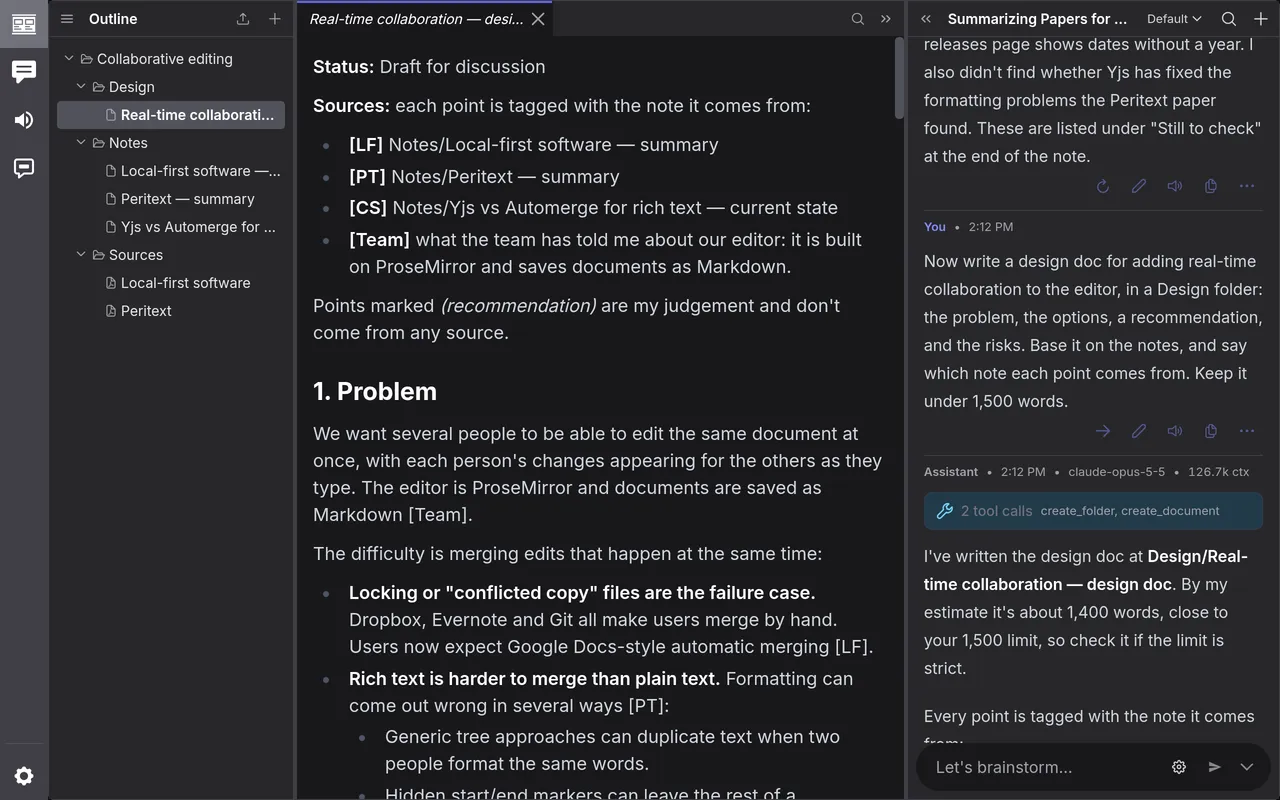
Section titled “Write the draft”Now write a design doc for adding real-time collaboration to the editor, in a Design folder: the problem, the options, a recommendation, and the risks. Base it on the notes, and say which note each point comes from. Keep it under 1,500 words.
It tagged each point with the note it came from and marked its own judgements as recommendations, so you can tell what’s sourced from what isn’t.
Leave comments
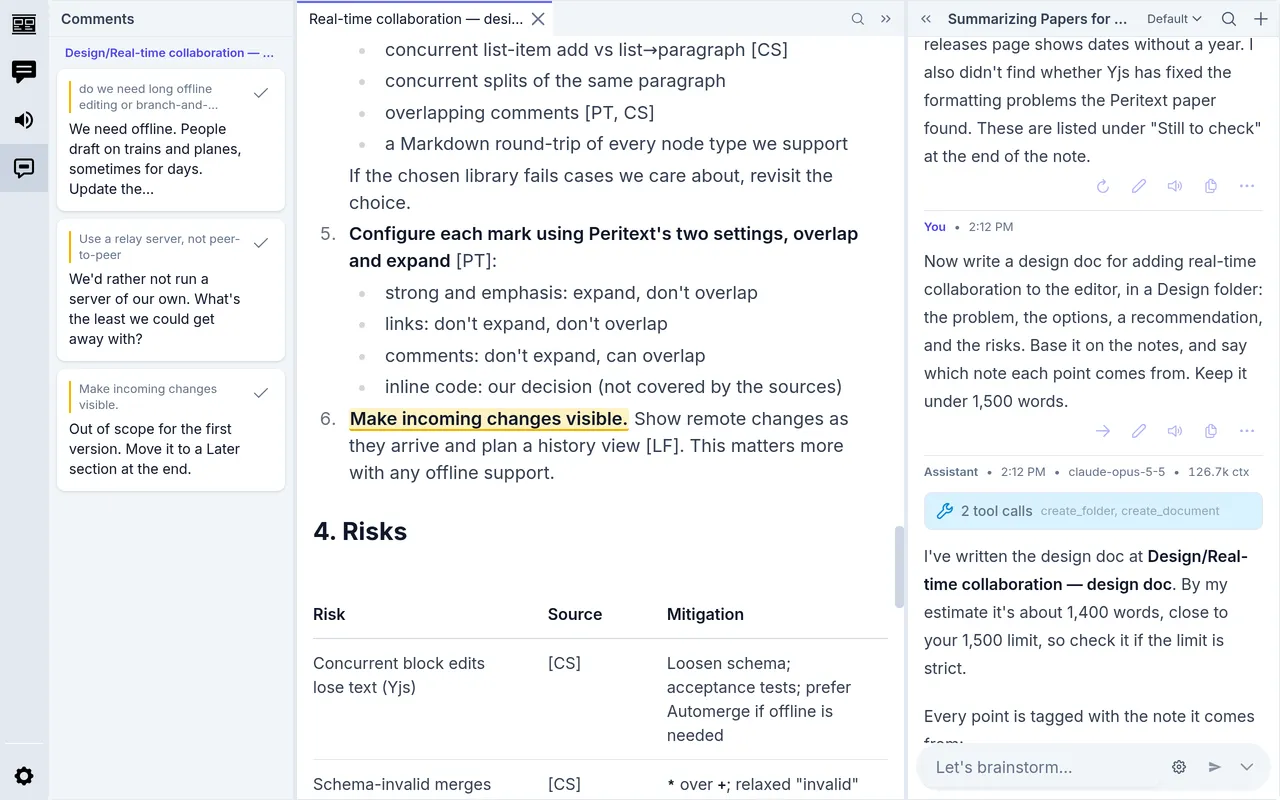
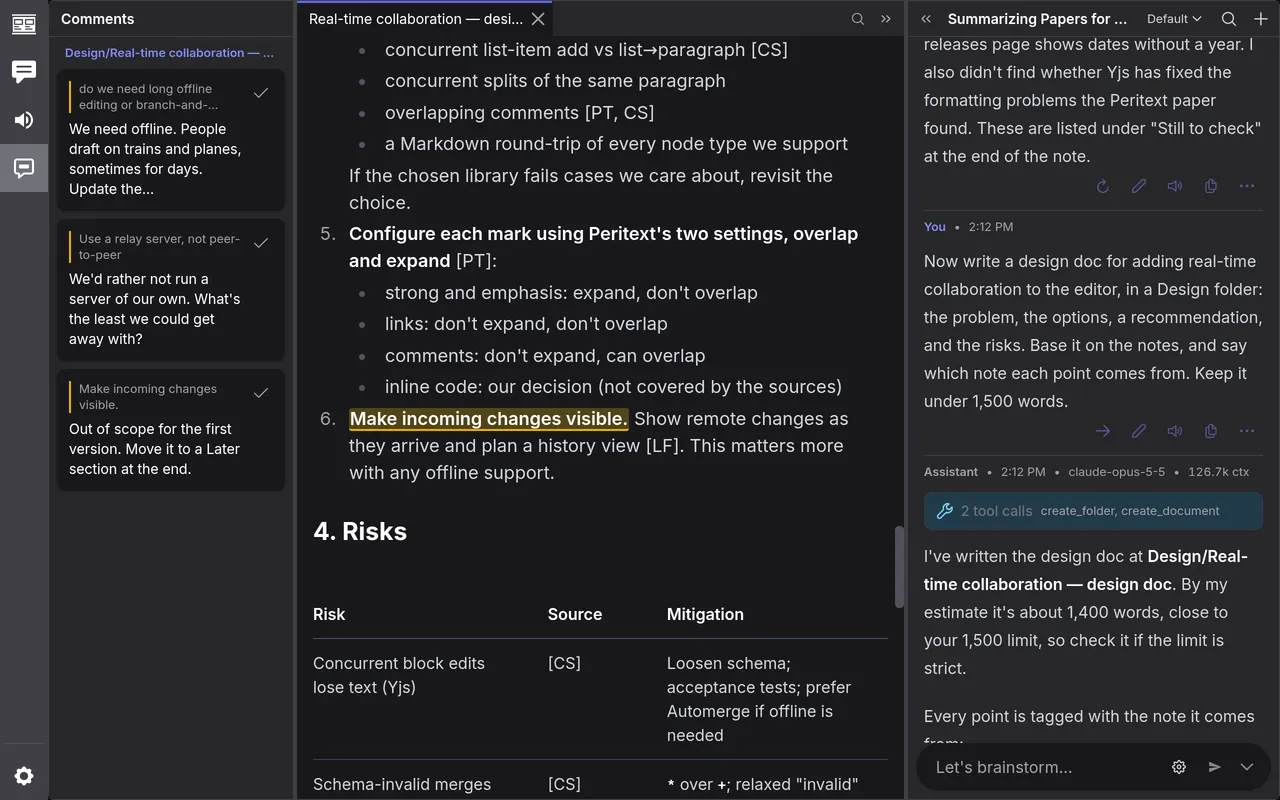
Section titled “Leave comments”Comment on the draft as you would on a colleague’s. Select a passage, click Comment or press ⌘ Shift M (Ctrl Shift M on Windows and Linux), type your comment, and press Enter.
This guide leaves three: one answering a question the draft left open, one asking a question, and one asking for a section to move.
The Comments icon at the far left lists every comment in the project. Click one to go to its passage.
Have the model work through them
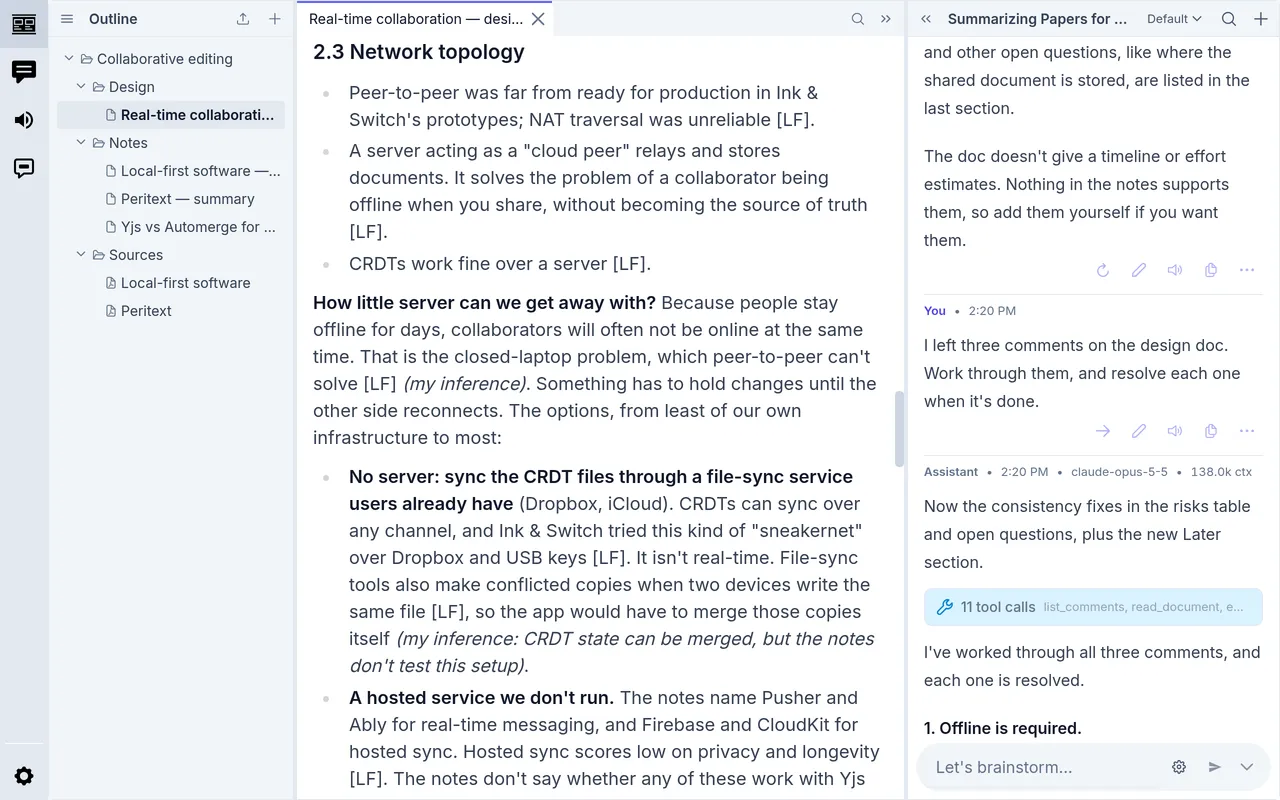
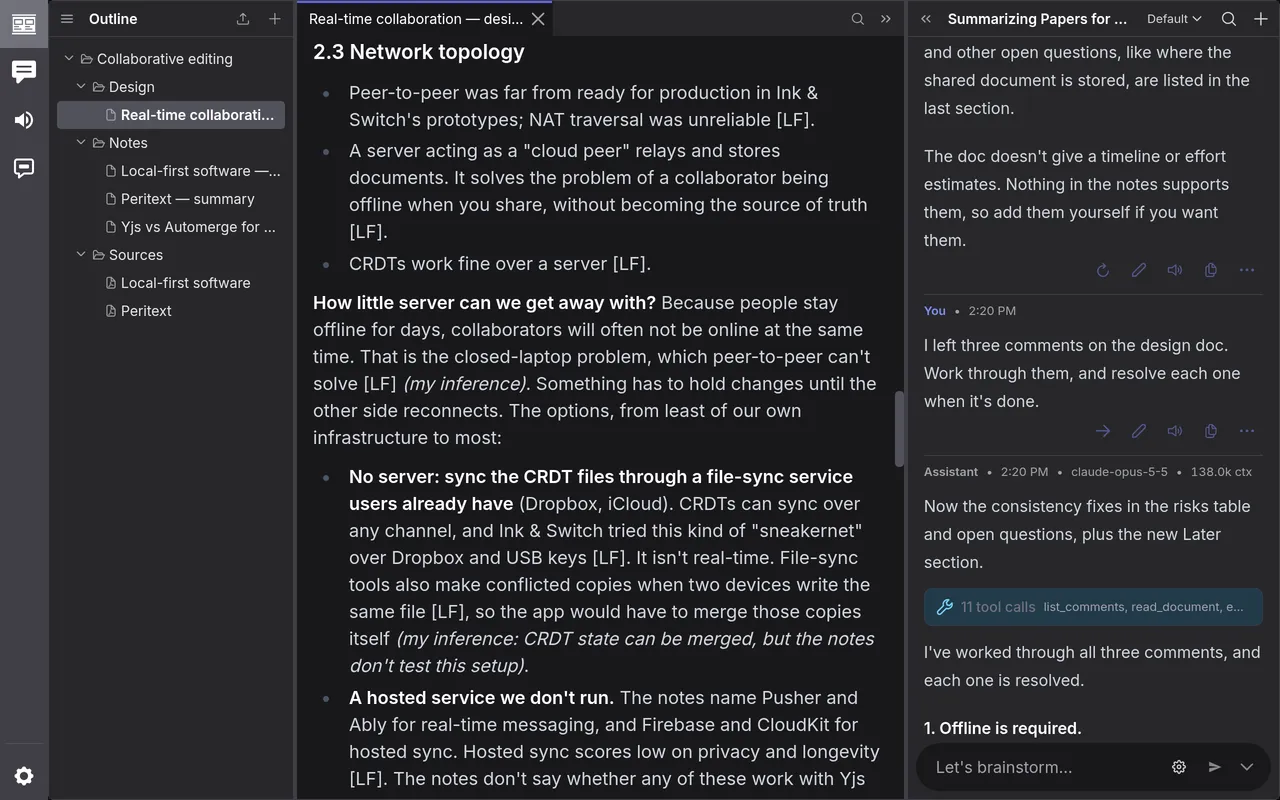
Section titled “Have the model work through them”I left three comments on the design doc. Work through them, and resolve each one when it’s done.
The model listed the comments, edited the doc for each, and said what it did. An edit to a commented passage resolves its comment, so all three were resolved when it finished. It also changed what depended on the first: with offline editing required, it now recommended Automerge.
To approve each change before it’s made, switch off Apply edits automatically under Tools in the chat’s settings (the gear in the message box). Comments has more.
Ask for a review
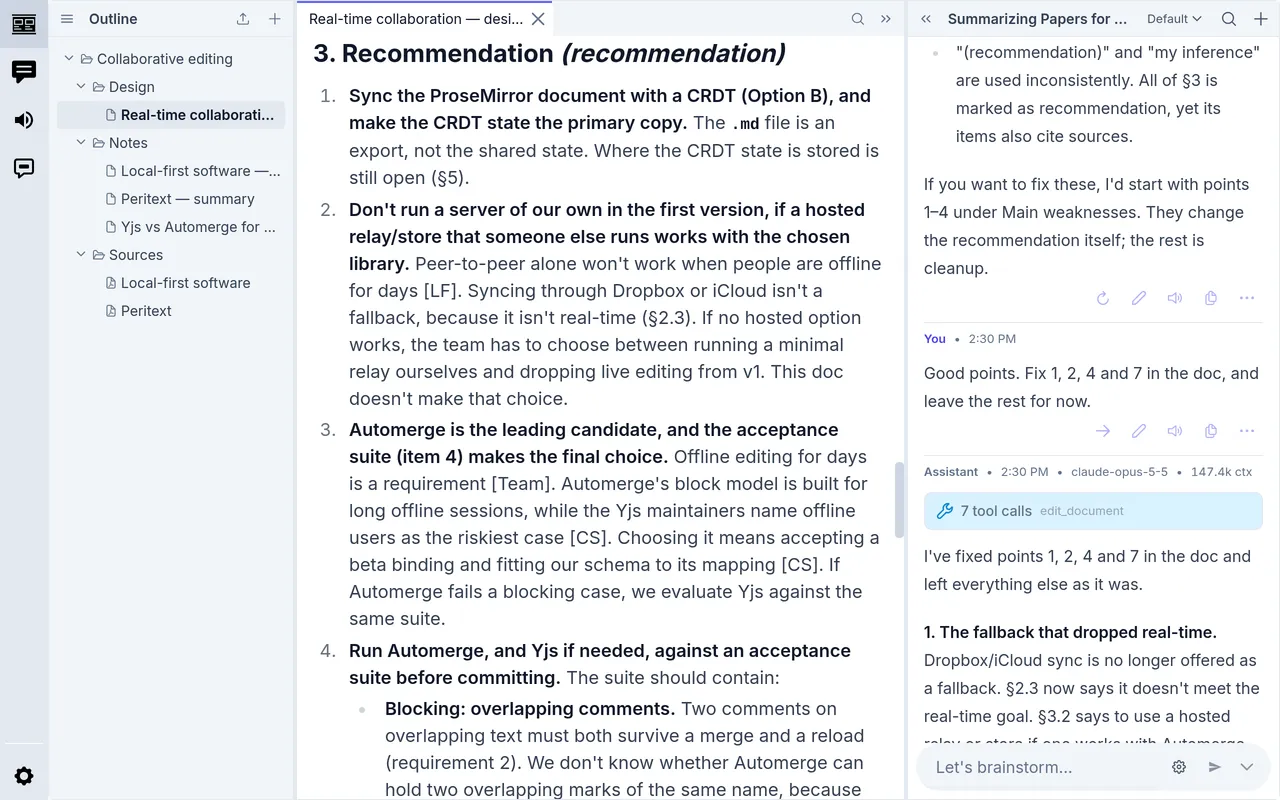
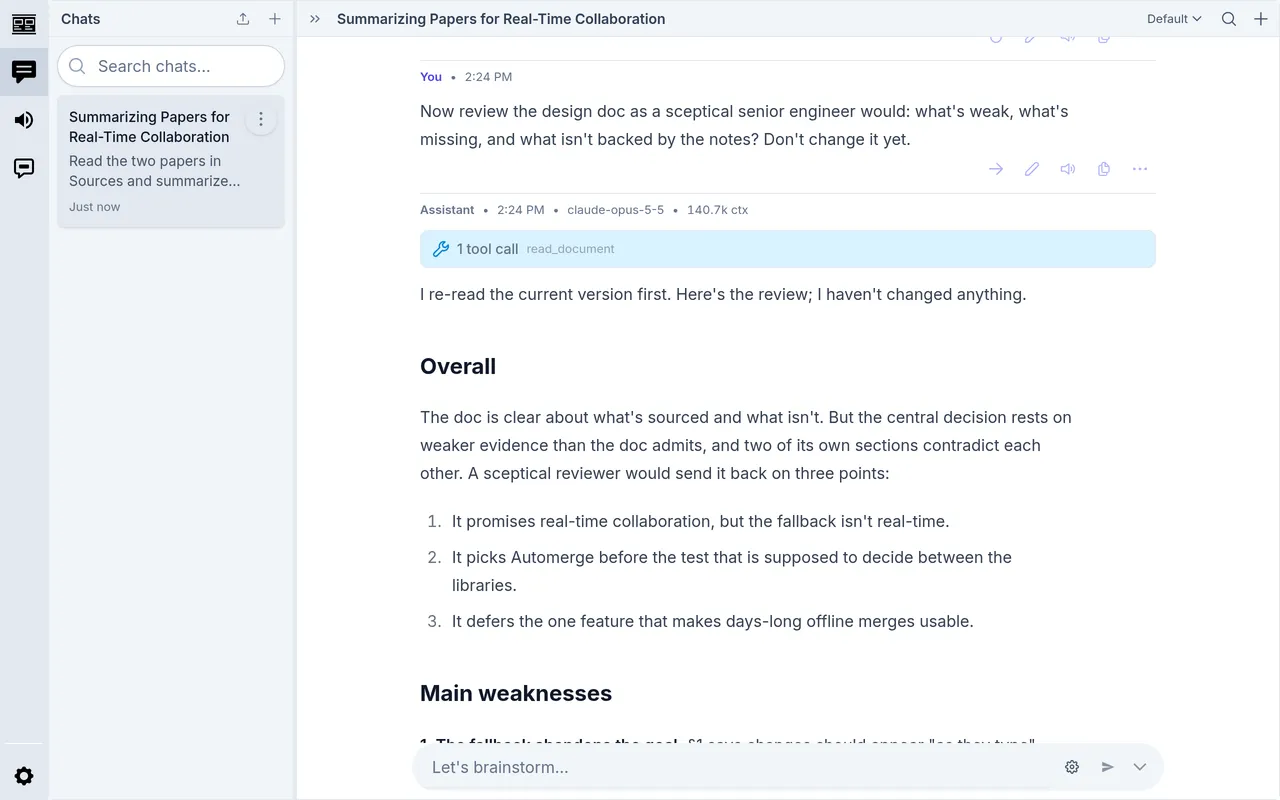
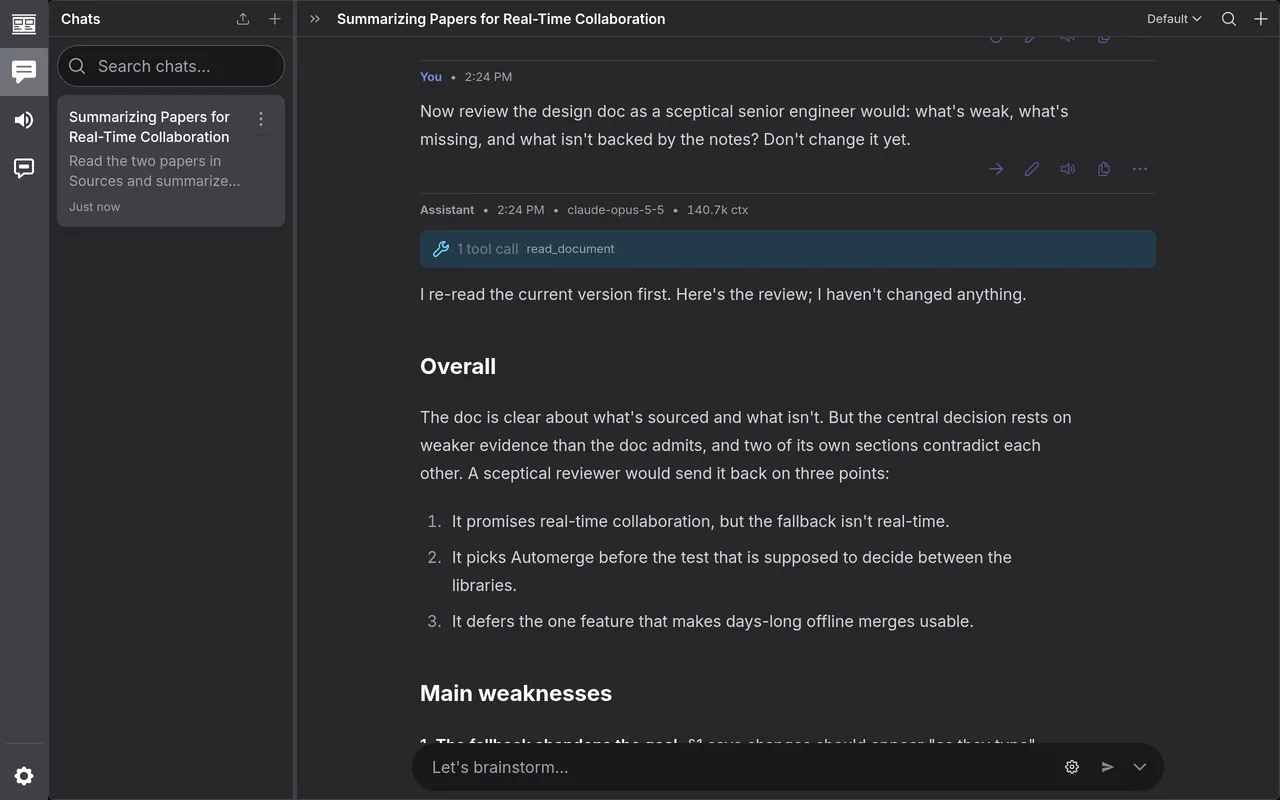
Section titled “Ask for a review”Now review the design doc as a sceptical senior engineer would: what’s weak, what’s missing, and what isn’t backed by the notes? Don’t change it yet.
The model reread the doc and listed seven weaknesses, among them two places where the doc contradicted itself and a requirement the chosen library might not meet. A review reads better wide: Hide editor, at the left of the chat’s header, gives the chat the editor’s room.
Revise
Section titled “Revise”Pick what to act on:
Good points. Fix 1, 2, 4 and 7 in the doc, and leave the rest for now.
The model fixed those four and left everything else as it was.