The Editor
The editor formats Markdown as you type, and saves as you go.
Click a document in the outline to open it. It opens in a tab with its name in italics: a preview, which the next document you click replaces. Type in it, or double-click the document or its tab, to keep it open.
- Close a tab with its ×, or click it with the middle button.
- Right-click a tab for Copy path, Edit in plain text editor and Keyboard shortcuts.
- Each project remembers its tabs, and a tab you come back to is where you left it.
When the model changes an open document, the change shows at once, and ⌘ Z (Ctrl Z on Windows and Linux) undoes it like one of your own.
Format as you type
Section titled “Format as you type”Type the Markdown and it turns into what it stands for:
| Type | For |
|---|---|
# and a space, up to ###### | A heading, level 1 to 6 |
- or * and a space | A bulleted list |
1. and a space | A numbered list |
> and a space | A quote |
``` | A code block |
--- on a line of its own | A horizontal rule |
**bold** | bold |
*italic* | italic |
~~struck~~ | |
`code` | code |
Press Backspace straight after to undo a conversion and keep what you typed.
In a list, Tab indents an item and Shift Tab outdents it. Enter on an empty item ends the list. Shift Enter breaks a line without starting a new paragraph, and takes you out of a code block.
Quotes, dashes and ellipses
Section titled “Quotes, dashes and ellipses”As in a word processor:
"and'become curly quotes and apostrophes: “like this”.--becomes an em dash (—), except at the start of a line, so---on a line of its own is still a rule....becomes an ellipsis (…).
None of this happens in code. To keep the straight characters, press Backspace straight after.
Tables
Section titled “Tables”Type the header row, with a pipe at each end and between the columns, and press Enter:
| Name | Role | First seen |It becomes a table with an empty row under the header, and the caret in it.
- Tab goes to the next cell, and from the last cell adds a row. Shift Tab goes back.
- Enter goes down a row, adding one at the bottom. On an empty last row it ends the table.
- Shift Enter leaves the table for a paragraph after it.
A cell holds one line of text: several lines pasted into it are joined.
Right-click a cell to insert rows and columns, delete them, align a column’s text, or Delete table.
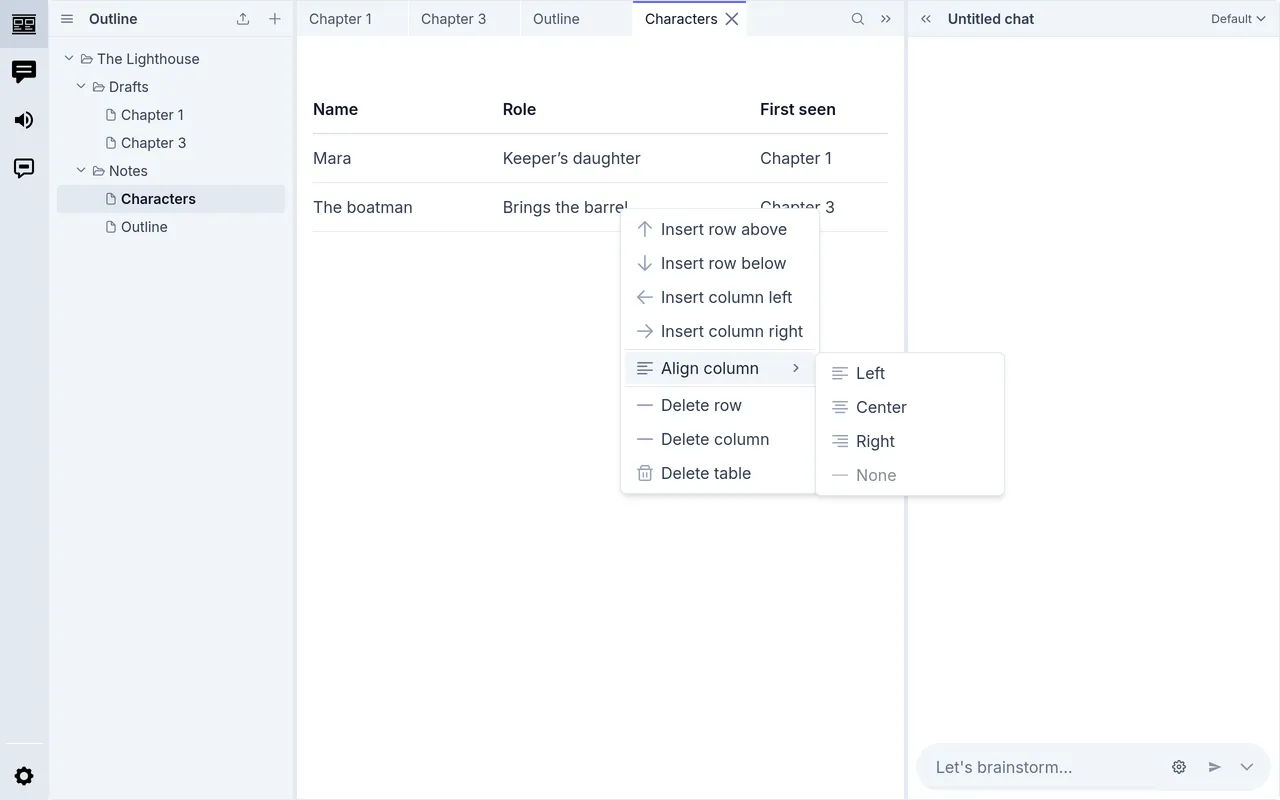
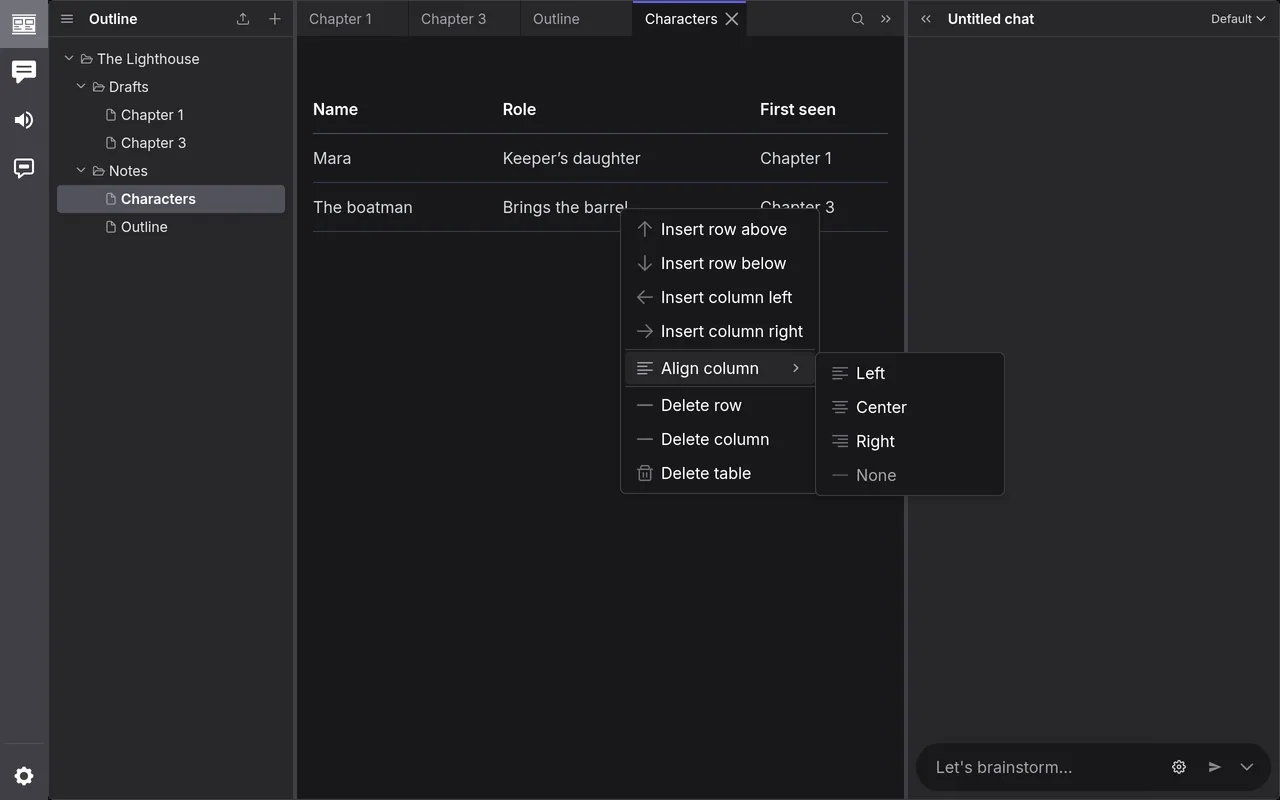
To delete a table from the keyboard, put the caret at the start of the line after it. Backspace selects the table, again empties its cells, and a third time deletes it.
Select some words and press ⌘ K (Ctrl
K on Windows and Linux). Type or paste the address and press
Enter or click Apply. An address without https:// gets it,
and an email address becomes a mail link. With nothing selected, the keys ask
for the link’s Text too; with the caret in a link, they change it.
Paste an address that starts with https:// over selected words to link them,
or on its own to put it in as a link.
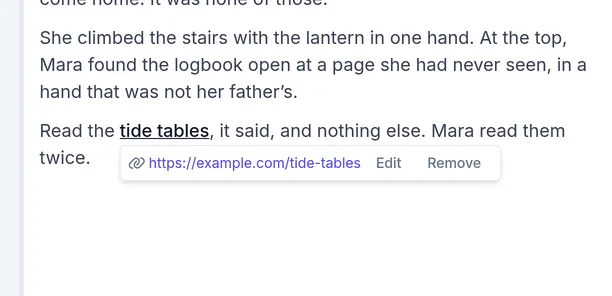
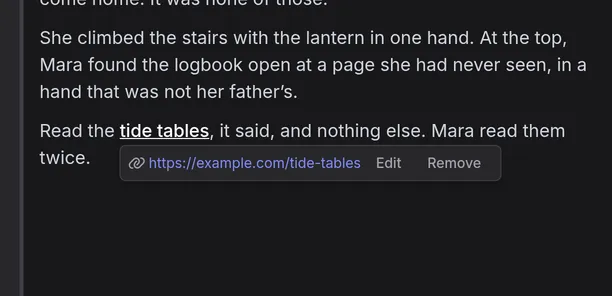
Click in a link to see where it goes, with Edit and Remove beside it. Click the address, or ⌘-click the link (Ctrl-click on Windows and Linux), to follow it. In a browser it opens in a new tab; in the desktop app, in your usual browser.
Link to another document
Section titled “Link to another document”In the link field, type the document’s path, such as Notes/Cast list, or
just its name if no other document has it. To get a path, right-click the
document in the outline and choose Copy path.
The link is written the way other Markdown apps write it, from this document
to the other one: ../Notes/Cast%20list.md. Click in it to see the
document’s name, and click the name or ⌘-click the link to open the
document in a tab. If the document isn’t there, inksprite says so.
Renaming or moving a document doesn’t change the links to it yet.
Find and replace
Section titled “Find and replace”With the caret in a document, press ⌘ F (Ctrl F on Windows and Linux), or click the magnifier at the right end of the tabs. Words you’ve selected are what it looks for.
Type what to find. Every match is marked, and the bar says how many there are. Enter goes to the next and Shift Enter to the one before. Aa (Match case) finds only text in the case you typed, and Whole words stops he matching the.
To replace, click the arrow at the left of the bar and type the replacement. Replace changes the match you’re on and moves to the next; All changes every one, as one step to undo. Replacements keep the formatting of what they replace. With Match case off, a replacement typed in lower case takes the capitals of each match: she over He is She.
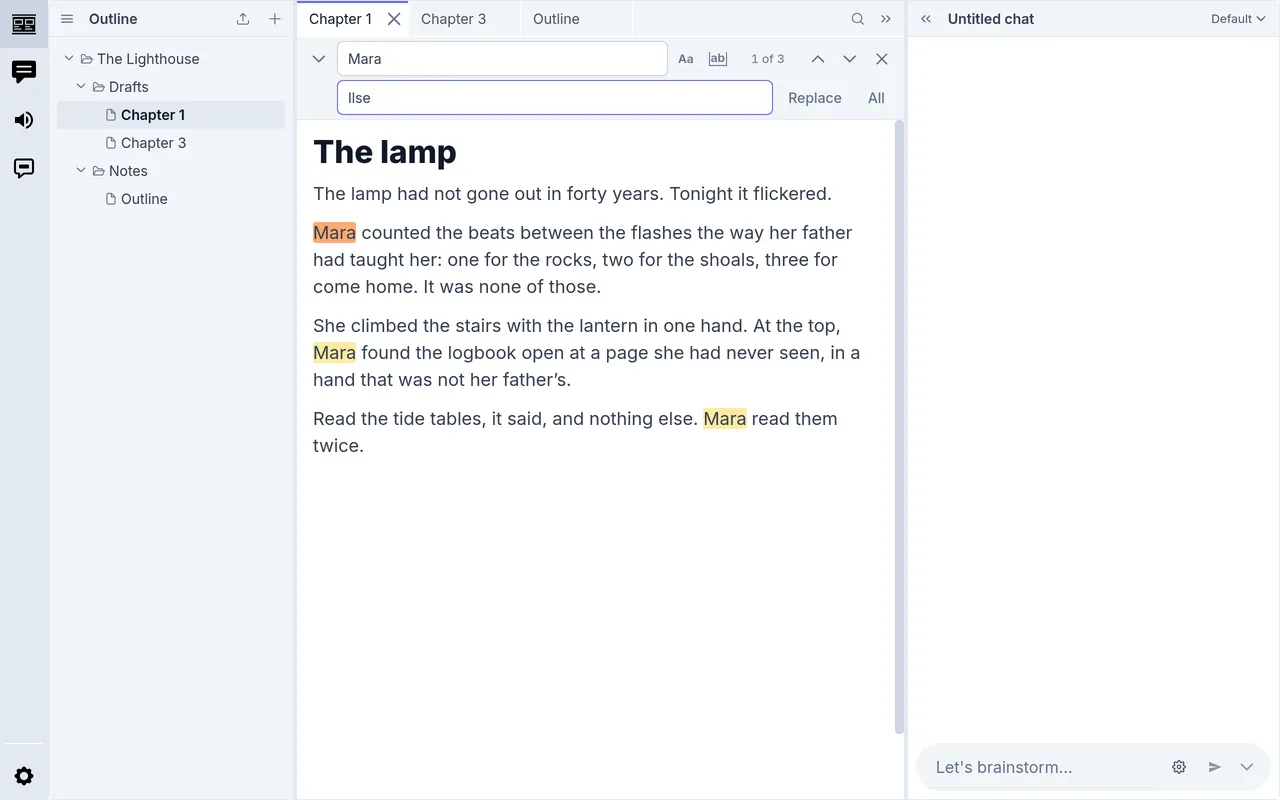
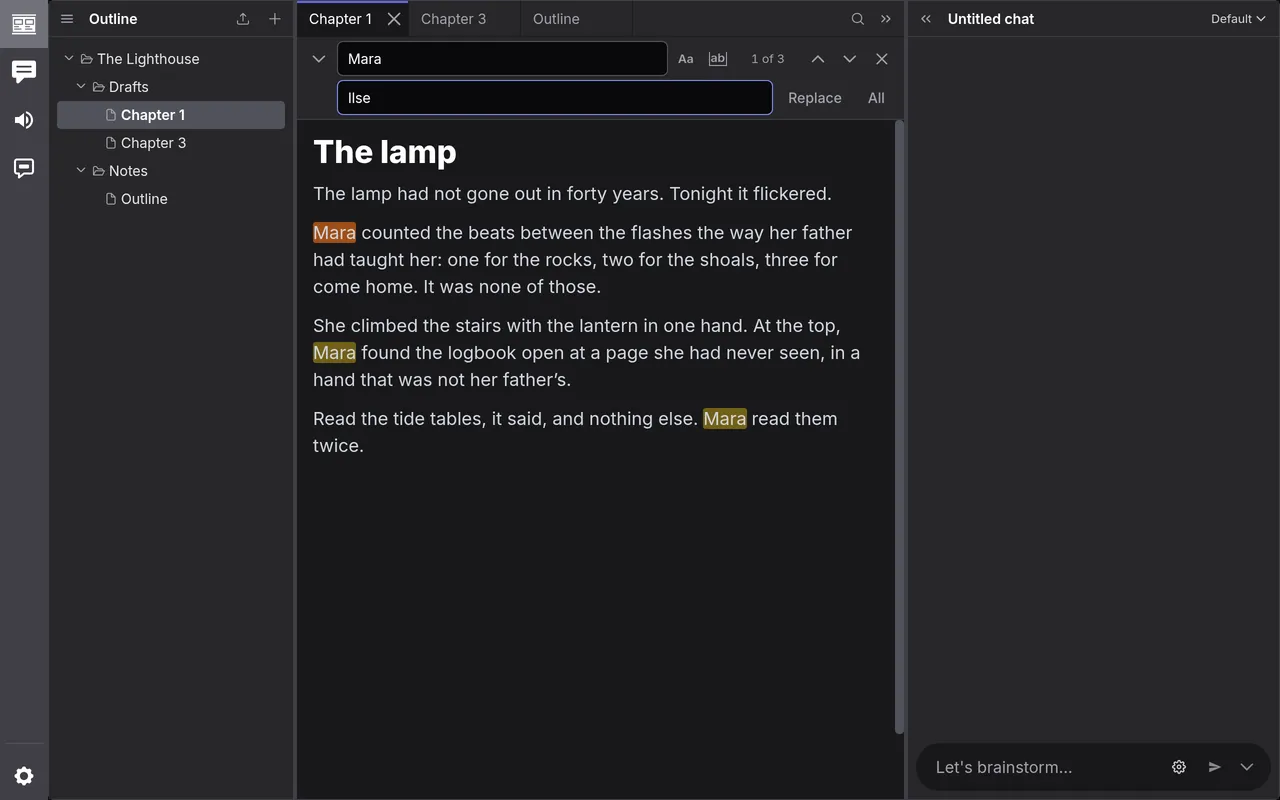
Esc closes the bar, with the caret on the match you were on.
Keyboard shortcuts
Section titled “Keyboard shortcuts”Press ⌘ / (Ctrl / on Windows and Linux) in a document for the whole list, or right-click its tab and choose Keyboard shortcuts.
| Action | Mac | Windows and Linux |
|---|---|---|
| Bold | ⌘ B | Ctrl B |
| Italic | ⌘ I | Ctrl I |
| Strikethrough | ⌘ ⇧ S | Ctrl Shift S |
| Code | ⌘ E | Ctrl E |
| Link | ⌘ K | Ctrl K |
| Comment | ⌘ ⇧ M | Ctrl Shift M |
| Heading 1 to 6 | ⌘ ⌥ 1 to 6 | Ctrl Alt 1 to 6 |
| Paragraph | ⌘ ⌥ 0 | Ctrl Alt 0 |
| Bulleted list | ⌘ ⇧ 8 | Ctrl Shift 8 |
| Numbered list | ⌘ ⇧ 7 | Ctrl Shift 7 |
| Quote | ⌘ ⇧ B | Ctrl Shift B |
| Code block | ⌘ ⌥ C | Ctrl Alt C |
| Undo | ⌘ Z | Ctrl Z |
| Redo | ⌘ ⇧ Z | Ctrl Shift Z or Ctrl Y |
| Find and replace | ⌘ F | Ctrl F |
Select text and press the Comment keys to leave a note on it: see Comments.
The plain text editor
Section titled “The plain text editor”To see the Markdown underneath a document, or keep its text exactly as you type it, right-click it in the outline, or its tab, and choose Edit in plain text editor. Its tab is marked with </>.
Choose it again, ticked now, to go back to the editor. If the editor had to rewrite some of the Markdown to show it, it says so: What changed? shows the lines, and Undo puts back what you typed, as plain text.
Find and replace works here too. A document imported from outside that’s too long for the editor to keep up with comes in as plain text.
Download or copy a document
Section titled “Download or copy a document”Right-click a document in the outline:
- Download saves it as a Markdown file (
.md). - Duplicate makes a copy beside it, named with (2), and opens it: try something there without touching the original.
Arrange the panels
Section titled “Arrange the panels”- Hide chat, at the right end of the tabs, gives the editor the chat’s room; click it again (Show chat) to bring the chat back. Hide editor, at the left of the chat’s header, does the same the other way.
- Click the icon at the far left for the list that’s showing (the outline, say) to hide the sidebar, and any of the icons to show it again.
- Drag the line between two panels to change their widths.
Each project remembers how you left it. In a narrow window, the sidebar and the chat take turns beside the editor.
On a phone
Section titled “On a phone”The editor is the Write view, the pen at the top. The tabs show while a document is open, and the magnifier at their right end opens find and replace. The outline’s menu, with Download and the rest, is the ⋯ on each row.