Projects
A project holds one piece of work: its documents, the files you imported, and its chats.
Switch projects
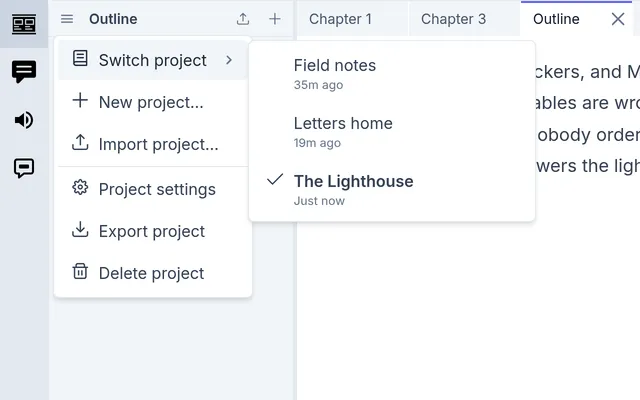
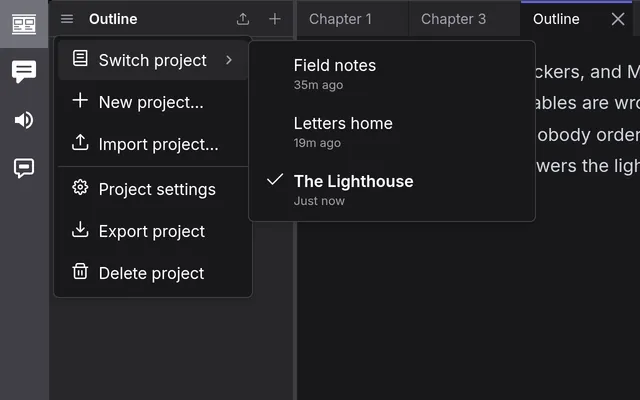
Section titled “Switch projects”Click Projects, the menu at the top left of the outline. Switch project lists your projects by name, each with when it was last edited: click one to open it where you left it. New project… starts one, and Import project… adds one from a file: see move a project. Project settings, Export project and Delete project are for the project that’s open.
A project with a name another already has gets a number: a second Lighthouse is Lighthouse (2).
Project settings
Section titled “Project settings”Choose Project settings from Projects, or right-click the project, the first row of the outline, and choose it there.
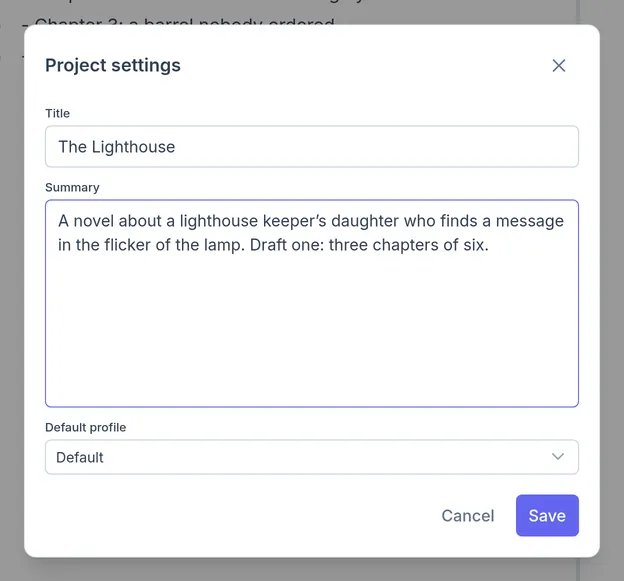
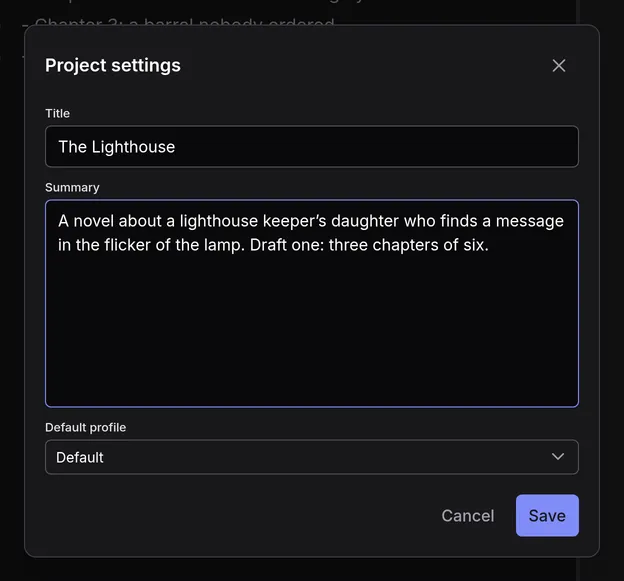
- Title is the project’s name.
- Summary says what the project is. The model reads it with every message, so a few lines on the work and where it stands save explaining it in each chat.
- Default profile is the profile new chats here start on. Chats you’ve already started keep theirs.
Click Save.
Arrange the outline
Section titled “Arrange the outline”Right-click a row for its menu, or the space below the last row for the project’s. On a phone, press and hold a row, or tap its ⋯.
The plus at the top of the outline starts a document at the top of the project, and Import beside it brings files in there: see PDFs, Images, and Ebooks.
A folder lists its folders first, then its documents, each by name, with numbers in order: Chapter 2 comes before Chapter 10. Choose Keep in order from a folder’s menu to keep them in the order you drag them into, with new ones at the end. Sort by name goes back to sorting by name, and remembers your order for when you choose Keep in order again.
Drag a document or a folder onto a folder to put it inside; a closed folder opens if you hold it there. Drop it between two rows to put it in their folder. In a folder kept in order, it stays where you drop it.
No two documents in a folder share a name, whatever their capitals. A name you type that’s taken is refused, and the outline says what has it. Something moved, imported or copied into a folder that has its name gets a number: Notes (2).
The row’s menu
Section titled “The row’s menu”- Rename edits the name; so does F2.
- Duplicate copies a document beside itself and opens the copy.
- Download saves a document as a Markdown file, or an imported file as it came in.
- Copy path copies where the document is, such as
Notes/Characters/Elara, for naming it in a chat. - Hide from all chats keeps it out of every chat’s sight. Pins and hiding in one chat are in Chats.
- Import, on a folder, brings files in: see PDFs, Images, and Ebooks.
From the keyboard, the arrow keys move along the outline and open and close folders, and Enter opens a document.
Delete
Section titled “Delete”Choose Delete from the row’s menu. A folder goes with everything in it. To delete a whole project and its chats, choose Delete project from Projects or the project’s menu.
There’s no undo: if you might want it back, back up first. In the desktop app, what you delete goes to your computer’s trash.
Move a project
Section titled “Move a project”A project file carries one project to another browser, to the desktop app, or to someone else.
- Choose Export project from Projects, or right-click the project. inksprite saves a file named after it, with its documents, imported files and chats, and any profiles of yours its chats use.
- Where you want it, choose Import project… from Projects at the top of the outline (click Import project when no project is open), and choose the file.
It comes in as a new project beside the others, and changes nothing that’s there. Your settings and keys stay behind.
Move your settings
Section titled “Move your settings”A settings file carries your setup without your projects: your AI connections, presets, chat profiles, MCP servers, skills, web search, and the choices you made in Settings. Use one to set up another browser or the desktop app, or to share your setup with someone.
- Open Settings › System, click Export and choose Settings.
- Untick anything you don’t want in it. Ticking a preset ticks the connection it runs on. Your preferences stay out unless you tick them.
- Leave Include API keys off unless the file stays with you, and click Export.
To bring one in, click Import and choose the file. inksprite says what the file adds and what it changes, and asks before it goes on, then reloads. Nothing else changes: anything you have that the file doesn’t is kept, a key the file left out keeps yours, and your projects aren’t touched. If the file moves a connection or an MCP server to another address, your key for it is left out, so you’d add it again. An MCP server you already have keeps the tools you allowed; one the file adds asks before it runs a tool, as any new server does.
Back up everything
Section titled “Back up everything”A backup holds every project, chat and setting.
- Open Settings › System and click Export. Leave Everything chosen.
- Leave Include API keys off unless the file stays with you. It covers the keys for your AI providers, MCP servers and web search.
- Click Export. inksprite saves a file named with the date.
To restore one, click Import and choose the file. inksprite says what the backup holds and asks before it goes on: Replace deletes everything inksprite holds now, puts the backup in its place, and reloads.
A backup made without keys comes back without them. Before you restore it, inksprite lists the services whose keys were left out, so you know which to connect again. Your sign-ins to MCP servers and the Debug switch are never in a backup. A backup from an older version of inksprite restores too.
Where your work is kept
Section titled “Where your work is kept”In a browser, your work is in that browser’s storage, on that computer. Another browser starts empty: bring your work over with a backup or a project file. Clearing the site’s data deletes it.
When you start a project, inksprite asks the browser to keep its data. Firefox asks you first; allow it.
The desktop app keeps your work where no browser can clear it, and can keep each project as a folder of Markdown files.