Comments
A comment is a note on a passage: a reminder to yourself, or something for the model to fix. The model sees your comments in the text, and can work through them for you.
Leave a comment
Section titled “Leave a comment”- Select the passage in the editor.
- Click Comment under the selection, or press ⌘ ⇧ M (Ctrl Shift M on Windows and Linux).
- Type the comment and press Enter.
Shift Enter starts a new line in the comment. Esc or the cross (Cancel) puts it away unsaved.
The passage is highlighted in yellow. Hover over it to read the comment.
Edit or resolve one
Section titled “Edit or resolve one”Click in a highlighted passage. The comment shows under the line, with two buttons:
- The pencil (Edit comment) opens it to change. ⌘ ⇧ M in the passage does the same. Press Enter or click the tick (Save) to keep the change.
- The tick (Resolve) takes the comment off and leaves the passage as it is. That’s also how you delete one.
⌘ Z (Ctrl Z on Windows and Linux) brings back a comment you resolved in the editor. Delete a commented passage and its comment goes with it.
A comment hides while you type in its passage, and shows again when you move the caret.
The Comments tab
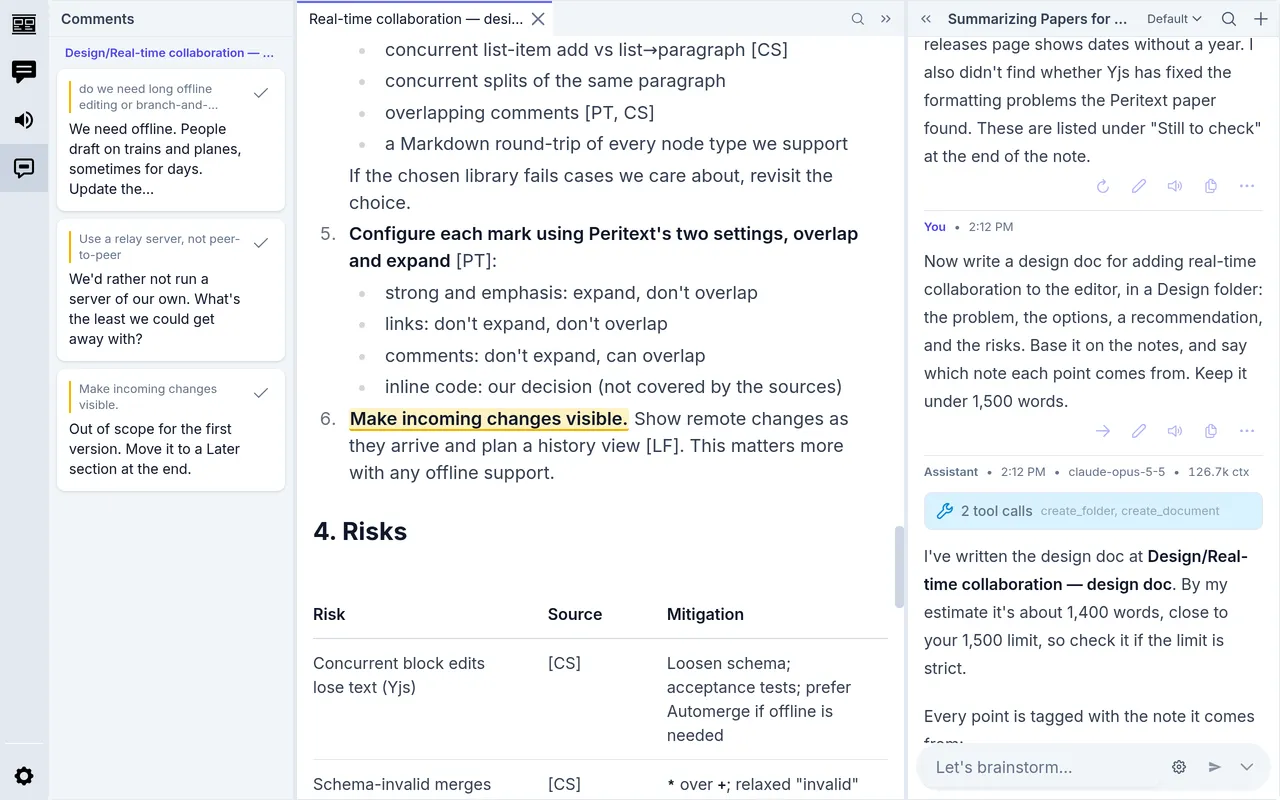
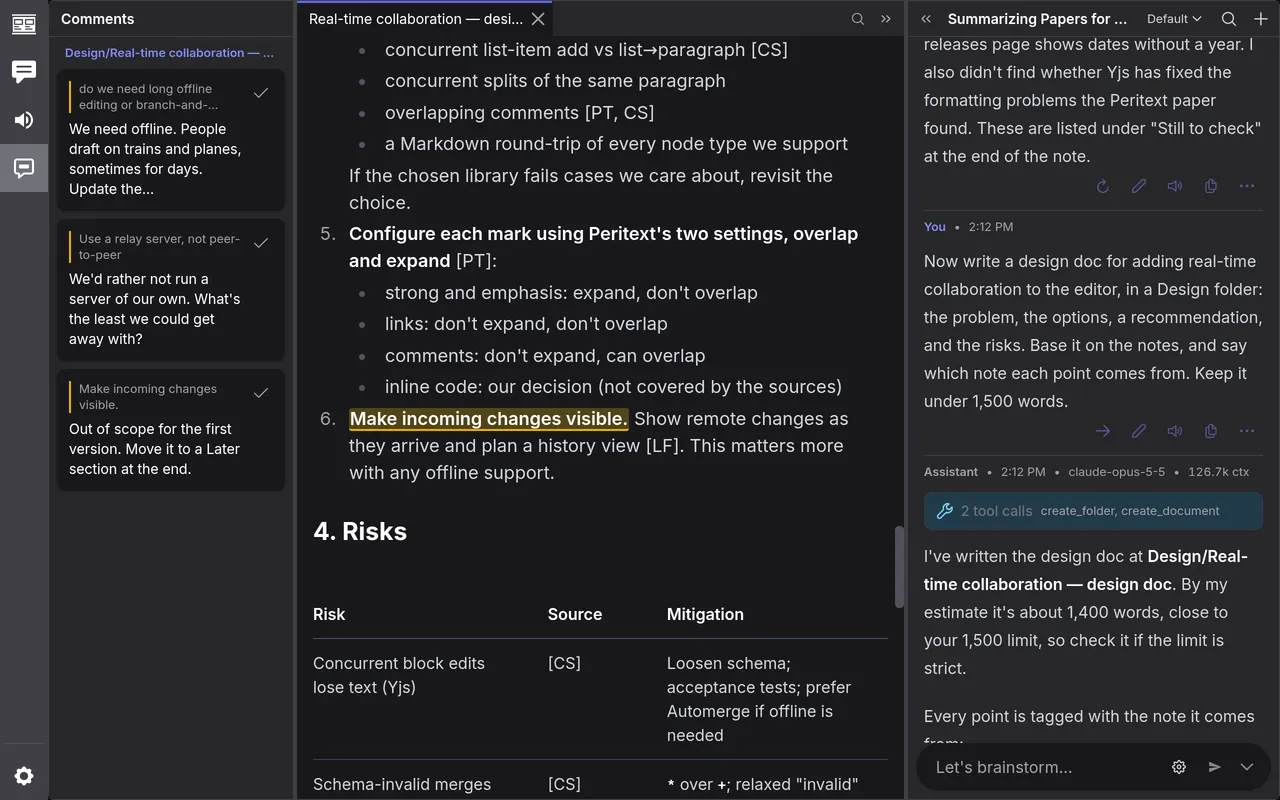
Section titled “The Comments tab”Click Comments among the icons at the far left. It lists every comment in the project, under the document each is in, in the outline’s order. Each shows the passage and the comment, a long one cut to a few lines.
- Click a comment to open its document at the passage and see all of it.
- Click a document’s name to open it.
- Click the tick on a comment to resolve it. In a document that isn’t open in a tab, that can’t be undone.
The comment you picked, or the one the caret is in, is ringed in the list.
In the text
Section titled “In the text”A comment is kept in the document’s text, in a form called CriticMarkup. You see it in the plain text editor and in a downloaded document:
{==Make incoming changes visible.==}{>>k7m2qa: Out of scope for the first version. Move it to a Later section at the end.<<}{==…==} holds the passage and {>>…<<} the comment, after the id the model
names it by. A new line in a comment is written <br>. The plain text editor
has no Comment button: there, a comment is its markup.
On a phone
Section titled “On a phone”Select some text, and a Comment button comes up in a bar at the bottom of the screen. Tap it, type the comment and tap the tick. On a touch screen, Return starts a new line.
Tap in a highlighted passage to see its comment in the same bar, with the pencil and the tick.
Comments is in the ⋯ menu on the top bar. Pick a comment there to go to it in the editor.
Ask the model
Section titled “Ask the model”In a chat with the Documents tools on, as on the Default profile, the model sees your comments when it reads a document, and a listing of the project says how many each document has. Ask it to deal with them, and it:
- lists them, to find them all
- rewrites a passage to answer its comment, which resolves the comment
- resolves a comment that needs no change, or that it answered in the chat
Any change to a passage’s words resolves its comment. When the model rewrites a whole document, a comment stays if its words are still there unchanged. If some comments are notes to yourself, say which ones are for the model.
An example
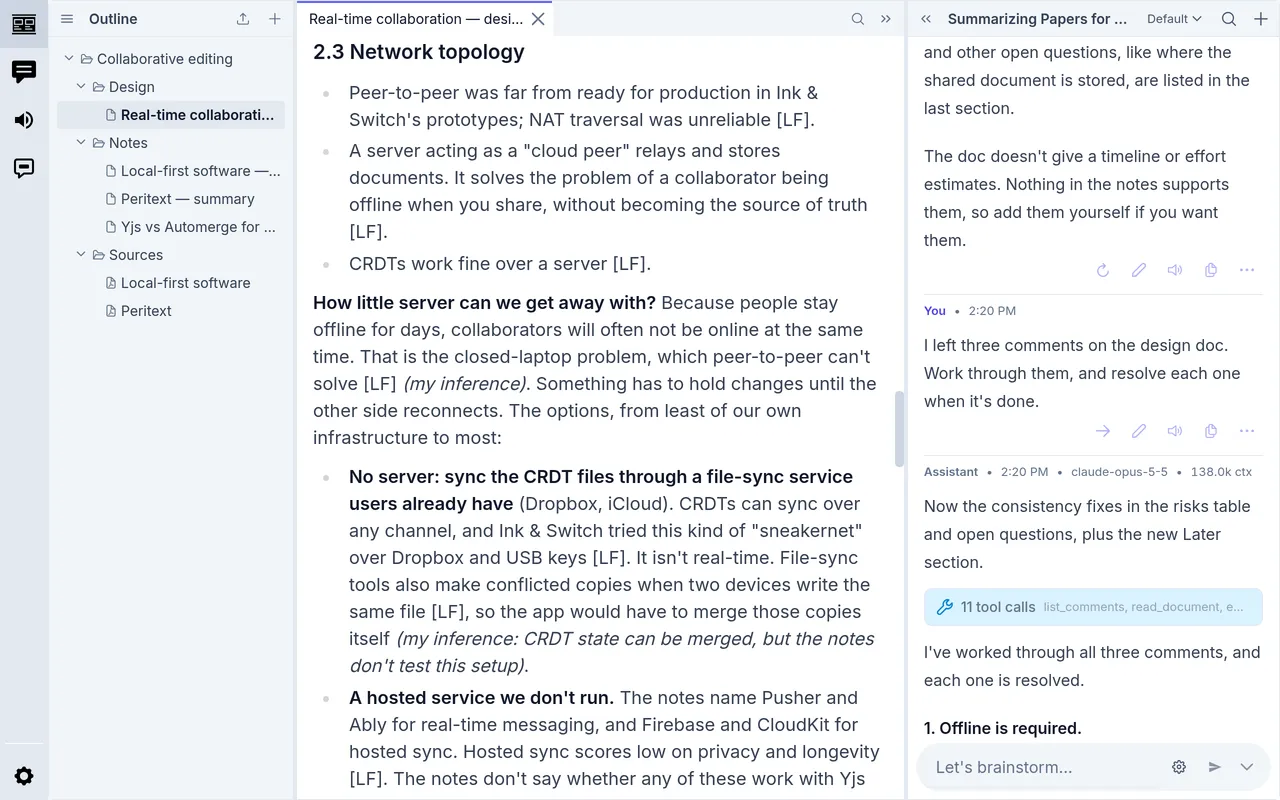
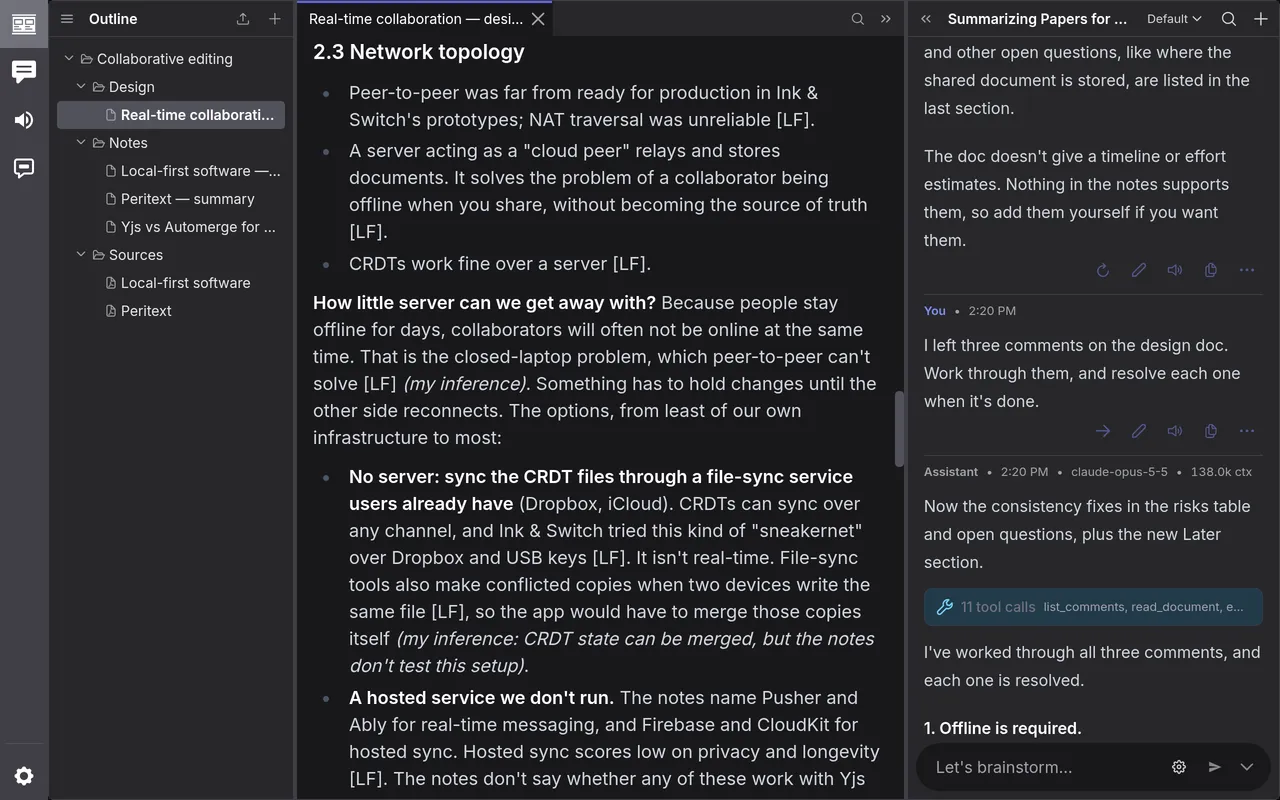
Section titled “An example”The research guide leaves three comments on a design doc, the ones in the Comments tab above, then asks in the chat:
I left three comments on the design doc. Work through them, and resolve each one when it’s done.
The model lists the comments, edits the doc for each, and says what it did. All three are resolved, and the Comments tab is empty. Click the tool calls above its reply to see each change it made.