PDFs, Images, and Ebooks
Keep the papers, books and pictures you work from in the project, beside your writing. The model reads their text, so you can ask it about a paper, or have it look something up while you write.
Import files
Section titled “Import files”- Click Import at the top of the outline and choose Files…. To put them in a folder, right-click it and choose Import › Files….
- Choose a file, or several.
inksprite says what came in. Each file takes its name, without the extension unless it’s code or data, and a name the folder already has gets a number: Field notes (2).
There are two other ways in:
- Import › Folder… brings in a folder with the folders inside it. Imported again, it goes into the same folder, and its files come in a second time, numbered.
- Drag files or folders from your computer onto the outline. It says which folder they’ll go in: the folder under the pointer, or the folder of the document under it.
Files and folders whose names start with a dot are left out. For a folder that looks like a codebase, inksprite asks: Import as repository or Import as files. See Code Repositories. Google Docs come in through Import › Google Drive…: see Google Docs.
What each kind becomes
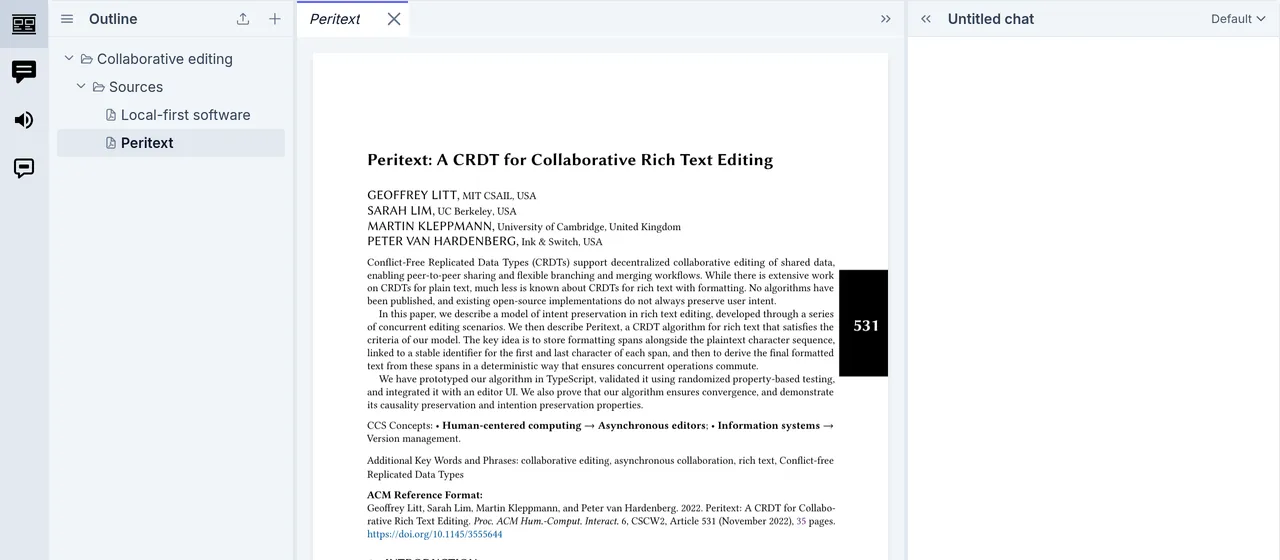
Section titled “What each kind becomes”- PDF: its text, page by page. Each page starts with a marker such as
[p.7], so the model can say which page it read. A scanned PDF has no text, and inksprite says so; the model can’t read it. - EPUB: a folder named after the book, in the book’s order, with a document for each chapter and a folder for each part. The chapters are ordinary documents. The EPUB itself goes last in the folder.
- Markdown and plain text (
.md,.txt): an ordinary document, as if you’d written it here. - Word (
.docx): an ordinary document, with its headings, lists, bold and italic, links and tables. Pictures are left out, and inksprite says how many. - Web page (
.html): the page’s words, without its menus, scripts and styles. - Picture (PNG, JPEG, GIF, WebP, SVG): kept to look at. The model can’t see pictures.
- Other text, such as CSV, JSON or code: its text, as it is.
- Anything else, such as PowerPoint or Excel files: kept as it is, for you to download again. The model can’t read these; save them as a PDF first.
Look at a file
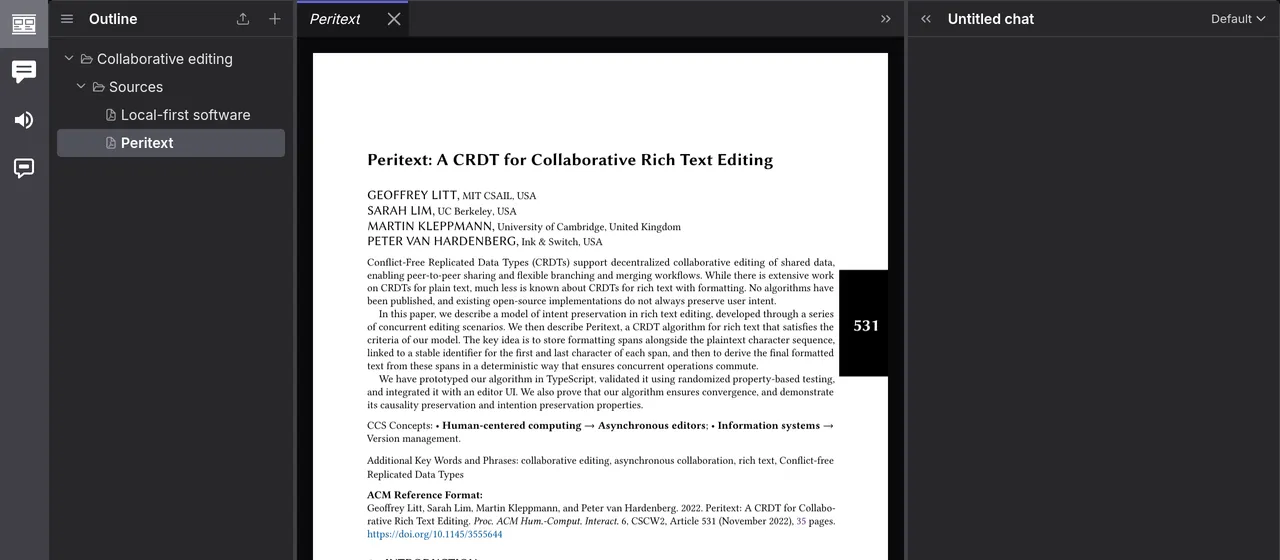
Section titled “Look at a file”Click a file in the outline to open it.
- A PDF shows its pages. Select text on a page to copy it.
- A picture fits the panel. Click it to see it at full size, and again to fit it.
- The EPUB at the end of a book’s folder shows the whole book, chapter after chapter.
- A web page shows its article: headings, text, lists, tables and links, without its pictures, menus or scripts.
- A file of text, such as code or JSON, shows its text with line numbers. Press ⌘ F (Ctrl F on Windows and Linux) to find in it.
- Anything else says No preview available, with a Download button.
Its text
Section titled “Its text”The model reads a file’s text, not the file. To see that text, right-click the file, in the outline or on its tab, and choose Show as text. Show the file goes back.
You can edit the text: fix what came out wrong, or cut what the model doesn’t need. Two more choices on the file’s menu:
- Re-extract text reads the text out of the file again, in place of what’s there. Your edits to the text are lost.
- Download saves the file as it came in.
How the model reads a long file
Section titled “How the model reads a long file”The model reads a file of up to about 7,000 words whole. A longer one it reads a part at a time: it looks at the file’s headings and reads the section it needs, or reads on from a page. A search finds the passage it’s after and the page it’s on.
So headings matter. In a PDF, the model finds numbered headings such as Chapter 4 or 4.1 Early results; a PDF without them reads better converted to Markdown.
A pinned document goes to the model whole with every message, so a long pinned file costs you on every turn.
Convert to Markdown
Section titled “Convert to Markdown”Text taken out of a PDF has lost its layout: headings are plain lines, tables are rows of words, and lines break where the page did. A model can put that back.
- Right-click the file and choose Convert to Markdown….
- inksprite says how many words it holds and about how many requests the conversion will make. Click Convert.
The Jobs window opens and shows how far it has got, while the file’s icon in the outline spins. A book is many requests and takes some minutes, and each request is paid for like a chat message.
When it’s done, a document with the file’s name and (Markdown) after it is beside the file. Click Open in Jobs to open it. It’s an ordinary document, and the file stays as it was. Converting the file again replaces the copy’s text.
In Jobs:
- Pause stops a conversion and Resume takes it up again. A conversion running when you close inksprite is paused when you come back.
- Cancel stops it for good, and Retry tries a failed one again.
- Clear takes a finished one off the list.
Close the window with its ×. While there are jobs, the Jobs icon at the far left, above Settings, opens it again; on a phone, it’s in the ⋯ menu at the top.
Any imported file with text can be converted, not only a PDF. Once you have the copy, choose Hide from all chats on the file, so the model reads the copy and doesn’t find everything twice.
Choose the model
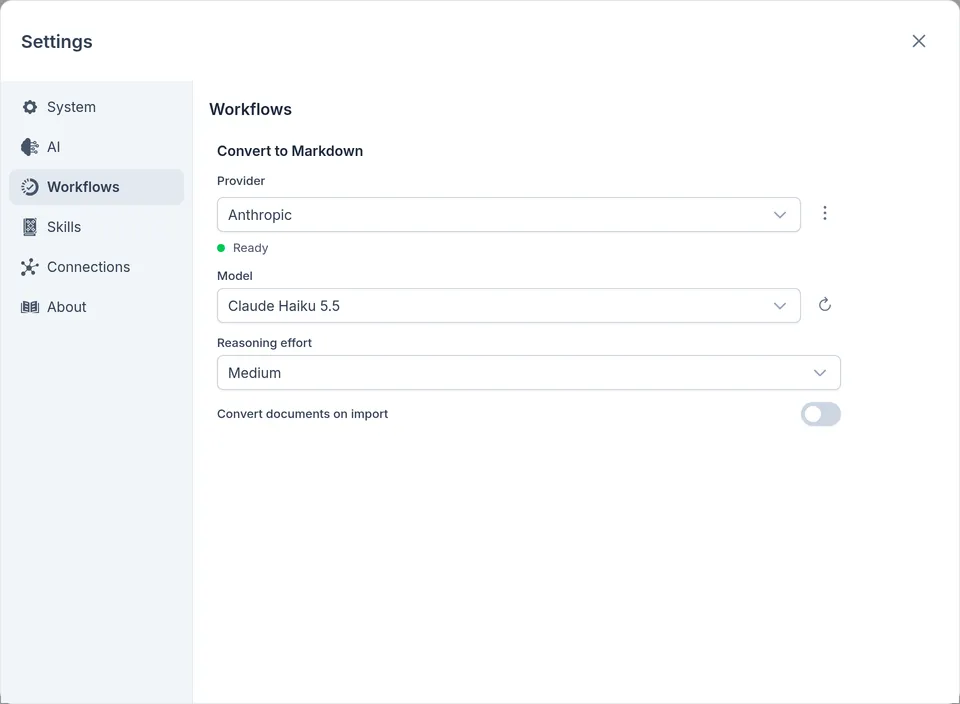
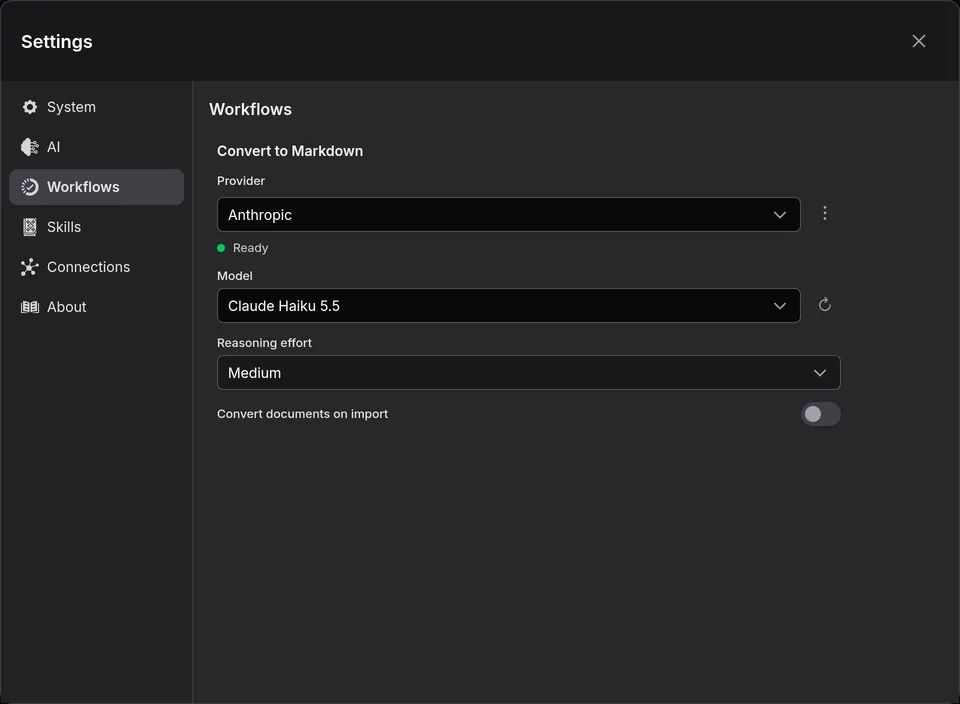
Section titled “Choose the model”A conversion runs on the model chosen in Settings › AI. To use another, open Settings › Workflows and choose a Provider and a Model under Convert to Markdown. Turn on Convert documents on import to convert every file with text as it comes in.
Delete a file
Section titled “Delete a file”Right-click it and choose Delete. There’s no undo (see Delete). A Markdown copy made from it stays. Deleting a book’s folder deletes its chapters and the EPUB.
Character cards and lorebooks
Section titled “Character cards and lorebooks”A character card (a PNG with a card inside, or a JSON file) or a lorebook imports the same way. inksprite shows what’s in a card before it writes anything. Imported onto the project, it goes in a Cards folder, under Characters or Lorebooks; imported onto a folder, it goes there. A PNG with no card in it is a picture. Cards among several files come in without the questions; Re-import card… on the card’s folder asks them later. Roleplay with Character Cards goes through it.