Narration
inksprite can read your documents aloud, in voices you choose. This guide reads the first letter of Mary Shelley’s Frankenstein, which is in the public domain, with Kokoro, a free speech model small enough to run on an ordinary computer.
Here’s the result:
Run a speech server
Section titled “Run a speech server”Kokoro-FastAPI serves Kokoro on your computer. With Docker installed, start it with:
docker run -p 8880:8880 ghcr.io/remsky/kokoro-fastapi-cpu:latestThe first start downloads it, which takes a while. With an NVIDIA graphics card, this one is faster:
docker run --gpus all -p 8880:8880 ghcr.io/remsky/kokoro-fastapi-gpu:latestIts README has other ways to run it.
Import the book
Section titled “Import the book”Download the EPUB3 from Frankenstein’s page at Project Gutenberg. In inksprite, make a project for it, right-click the project, choose Import › Files…, and pick the file. You can drag the file onto the project instead.
The book comes in as a folder named after the file, with a document for each letter and chapter, and the EPUB itself at the end.
Open the narration panel
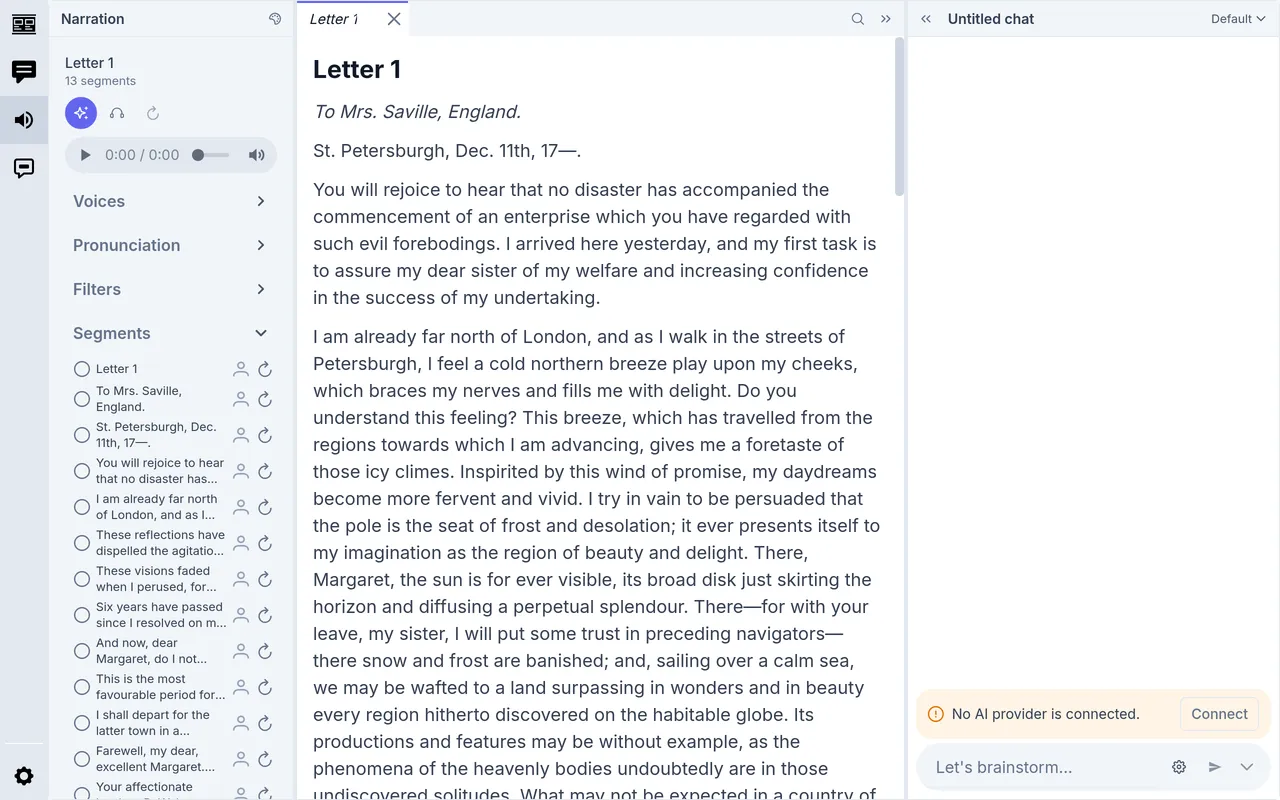
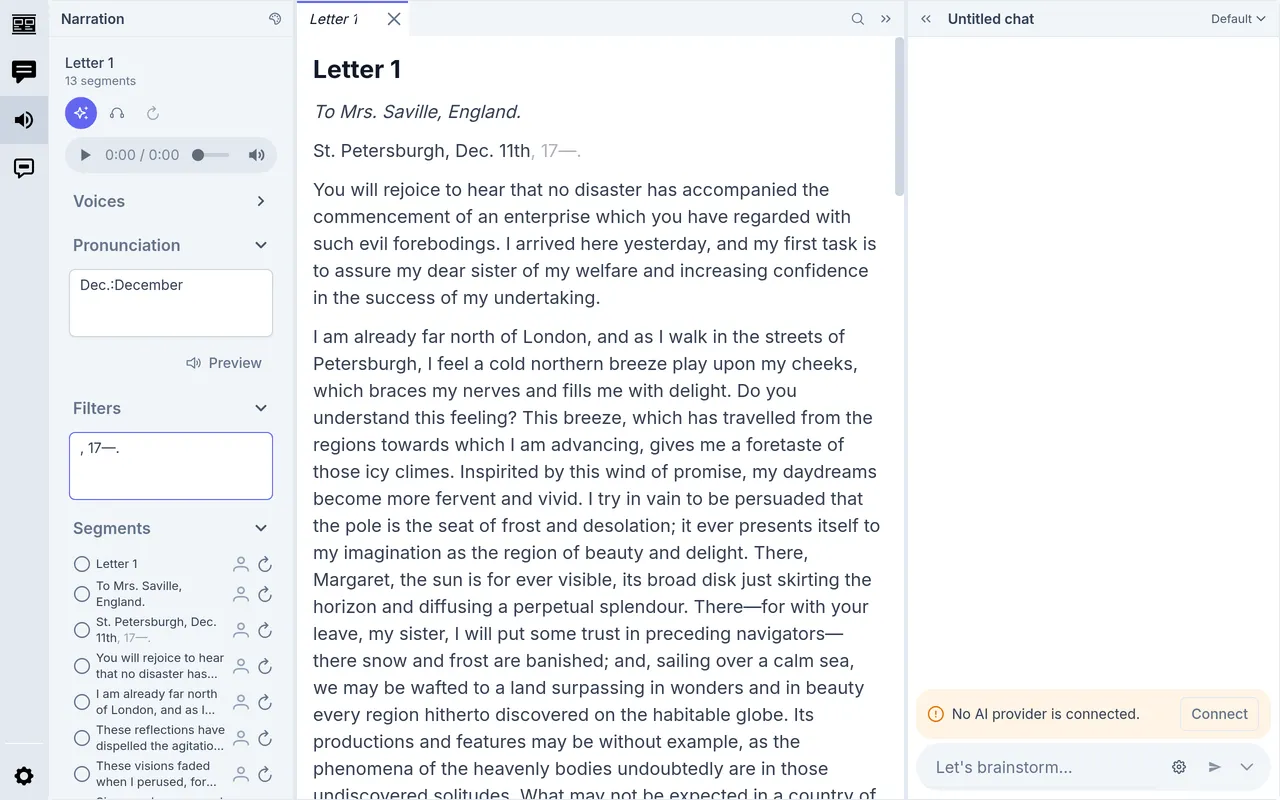
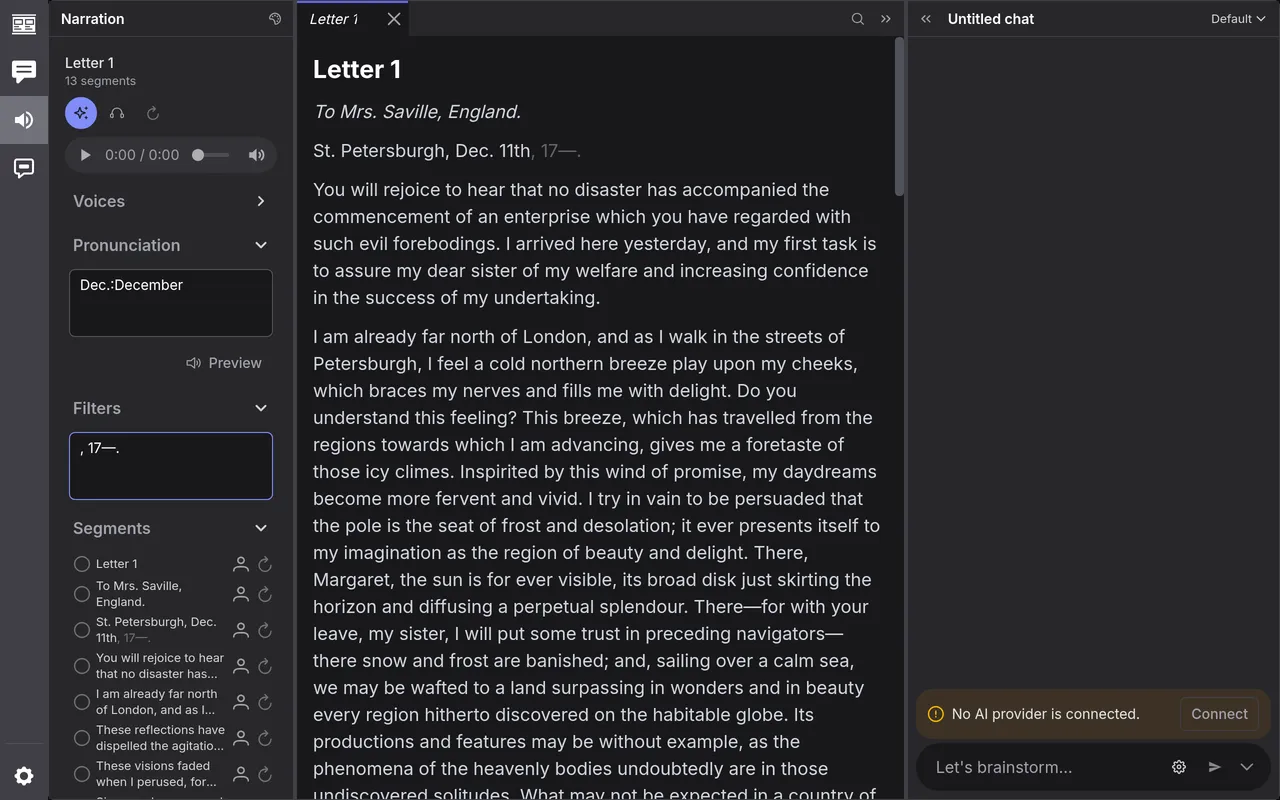
Section titled “Open the narration panel”Open Letter 1 and click Narration, the speaker among the icons at the far left. The panel reads the document in the editor a segment at a time: each paragraph is a segment, and so is each heading.
Choose a voice
Section titled “Choose a voice”The voice called Narrator reads everything. Open Voices to change it.
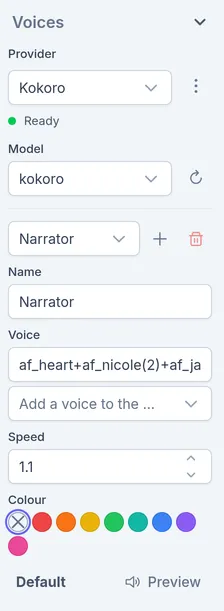
At the top, Provider is already Kokoro, and with the server running,
Model shows kokoro. If your server isn’t at http://localhost:8880/v1,
click ⋮ beside Provider and change Endpoint. Each project keeps its
own Provider and Model.
Below them is the voice itself:
- Voice is what Kokoro is asked for: one of its voices, such as
bm_george, or several mixed with+. A number in brackets gives a voice more weight: the Narrator’s to start with,af_heart+af_nicole(2)+af_jadzia, is halfaf_nicole. Add a voice to the mix… lists Kokoro’s voices. - Speed is how fast it reads, from 0.5 to 2.
- Preview reads a line in the voice.
To hear the voice on the letter itself, click the headphones (Generate a sample). inksprite reads the first few segments, here as far as the second paragraph, and you play them in the player above Voices.
Fix what it reads wrong
Section titled “Fix what it reads wrong”The sample starts with the letter’s dateline, St. Petersburgh, Dec. 11th, 17—. Kokoro reads Dec. as it’s spelled, like deck, and the year, Shelley’s way of saying some time in the 1700s, doesn’t read aloud well. Pronunciation and Filters fix both. They change what Kokoro is sent; the document stays as it is.
Pronunciation
Section titled “Pronunciation”Open Pronunciation and type a word, a colon, and what to say instead, one to a line:
Dec.:DecemberA hint matches whole words, in capitals or not. Spell a name the way it
sounds (Aelinor:AY-lin-or), and click Preview to hear every hinted word
as Kokoro will say it.
Filters
Section titled “Filters”Open Filters and type what to leave out, one to a line:
, 17—.Filtered text is greyed in the editor and in the list of segments, and isn’t read. With both fixes, the dateline reads St. Petersburgh, December 11th.
Each line is a regular expression,
so it can match a pattern: ^\d+$ leaves out page numbers on lines of their
own, and \[\d+\] footnote marks like [12]. A full stop matches any
character, so write \. for a full stop alone. A segment filtered out whole is
skipped.
Generate the letter
Section titled “Generate the letter”Click Generate (the sparkles). inksprite sends the segments to Kokoro one at a time and shows how far it has got. Stop takes its place while it runs; what it made before you stopped stays.
When it’s done, play the letter in the player, or from any segment with the ▷ at the start of its row.
Generate only reads segments that have no audio yet, so after you change a paragraph, a voice, a hint or a filter, it reads just the segments that changed. To read segments again:
- One: click ↻ at the end of its row.
- Some: click them to select them (Shift-click for a run, ⌘-click or Ctrl-click to add one), then Generate.
- All: click Regenerate all, the ↻ beside the headphones.
Download it
Section titled “Download it”Click the download button, last in the row, for a WAV file of the whole document. WAV files are large, about 3 MB a minute: this letter is 23 MB. Any audio converter makes an MP3 of it a sixth of the size.
More than one voice
Section titled “More than one voice”Each segment can have a voice of its own. Add a voice with + under Voices, then click the person icon on a segment’s row and choose it; with segments selected, the choice goes to them all. Give a voice a Colour to show its segments in that colour in the editor. The palette button at the top of the panel turns the colours off.
A segment is a whole paragraph, so this suits writing where each paragraph has one speaker, like a script or an interview, but not a novel’s dialogue, where what’s said and she said share a paragraph.