Web Search
With web search on, the model can look things up while you chat: a date to check, a source to read, a detail for a scene. It searches through a service you connect, and reads the pages it finds.
Choose a service
Section titled “Choose a service”- Exa searches without a key, up to a limit Exa doesn’t publish. A key from Exa’s dashboard lifts the limit; Exa’s prices say what searching with one costs.
- Kagi needs a key, from Kagi’s API page. It charges for each search and each page it reads (prices).
- Brave works only in the desktop app, and needs a key, from Brave’s API dashboard. It charges for each search, with some free credit each month (prices).
Set it up
Section titled “Set it up”- Open Settings › Connections.
- Under Web search, choose the service. In a browser, Brave is greyed out and marked Desktop app only.
- Paste your key in Key, or leave it empty for Exa to search for free.
- Click Connect. inksprite tries the service and says Connected, or why not. For Kagi and Brave, the check is one search, paid for like any other.
- Under Used in chats on, switch on the profiles whose chats should search. Default is on to start.
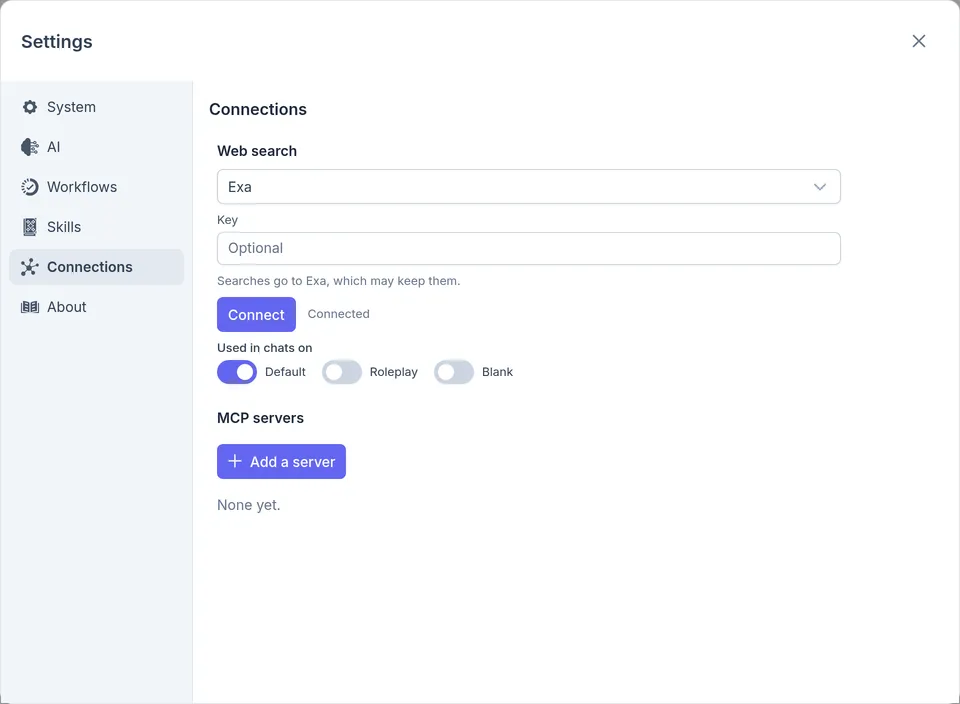
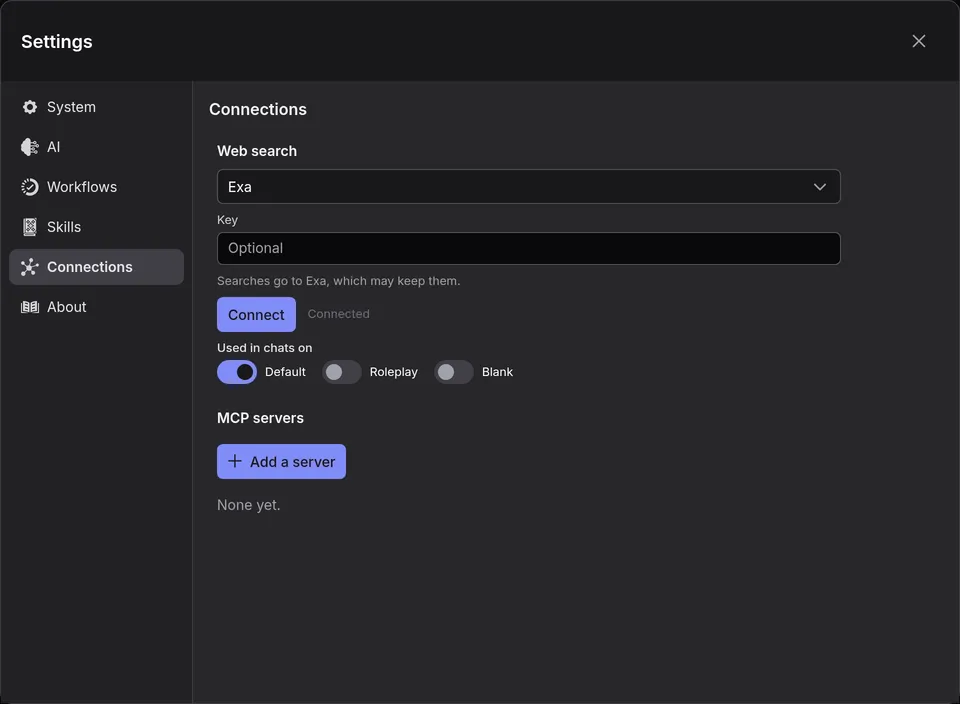
One service is in use at a time. The others keep their keys, so you can switch back without pasting them again. Choose None to stop every chat searching.
A backup leaves the keys out unless you tick Include API keys. Restoring one without them names the services that need a key again; paste it under Key.
Choose which chats search
Section titled “Choose which chats search”A chat searches when its profile is on under Used in chats on. To change one chat, click the gear in the message box, open Tools, and switch Web on or off. Its two tools, Web search and Read web page, can be switched off one at a time. The chat keeps your choice until you move it to another profile; then it follows that profile.
Web is listed only while a service is chosen, with its key if it needs one.
Ask for something that needs the web. To keep what it finds, say where:
Search the web for where Yjs and Automerge stand today for rich text, and put what you find in Notes, with links.
The model searches, reads the pages that look useful, and answers; here, with a note in the project and a link beside each finding. Click the tool calls above its reply to see what it searched for, which pages it read, and what came back.
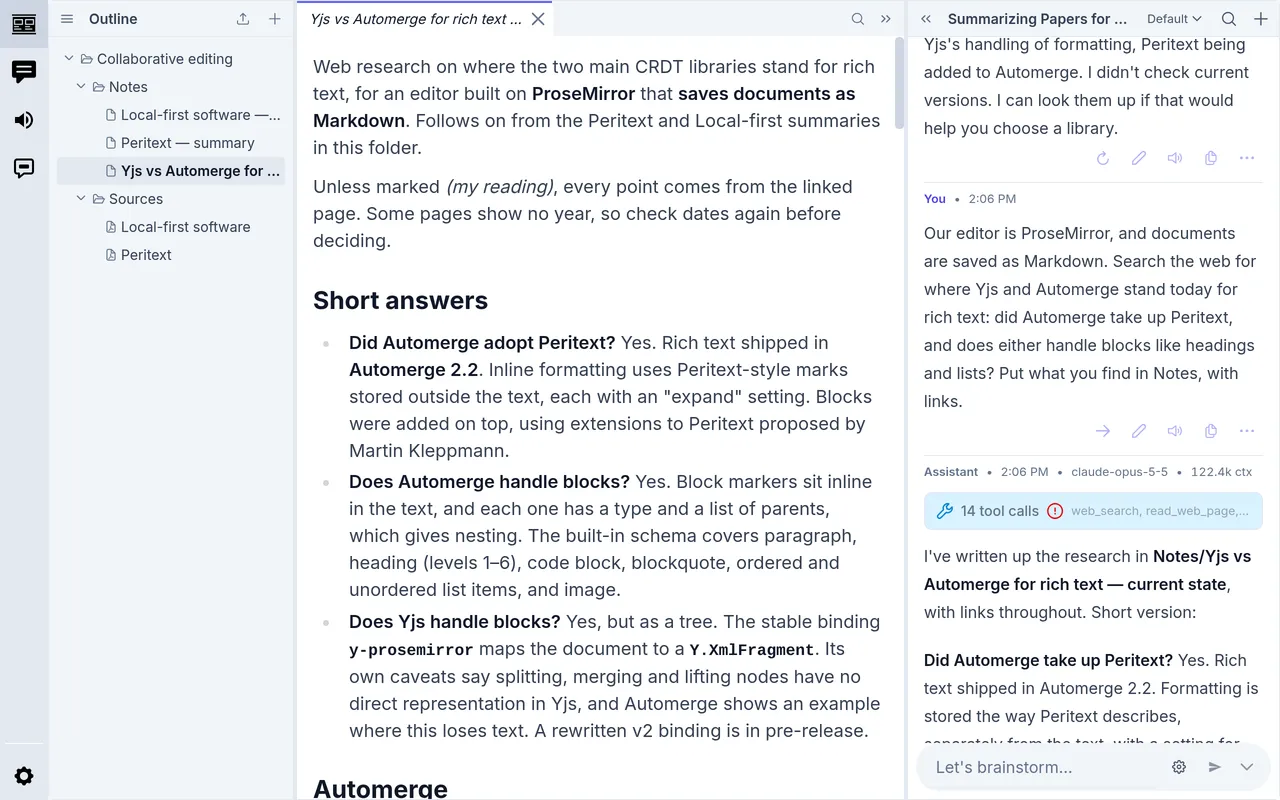
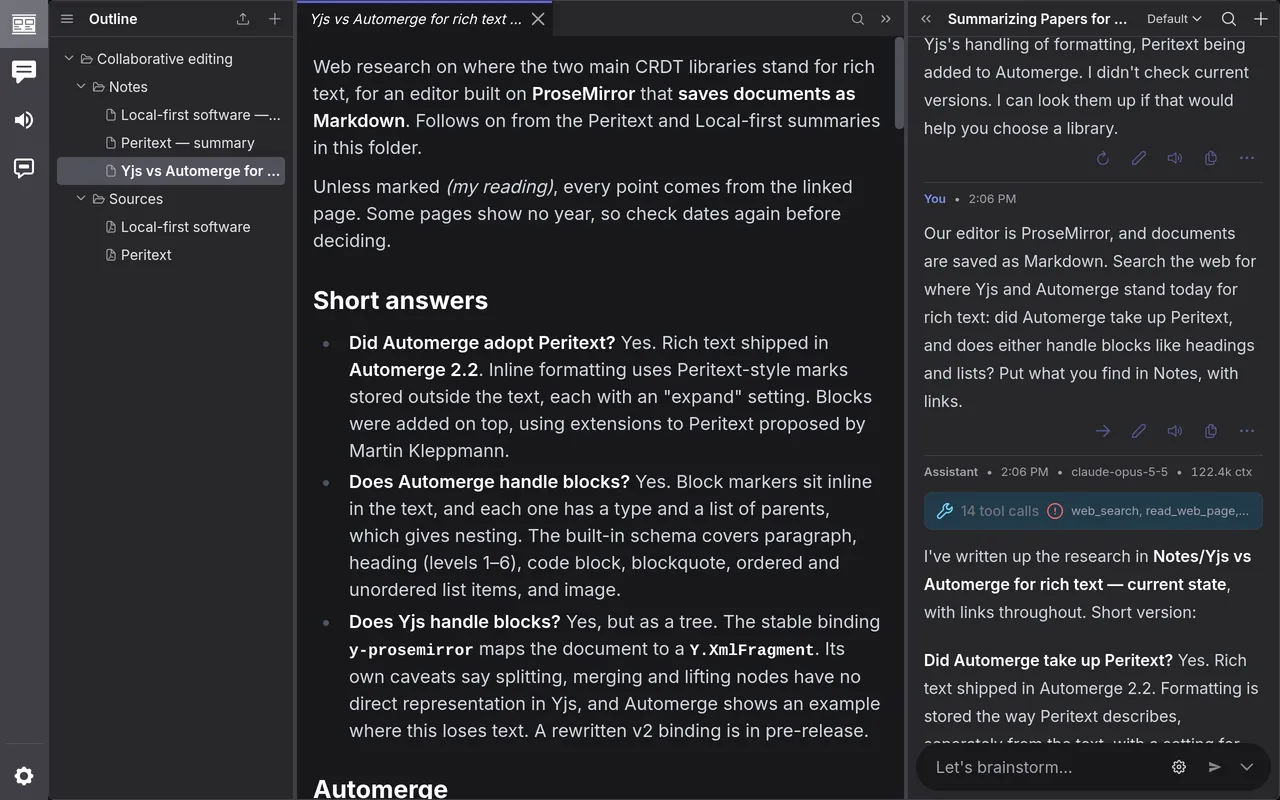
The pages the model read stay in the conversation until a summary takes the place of the turns that read them, so a follow-up about one doesn’t read it again. The research guide has this example in full.
Save a page to the project
Section titled “Save a page to the project”To keep a page past a summary, or to read it yourself:
- Open the tool calls and find the page, under
read_web_page. - Click Save to project.
- Change the Title if you like (it starts as the page’s own), choose a Folder, and click Save.
The page becomes a document, whole, even if the model read only part of it. Its first line gives the page’s address and the day you saved it.
When the free searches run out
Section titled “When the free searches run out”When Exa’s free searches run out, the model is told so, and says so in its reply. Paste a key under Key in Settings › Connections, or search again later.
Privacy
Section titled “Privacy”Searches go straight from your computer to the service, with your key; they don’t pass through inksprite. The words searched for are the model’s, drawn from your chat. Exa and Kagi also read the pages for the model, so they see which pages it reads. With Brave, the desktop app reads pages from their own sites.
What the services say they keep:
- Exa: inksprite shows Searches go to Exa, which may keep them. under it. Exa’s privacy policy says it uses searches to train its models.
- Kagi: its API terms say searches may be logged for a while, apart from your account, and then deleted.
- Brave: its privacy notice says it keeps a record of searches for up to 90 days, for billing and troubleshooting.
About has the rest of inksprite’s privacy notes.