Skills
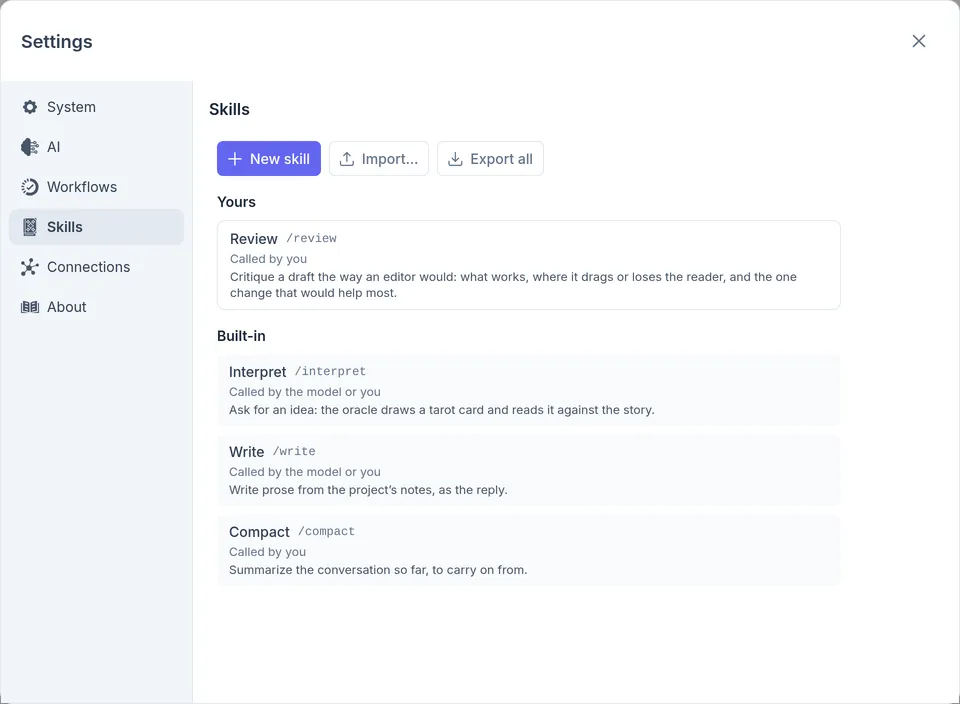
A skill is a piece of work with instructions of its own: summarizing a chat,
writing a scene, reviewing a draft. You call one by typing / and its name in
the chat. The model can be offered a skill too, and calls it when its
description fits what you asked.
The built-in skills
Section titled “The built-in skills”- Compact,
/compact, summarizes the chat to carry on from. Only you call it; see Compact a long chat. - Interpret,
/interpretand a question, asks for an idea: it draws a tarot card and reads it against the story, in your turn. It’s made for games. - Write,
/writeand what to write, writes prose from the project’s notes, as the reply.
Interpret and Write are still being tuned, so no built-in profile offers them
to the model. To offer one in a chat, switch it on under Skills in the
chat’s settings. You can type /interpret or /write in any
chat.
Call a skill
Section titled “Call a skill”Type / at the start of a line in the message box, and the
list shows every command and skill. Keep typing to narrow
it, press Tab to finish the name, type what the skill needs after
it, and send. The sparkles mark skills that call the model; they take as long
as a reply does.
When the model calls a skill, its reply shows a block for it. Click the block to see what the skill was asked, the tools it used, and what it answered.
Make your own
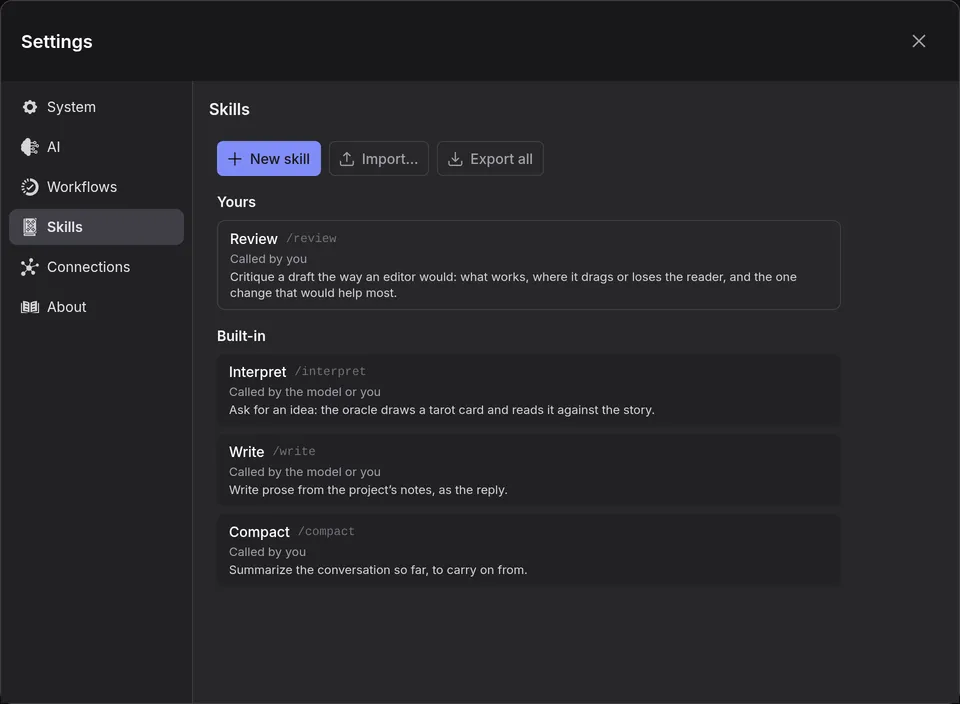
Section titled “Make your own”Open Settings › Skills and click New skill. Hover a field’s name for a reminder of what it takes.
- Name: what you type after the
/. Lowercase letters, digits and hyphens, and nothing the app already uses: a built-in skill, a command like/roll, or one of the model’s tools. - Description: what it does and when to use it. The model reads this to decide whether to call it.
- Who can call it: You and the model, Only you, as
/name, or Only the model, when its description fits. - How it runs:
- Joining the conversation: its instructions go into the chat, and the model follows them there, with the chat’s tools.
- On its own, reporting back: it’s a request of its own to the model. It reads the conversation so far, uses only the tools you give it, and answers.
- Its answer, for one that runs on its own:
- Back to whoever called it: to the model, as what its call returned, or into your turn when you called it.
- As the reply: what it writes is the reply.
- Tools, for one that runs on its own: the tools it may use, by the names
the model knows them by, such as
read_document. - Argument: a name for what you type after the skill’s name. Naming one makes it required.
- Argument description: what to type for it, such as the document to
review. The
/list shows it after the name, and the model is told it. - Instructions: what the skill is told to do.
$ARGUMENTS, or$and the argument’s name, stands for what you typed; without either, it goes at the end.
Click Save. A skill belongs to the app, not a project, so its / command
works in every chat. Whether the model is offered it is up to each chat’s
settings, under Skills; the Roleplay profiles start with your skills off.
Example: a review skill
Section titled “Example: a review skill”This skill reads a draft and critiques it as an editor would, as a reply of its own.
- In Settings › Skills, click New skill.
- Fill in the form:
-
Name:
review -
Description: Critique a draft the way an editor would: what works, where it drags or loses the reader, and the one change that would help most.
-
Who can call it: Only you, as /review
-
How it runs: On its own, reporting back
-
Its answer: As the reply
-
Tools:
read_documentandlist_documents -
Argument:
document -
Argument description: the document to review
-
Instructions:
You are an editor reading a draft for its writer. Read $document withread_document, all of it, before you say anything.Then write a short critique:- What works, in two or three sentences.- Where the pace drags or the reader could get lost, quoting the lines you mean.- The one change that would help most.Don't rewrite the draft, and don't praise what doesn't earn it.
-
- Click Save.
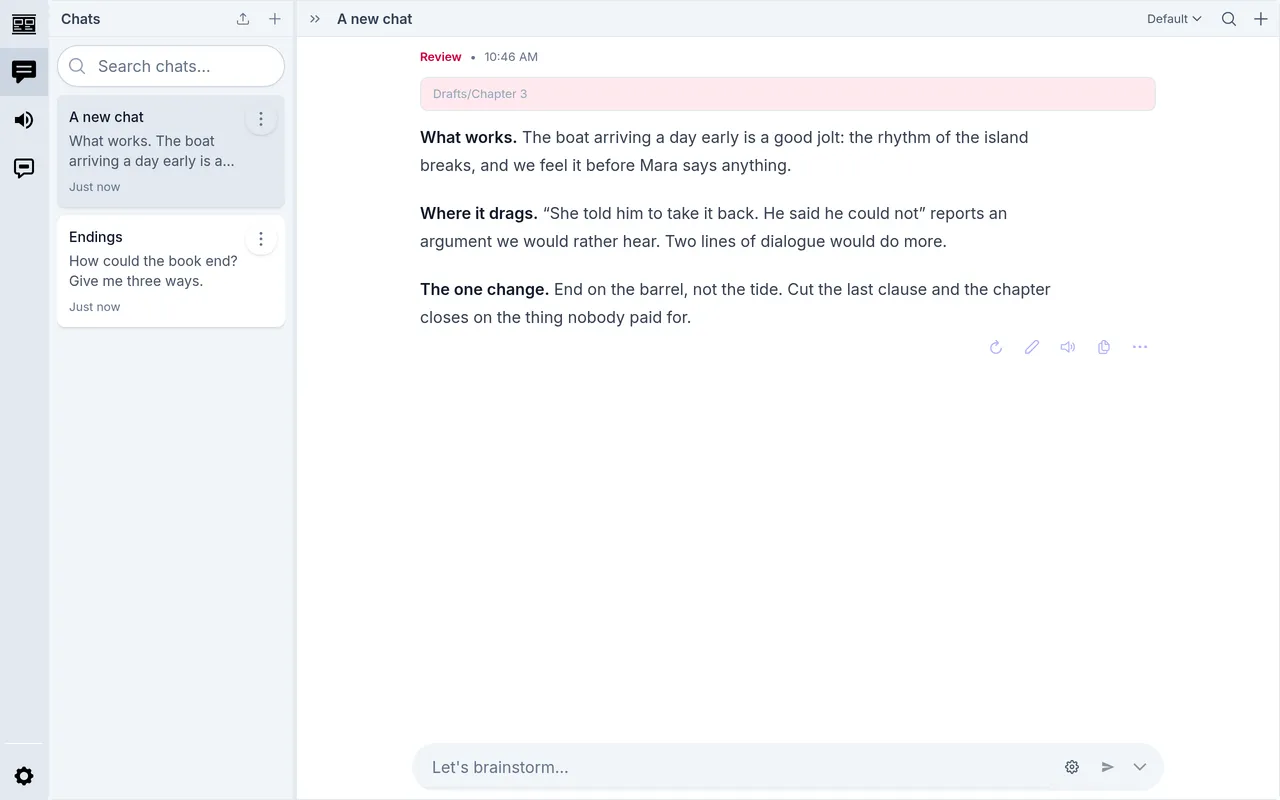
In a chat, type /review and the document’s path. To get the path,
right-click the document in the outline and choose Copy path.
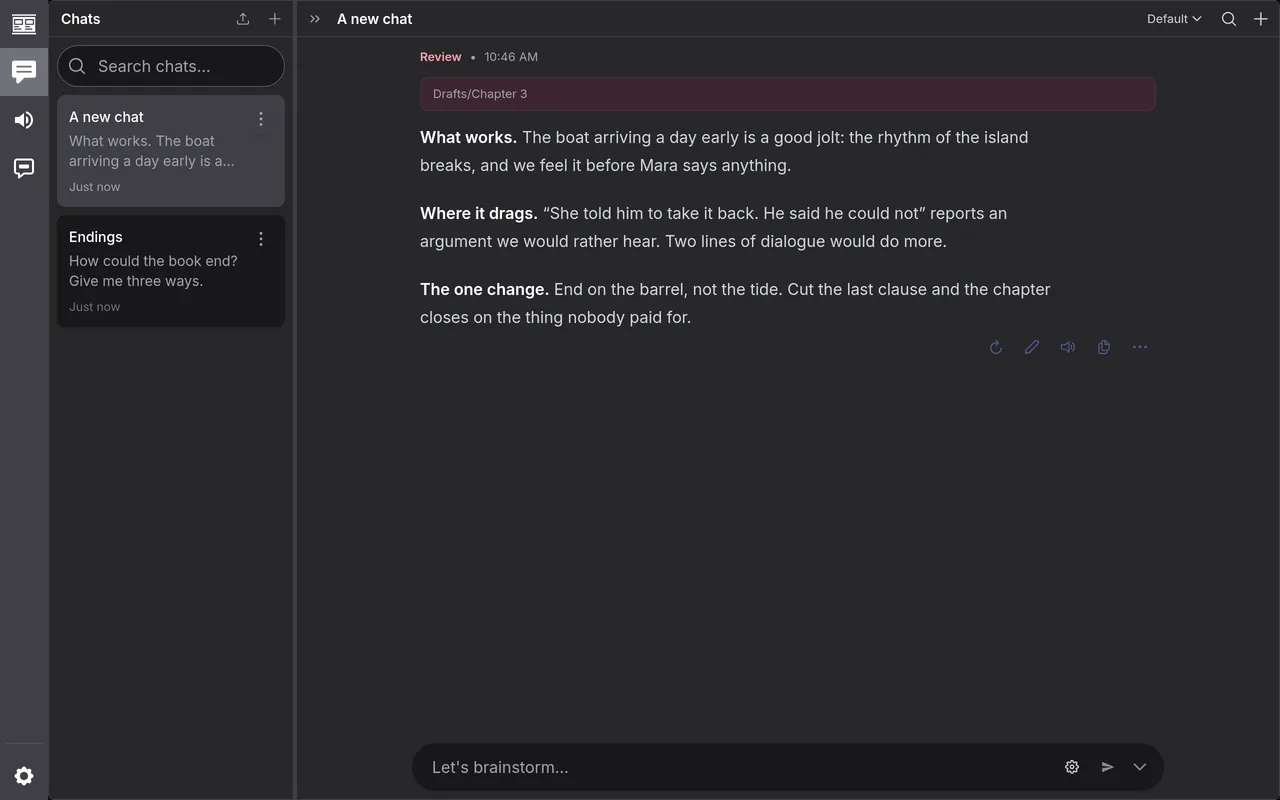
/review Drafts/Chapter 3The critique arrives as a turn of its own, headed Review.
To let the model call it as well, choose You and the model under Who can call it. Then what do you think of chapter 3? can reach it, and the critique is the model’s reply.
Saved prompts
Section titled “Saved prompts”A skill that joins the conversation, and that only you call, is a saved prompt: instructions you’d otherwise type again and again. A new skill starts as one. With these Instructions:
Tighten $ARGUMENTS: cut every word that isn't working, keep the voice, andshow me the new version whole.typing /tighten the fight scene puts the instructions into your turn, with
the fight scene in place of $ARGUMENTS, and the model answers them.
Let the model call it too, and the model loads the instructions into the chat when its description fits, and follows them from then on. To stop it, click Drop on the skill in the chat’s settings; it goes at the next summary.
The file
Section titled “The file”A skill is kept as a SKILL.md file, the format Claude, Codex and other tools read. Click File at the top of the skill’s editor to edit it as text, for anything the form doesn’t reach, and Form to go back. The review skill above is:
---name: reviewdescription: >-  Critique a draft the way an editor would: what works, where it drags or loses  the reader, and the one change that would help most.disable-model-invocation: truecontext: forkarguments: documentargument-hint: the document to reviewallowed-tools: read_document list_documents---
You are an editor reading a draft for its writer. …
To delete a skill, open it and click Delete. Turns that used it keep what it said.
Import and export skills
Section titled “Import and export skills”Click Import… in Settings › Skills and choose Files or a .zip… or A folder…. inksprite finds every SKILL.md in what you choose, and any Markdown file with frontmatter of its own. Skills made for Claude or another tool that reads SKILL.md files import as they are.
Import skills lists what it found. Switch off any you don’t want, then click Import 1 skill, or however many it says.
- Replaces your… means you have a skill by that name, and this one takes its place.
- A name the app already uses has to change before the skill can come in; type a new one in the field under it.
- A skill whose file doesn’t read says what’s wrong with it, and stays out.
- Not used here lists fields in the file that inksprite ignores, and Left out what it didn’t bring, such as scripts.
Export all saves every skill of yours as a .zip, with a folder for each; Export in a skill’s editor saves that one. Either imports into inksprite, or into another tool that reads skills.
Reword a built-in skill
Section titled “Reword a built-in skill”In Settings › Skills, click a skill under Built-in and change its Instructions. They save as you type, for every chat, and the list marks the skill reworded. The reset button beside Instructions puts back the wording it ships with.
A profile’s own wording of a skill wins over yours in the chats on it. The Roleplay profiles word Compact for games, and the editor says so under the instructions.
For one chat
Section titled “For one chat”To change how a skill runs in one chat, open the chat’s settings, open the skill under Skills, and edit its Prompt. This works for your own skills as well as the built-ins. To keep the wording for new chats, save it to the profile. The reset button beside Prompt puts the skill back on its wording in Settings › Skills.