MCP Servers
MCP, the Model Context Protocol, is a standard way for a service to offer tools to a model: a wiki to search, a tracker to read, notes to write to. Connect a server, and the model can call its tools in your chats.
Add a server
Section titled “Add a server”- In Settings › Connections, click Add a server under MCP servers.
- Paste the server’s address, from its own docs, in Address.
- Give it a Name, or leave the one made from the address. Its tools and prompts are named after it.
- If the server takes a key, put it under Header (optional): the header’s
name on the left and its value on the right. Most want
AuthorizationandBearerfollowed by the key; the server’s docs say which. - Click Connect. inksprite says how many tools the server offers. Click the server to see them, with what each one tells the model it does.
- Under Used in chats on, switch on the profiles whose chats should have its tools. Default is on to start.
- Click Keep it. It takes the place of Connect until you change what you typed.
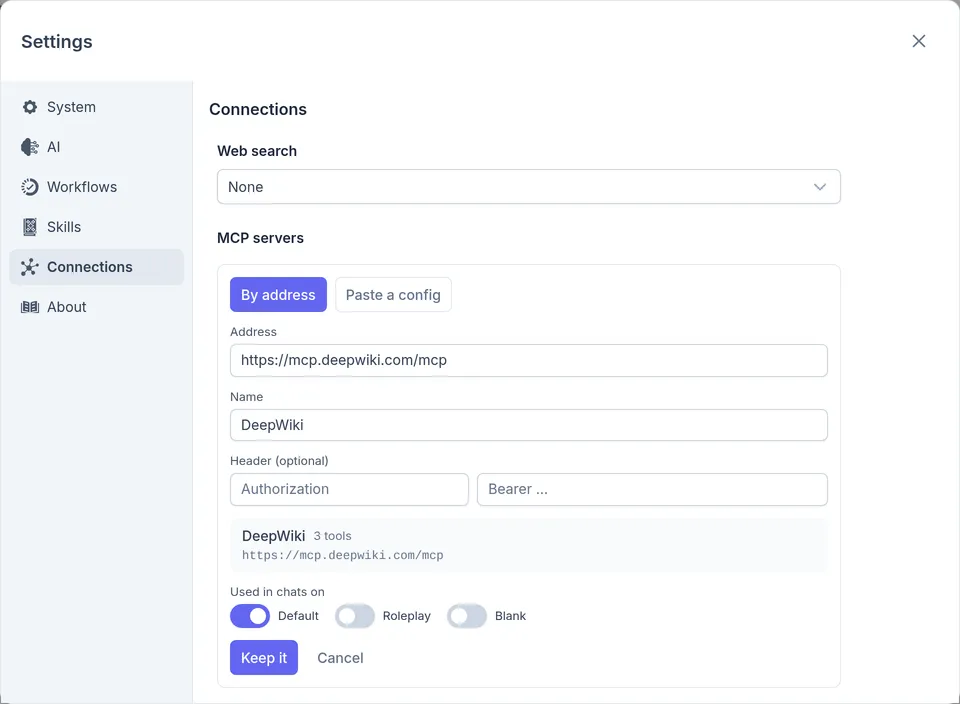
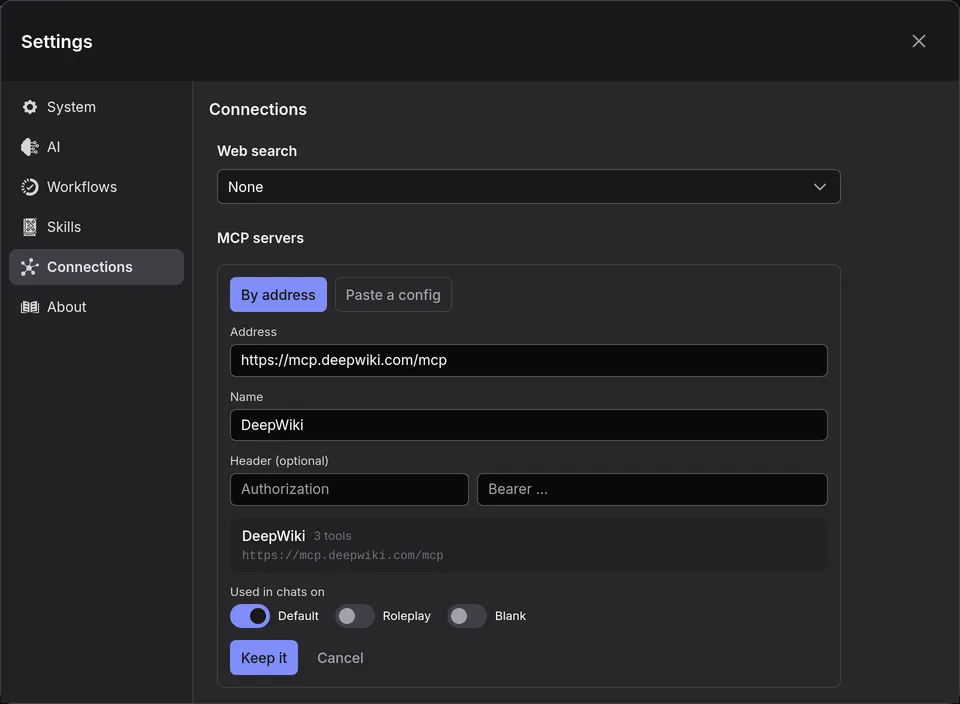
To bring in the servers you use in another app, click Paste a config
instead and paste the mcpServers block from that app’s settings. inksprite
connects to each server in it, and you keep them all at once.
Sign in
Section titled “Sign in”A server that wants you to sign in says Sign in to see what it offers. Click Sign in, and its sign-in page opens in a new tab (in the desktop app, in your browser). Approve inksprite there, and inksprite lists the server’s tools. If you close the tab without finishing, click Cancel.
A server you’re signed in to shows Signed in, and Sign out is in its row. If a sign-in runs out and can’t be renewed, the model’s calls to that server fail with It needs you to sign in. Sign in from Settings › Connections., and the server’s row offers Sign in again.
A few servers’ sign-in doesn’t work with inksprite, GitHub’s among them. GitHub’s server takes a personal access token in a header instead.
In a browser
Section titled “In a browser”In a browser, inksprite connects to a server from the web page, and many servers don’t accept connections from web pages. inksprite then says:
Couldn’t connect. The server may be down, or not accept connections from web pages (CORS).
The desktop app connects from your computer rather than a web page, so this doesn’t stop it.
A server that runs as a program on your computer, rather than at a web address, is kept and marked Runs as a program, so it needs an HTTP bridge. inksprite can’t start a program, in a browser or the desktop app, but it can reach one that a bridge serves at an address.
Try it: DeepWiki
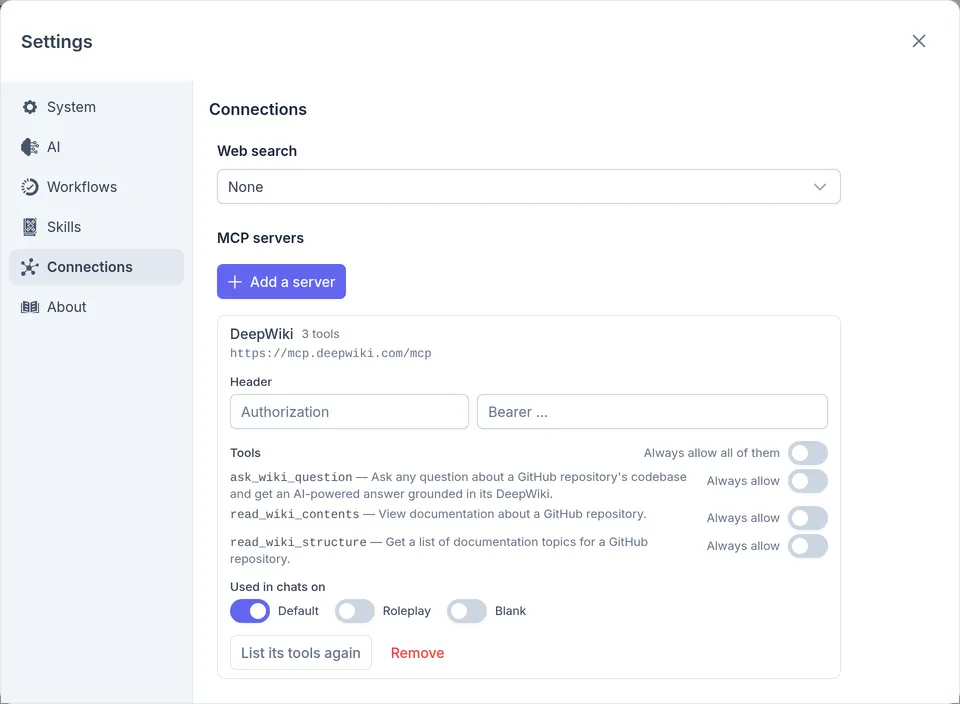
Section titled “Try it: DeepWiki”DeepWiki answers questions about public code repositories on GitHub. It needs no key and no sign-in.
-
Add a server with the Address
https://mcp.deepwiki.com/mcpand the NameDeepWiki, and keep it. -
In a chat on Default, ask:
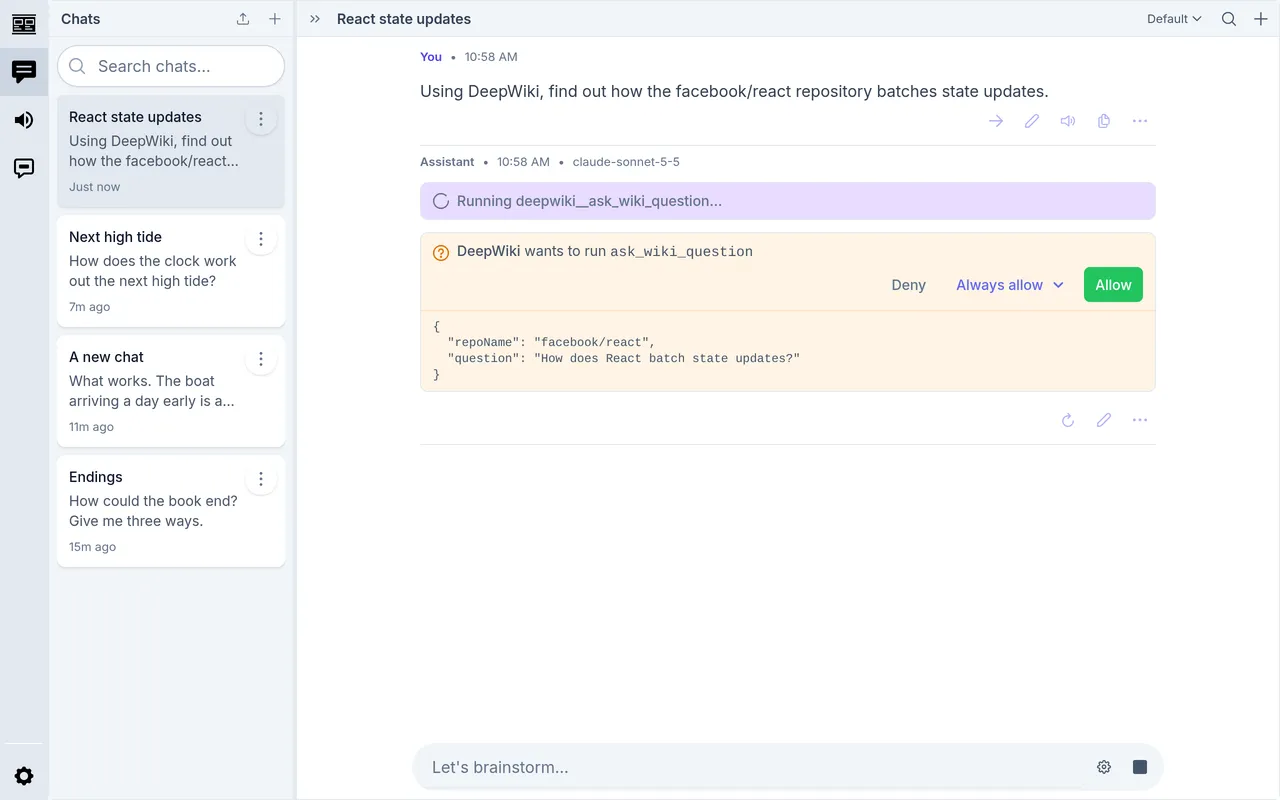
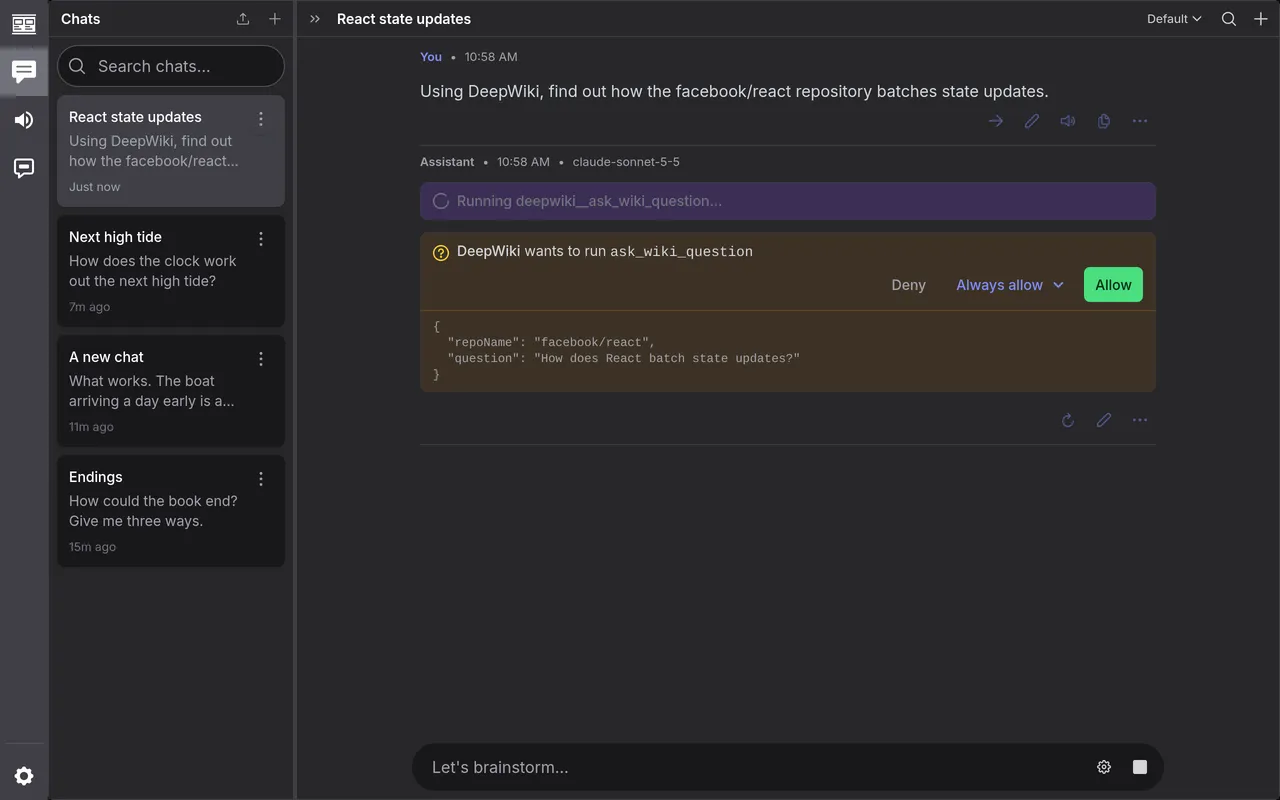
Using DeepWiki, find out how the facebook/react repository batches state updates.
-
The model calls one of DeepWiki’s tools, such as
deepwiki__ask_wiki_question. DeepWiki’s tools don’t say they only read, so the turn waits: DeepWiki wants to run ask_wiki_question. Click Allow, or Always allow › Everything from DeepWiki to stop it asking.
DeepWiki answers, and the model writes its reply from that.
Choose which chats use it
Section titled “Choose which chats use it”A chat has a server’s tools when its profile is on under Used in chats on. To change that, click the server in Settings › Connections.
To change one chat, click the gear in the message box and open Tools. Each server has a switch of its own, and one for each of its tools. The chat keeps your choice until you move it to another profile; then it follows that profile.
Allow a call
Section titled “Allow a call”A tool the server says only reads runs as soon as the model calls it. Any other waits, showing which server wants to run which tool, and what the model is passing it.
- Allow runs it this once.
- Deny tells the model no.
- Always allow runs it, and doesn’t ask again: choose This tool, or Everything from the server.
The call waits as long as you take. Stopping the turn denies it.
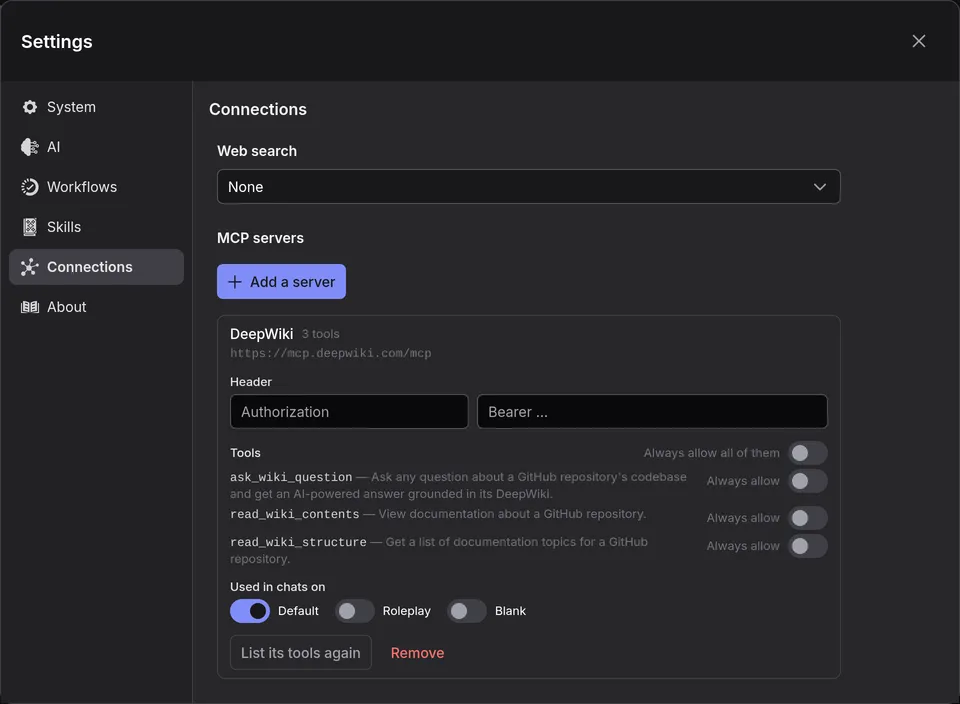
To change what’s allowed, click the server in Settings › Connections. Under Tools, each tool has an Always allow switch, or says Reads only. Always allow all of them covers every tool, including those the server adds later.
Use a server’s prompts
Section titled “Use a server’s prompts”Some servers offer prompts: requests the server writes for you, often with its
own material in them. Type / in the message box, and each is listed as
/<server>:<prompt>. Type what it asks for after the name, and send. The
server’s text goes into your message, and the model answers it.
The server’s row in Settings › Connections lists its prompts. A prompt
that needs more than one thing filled in isn’t in the / list.
Keep an answer
Section titled “Keep an answer”What a tool returns stays in the conversation until a summary takes the place of the turn that called it. To keep an answer for good, open the tool calls above the reply, click Save to project under the answer, choose a Title and a Folder, and click Save. The document’s first line says which server and tool it came from, and when you saved it.
Change or remove a server
Section titled “Change or remove a server”Click a server in Settings › Connections to open it.
- Header: change the key, then click Save.
- List its tools again: after the server adds or changes tools.
- Remove: disconnect it.
Keys and privacy
Section titled “Keys and privacy”A backup leaves a server’s key out unless you tick Include API keys. After restoring one without it, the server says Its key was left out of a backup. Open it, enter the key under Header, and click Save. Sign-ins are never in a backup, so sign in again.
Calls to a server go straight from your computer to it; they don’t pass through inksprite. About has the rest of inksprite’s privacy notes.