Getting Started
inksprite is a writing app with an AI you can brainstorm with. It runs in your browser at inksprite.io, or as a desktop app for macOS, Windows and Linux. There’s no account to make.
Open inksprite
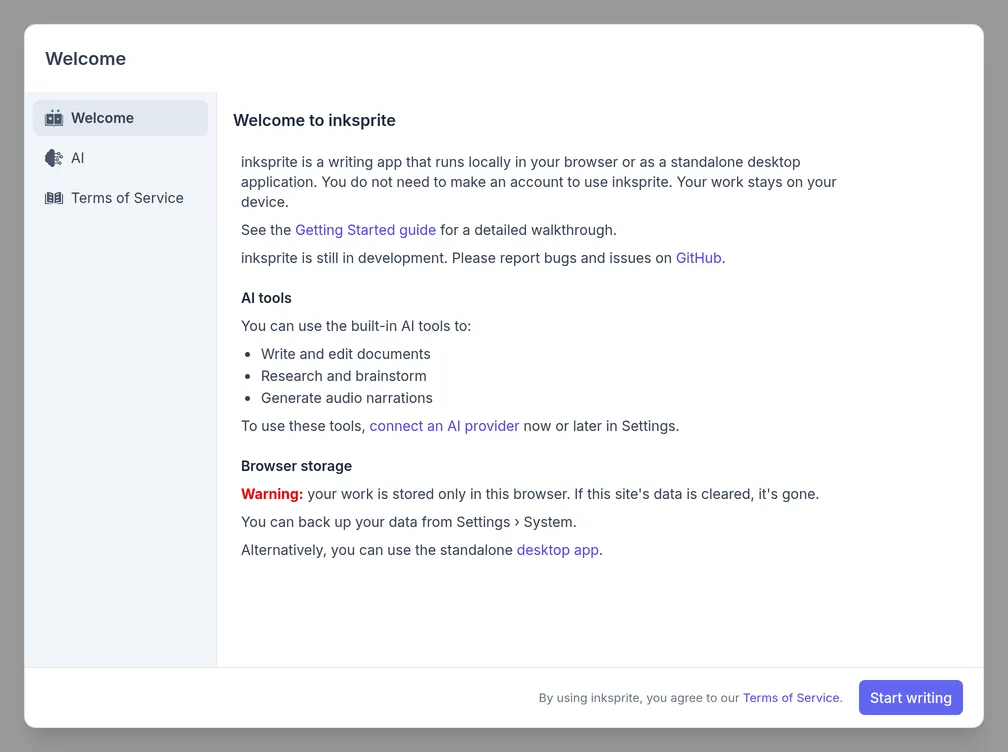
Section titled “Open inksprite”The first time you open inksprite, a welcome window opens. You can connect an AI provider on its AI tab now, or later. Click Start writing to close it.
Start a project
Section titled “Start a project”A project is a set of documents, kept in folders the way you like.
- Click New project, give it a title and click Create.
- Click New document, type its name and press Enter.
- Write. Everything saves as you type.
The editor formats Markdown as you type: # and a space starts a heading,
**bold** and *italic* format when you close them, and - or 1. and a
space start a list. Press ⌘ / (Ctrl
/ on Windows and Linux) for every shortcut, or see
the editor.
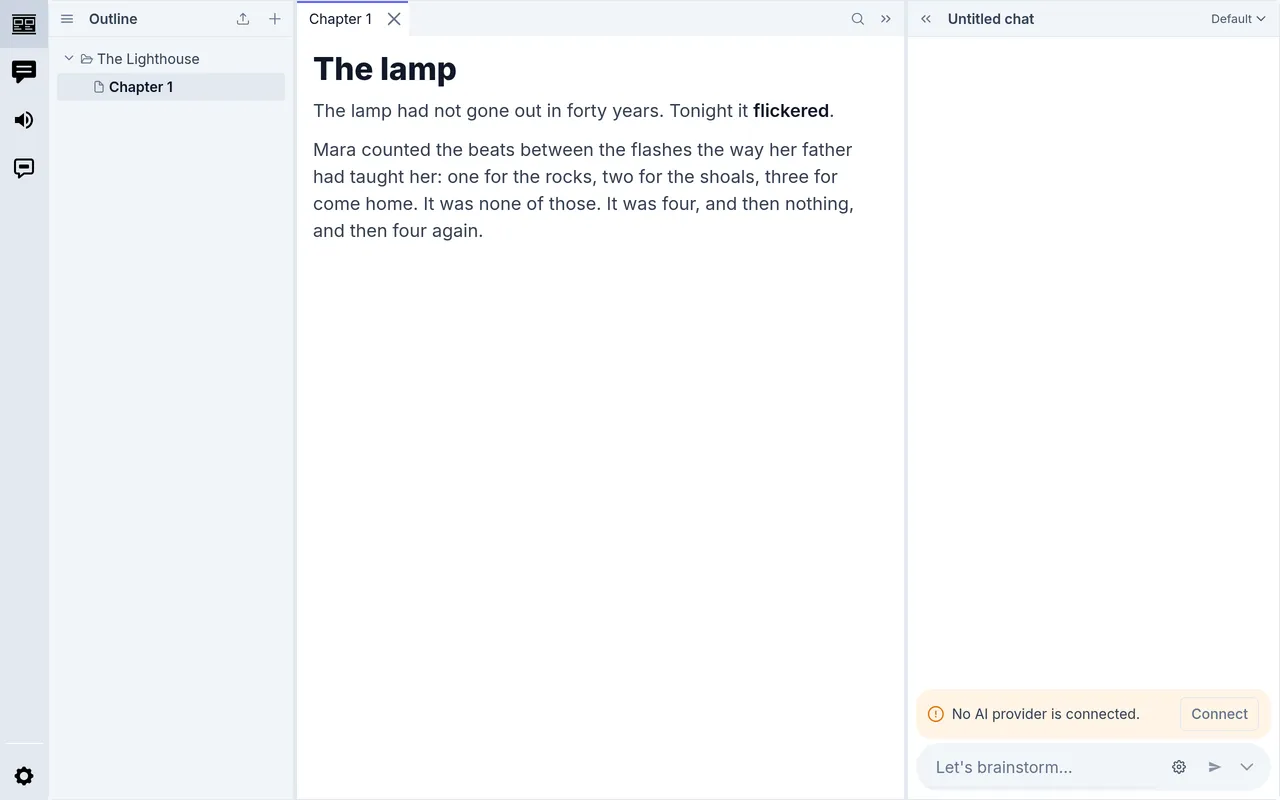
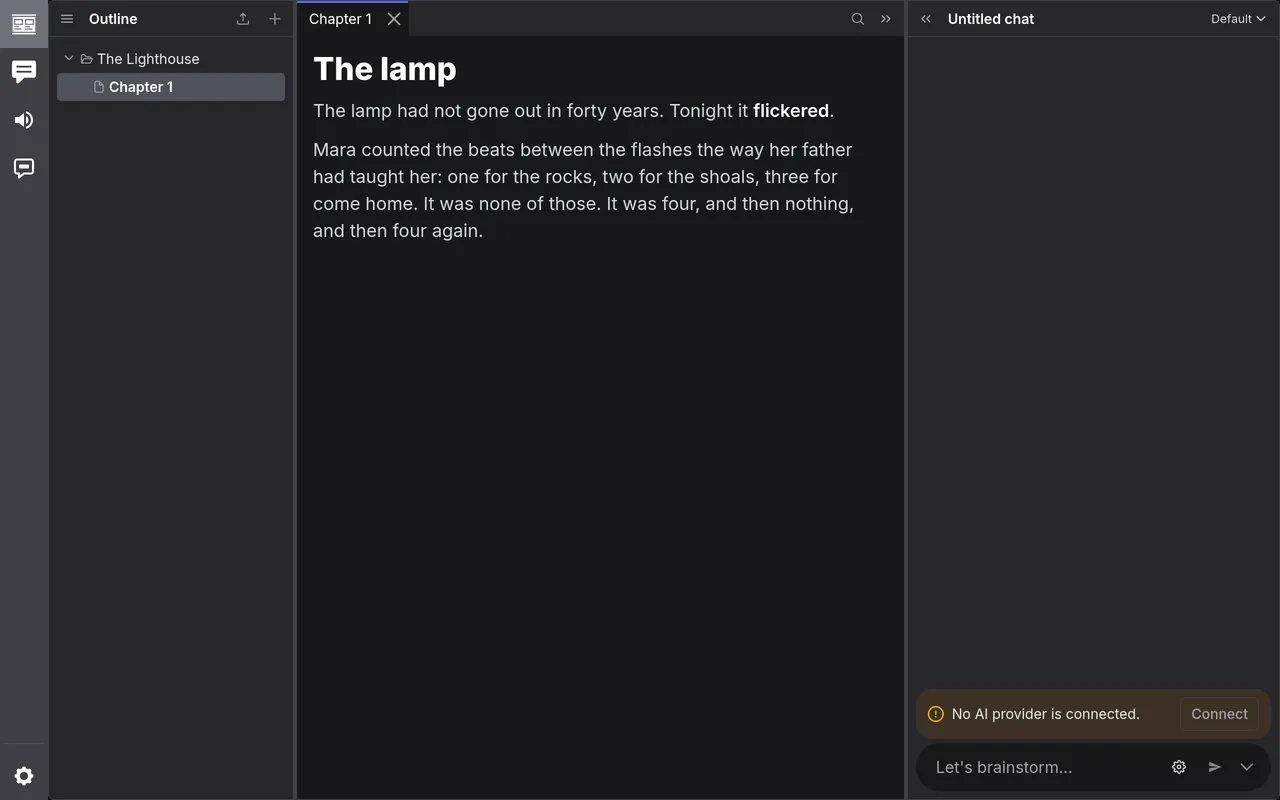
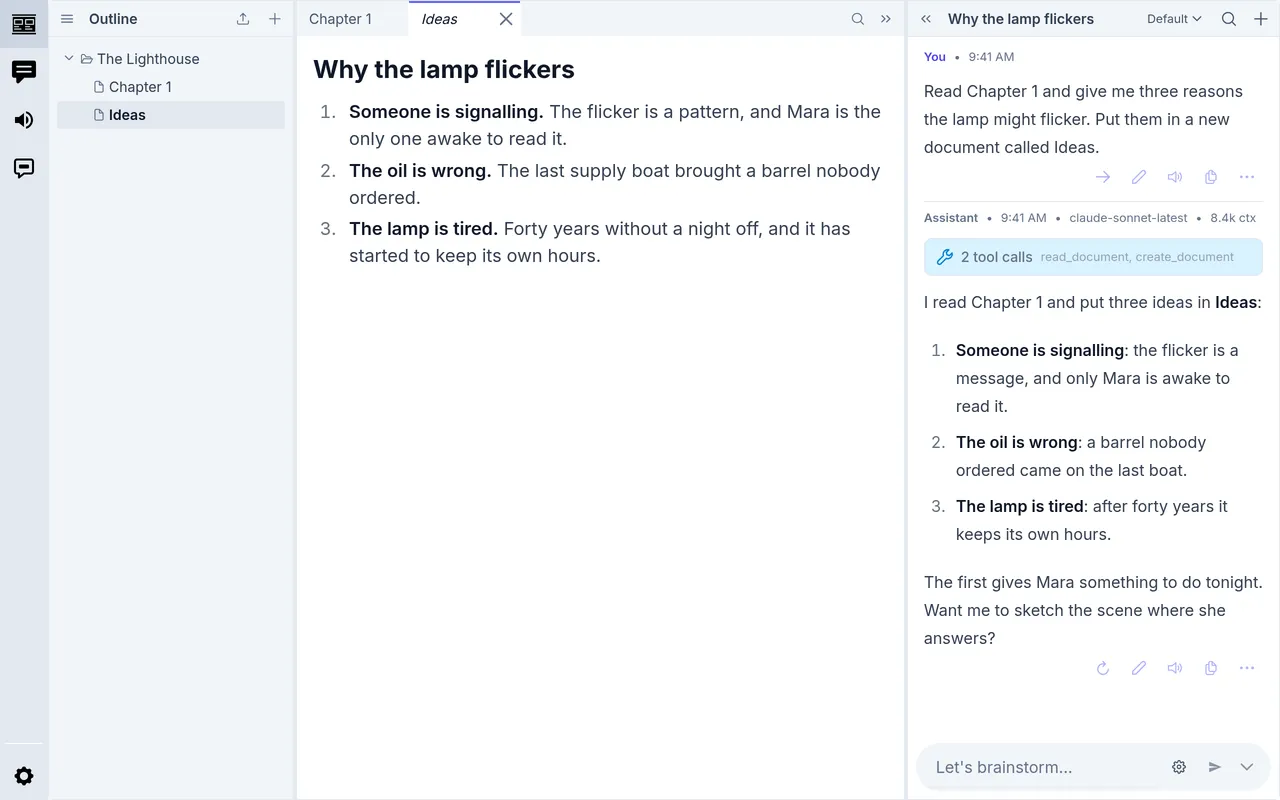
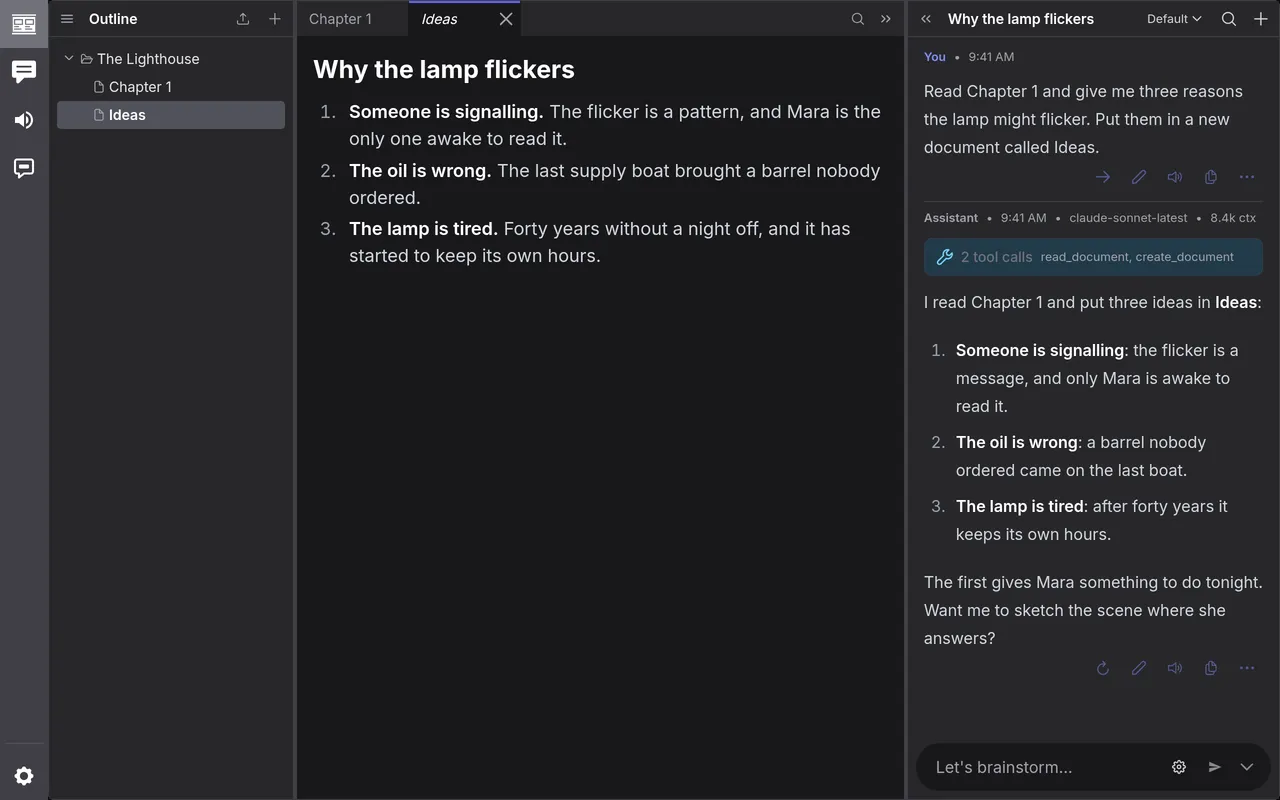
The outline on the left lists the project’s documents, the editor in the middle has a tab for each open one, and the chat is on the right. The icons at the far left switch the sidebar between the outline, your chats, narration and comments. Settings is the gear at the bottom.
Folders
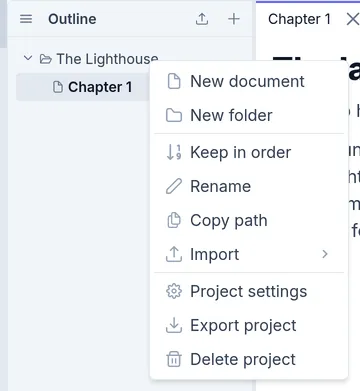
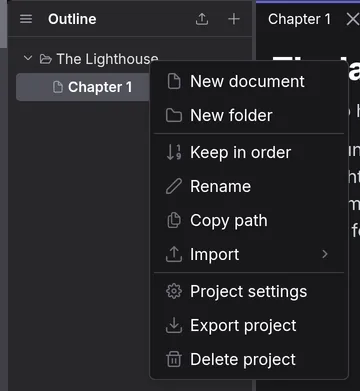
Section titled “Folders”Right-click the project, or a folder in it, to add a document or a folder. Drag documents to move them. A folder sorts its documents by name; to order them yourself, choose Keep in order from its menu and drag them into place. See Projects for more.
Connect an AI provider
Section titled “Connect an AI provider”The chat needs a model to talk to. This guide uses OpenRouter, which gives you one account for hundreds of models, paid as you go. For Anthropic, OpenAI, or a model on your own computer, see AI Providers.
Click Connect above the chat’s message box, then Connect to OpenRouter.
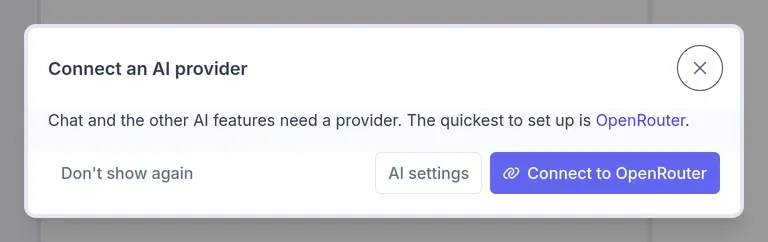
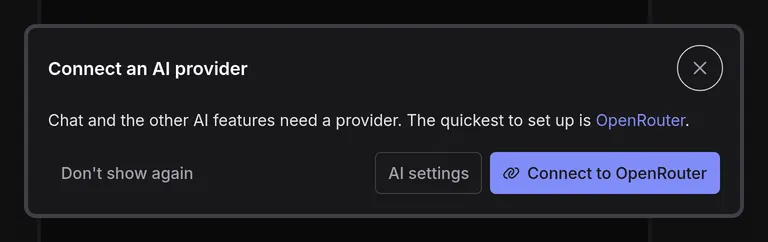
A tab opens at OpenRouter. Make an account there, or click Sign in at the bottom if you have one.
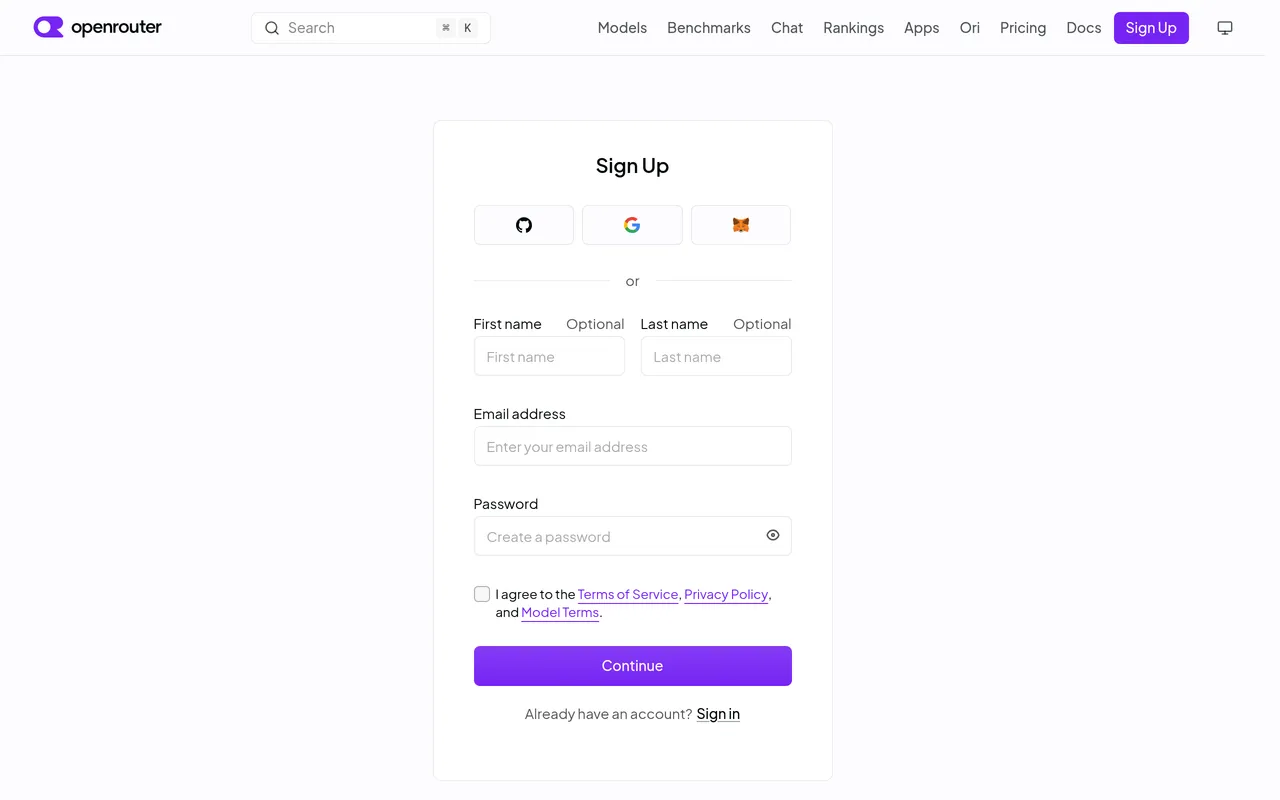
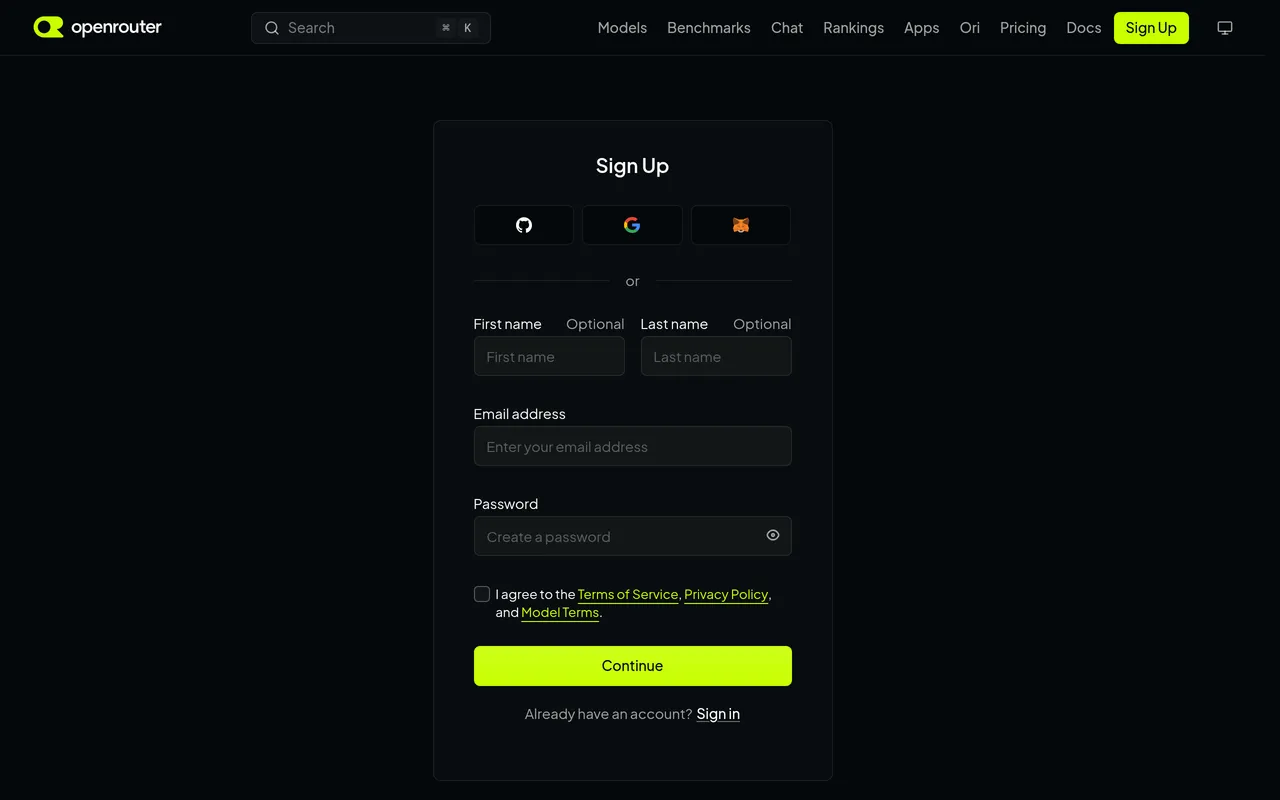
Then click Authorize. The tab closes and inksprite says it’s connected.
Choose a model
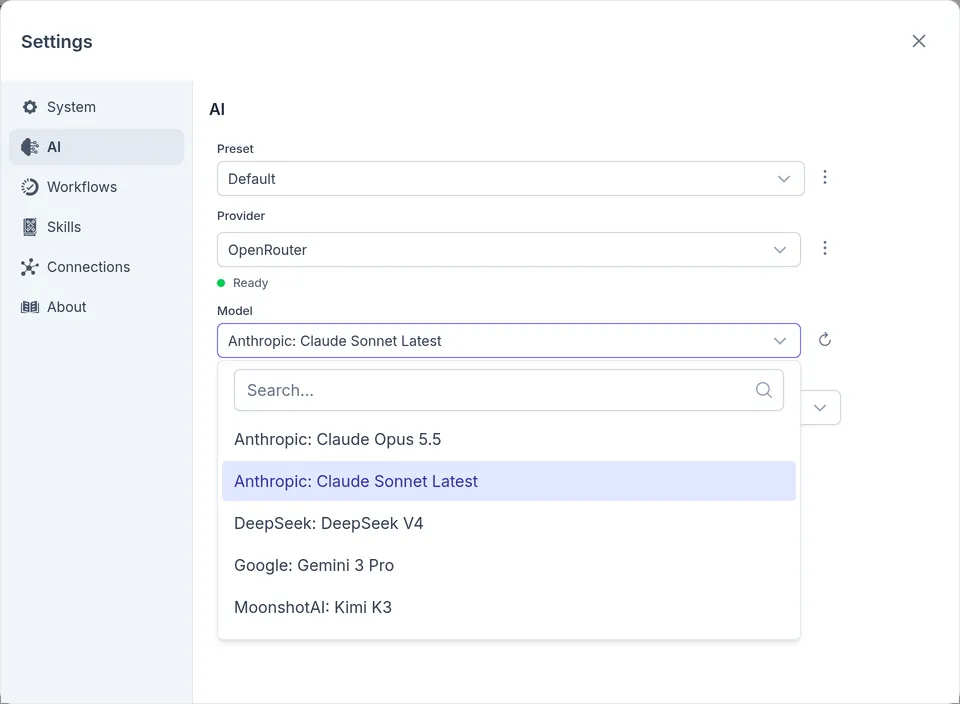
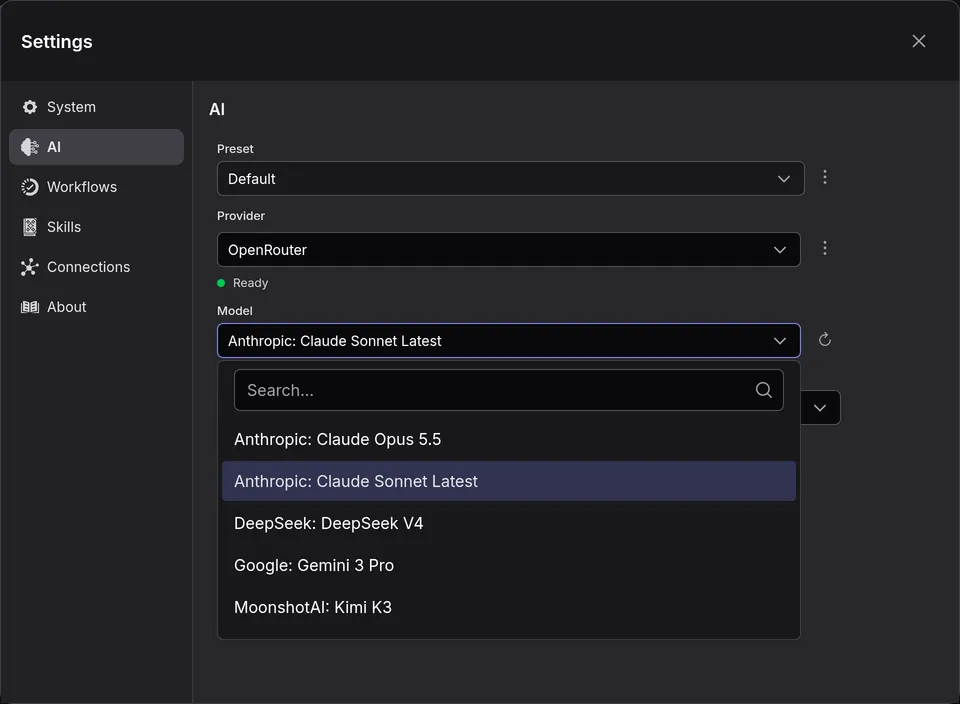
Section titled “Choose a model”Open Settings › AI. The model you pick here is the one your chats use.
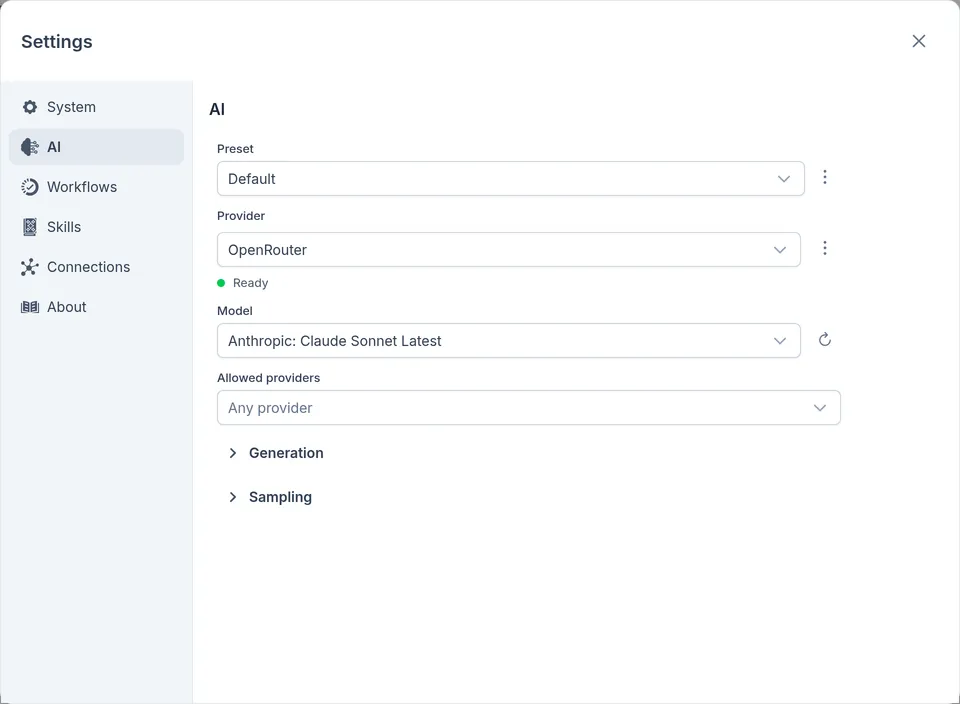
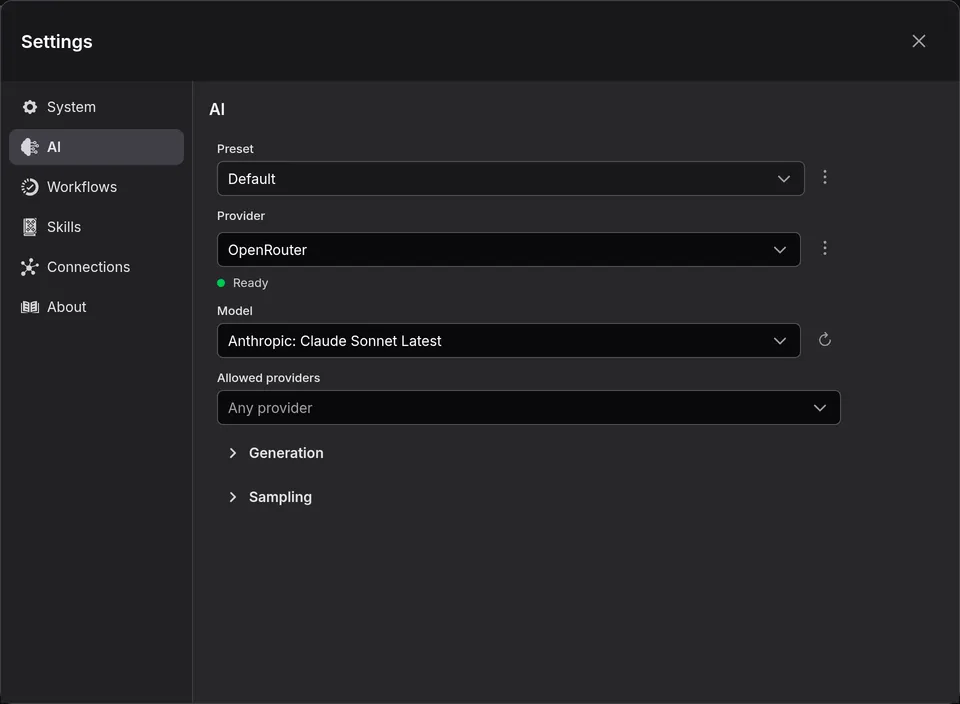
Click Model to see what the provider offers, and type to search the list.
Your first chat
Section titled “Your first chat”Type in the box at the bottom of the chat and press Enter (Shift Enter starts a new line). The model can read, search and write the project’s documents: ask, and it does.
To see what the model read and wrote, click the tool calls above its reply. A document it writes shows in the outline at once.
Back up your work
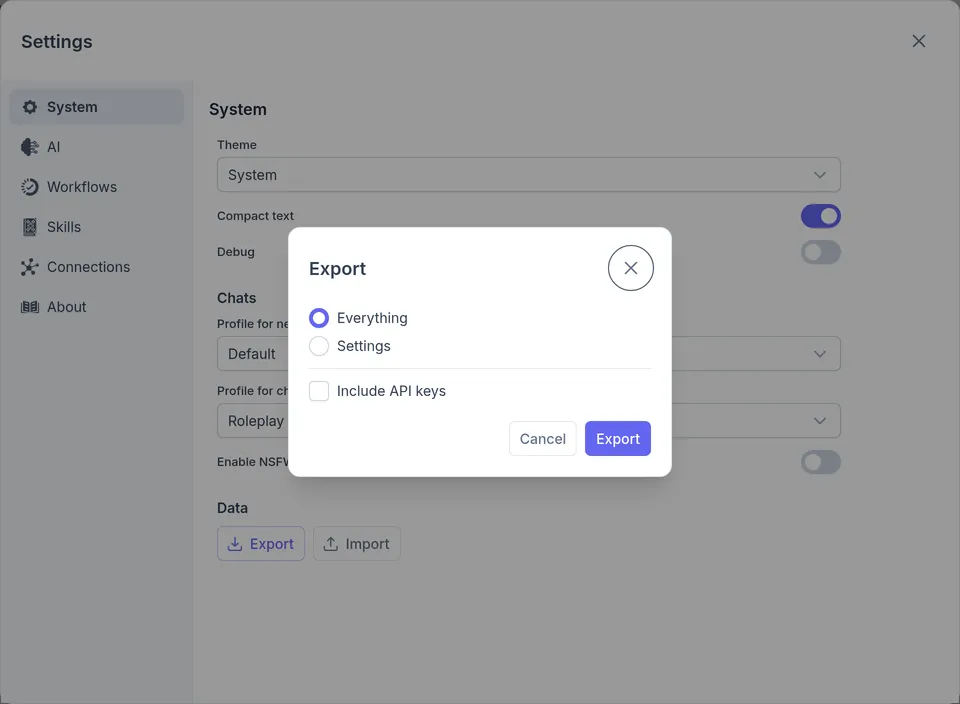
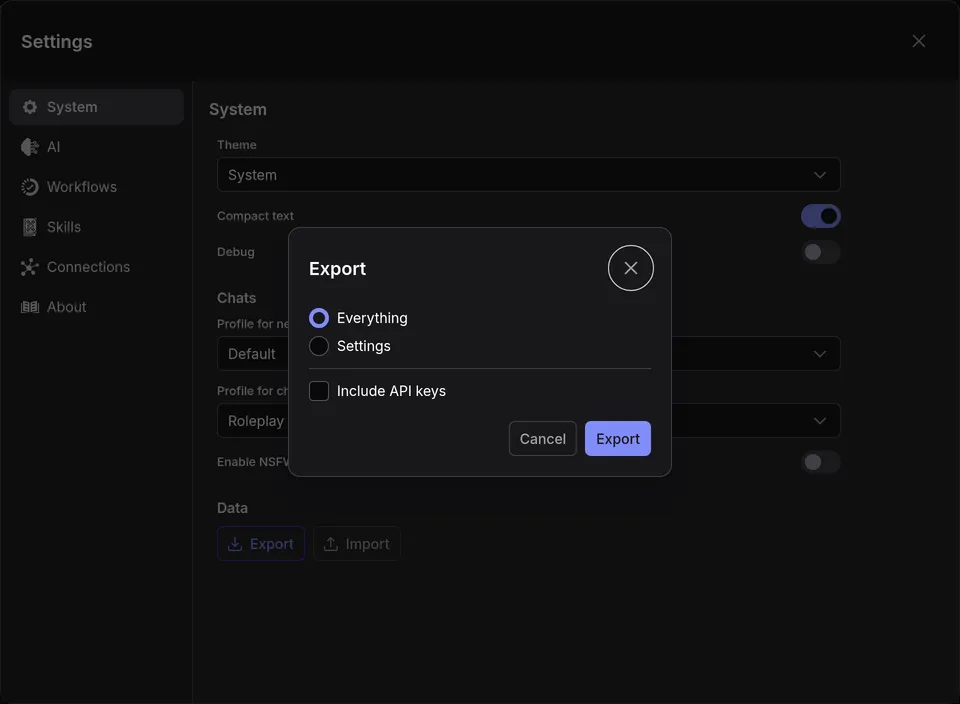
Section titled “Back up your work”Open Settings › System and click Export. Leave Everything chosen and Include API keys off unless the file stays with you, and click Export. The file holds every project, chat and setting.
To restore it, or move to another browser or the desktop app, see Projects.
Where next
Section titled “Where next”- Research: sources, web search, a design doc, and comments.
- Roleplay: play a character card with the model.
- Narration: have a document read aloud.
- Chats, the editor and projects cover the rest of the app.
Report bugs and ask questions on GitHub.