Connected Apps
A connected app is another program on your computer that works in your projects: it reads your documents, and edits and comments on them, as the chat’s model does. A coding agent is the usual one. Write a design in inksprite, and the agent that builds it reads the design where you wrote it, leaves its questions as comments, and puts the finished text in your repository.
It works only in the desktop app, and inksprite has to be open. An app connects over MCP, so any app that can use an MCP server at an address can be connected. This is the other way round from MCP Servers, which are services the chat’s model calls.
Connect an app
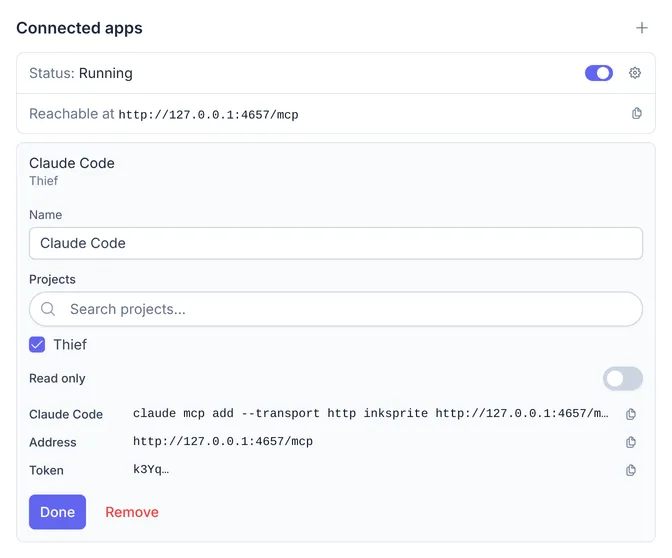
Section titled “Connect an app”- In Settings › Connections › Connected apps, click the plus beside the heading (Add an app). A card opens for it, named Claude Code.
- Type its Name over that. Its comments and suggestions carry the name.
- Under Projects, tick the projects it may work in. None is ticked to start with, and a project you make later isn’t either.
- Set the app up with what the card gives you. For Claude Code, click the
copy button beside Claude Code and paste the command in a terminal. For
any other app, give it the Address, and the Token as a bearer
token (an
Authorizationheader ofBearerfollowed by the token). - Click Done.
The card says when the app last asked for anything.
What an app can do
Section titled “What an app can do”In the projects ticked for it, an app can list, read and search the documents. Unless it is Read only, it can also write, move and delete them, and comment on them. What it deletes goes to the trash, and inksprite keeps a version of a document from before each change.
A change shows in the document as it is made. To have its changes to a document’s text wait for you, ask the app’s assistant for suggestions rather than edits. They come as suggestions in the text, under the app’s name, for you to accept or reject.
An app is given nothing else: no other project, no chats, no settings, and no document you’ve hidden from all chats.
- Read only, on its card, lets it only list, read, search and export.
- Remove takes the connection away, and its token stops working at once.
Put documents in a repository
Section titled “Put documents in a repository”Ask the app to export a document, a folder or the whole project. inksprite makes the files ready and gives the app a link that works once, which the app fetches into its own folder, laid out as the outline is, as Export writes them, without comments or suggestions.
Each Markdown file starts with a few lines saying which document it came from. They tell whoever opens the file to change the document in inksprite and export it again, and they let the app find the document later, whatever it has been renamed to.
Bring files in
Section titled “Bring files in”Unless it is Read only, an app can bring a file from its own folder into a project, such as a set of prompts or a PDF. inksprite gives the app a link that takes one file, and the app sends the file to it. The file comes in exactly as it is, not written out again by the app’s model.
It goes into a folder that already exists, under a name not yet used there, and becomes a document or a file as an import would make it.
The server
Section titled “The server”The card above your apps is the server they all connect to. Status says whether it’s running, and the switch beside it stops it for every app at once. While it runs, Reachable at is the address to give an app.
The cog has its Port, 4657 unless you change it. After a change of port, every app set up so far needs the new address.
inksprite listens only on your own computer.
What ticking a project covers
Section titled “What ticking a project covers”The ticked projects and Read only apply to what an app asks inksprite for. An app that runs on your computer as you, outside a container, can also open the files on your disk without asking, your projects folder among them. For an app in a container, or one that can’t otherwise read your files, the ticks are all it can reach.