Terminal
A terminal is your own shell in a tab among your chats, for anything you’d run in a terminal app: a build, a script, a coding agent.
It works only in the desktop app, and while Enable AI is on in Settings › System: its tab is among the chats.
Turn it on
Section titled “Turn it on”The terminal is an extension, off until you turn it on.
Open Settings › Extensions and switch on Terminal.
Open a terminal
Section titled “Open a terminal”Click New terminal, beside New chat at the top of the chat, or press ⌘ L (Ctrl Shift L on Windows and Linux) anywhere in inksprite. It opens in a tab of its own, in your home folder, running the shell you use in any other terminal (PowerShell on Windows).
⌃ ` (Ctrl {‘`’} on Windows and Linux) goes to the terminal you were in last, or opens one. Pressed in a terminal, it goes back to where you were before, in a document or a chat.
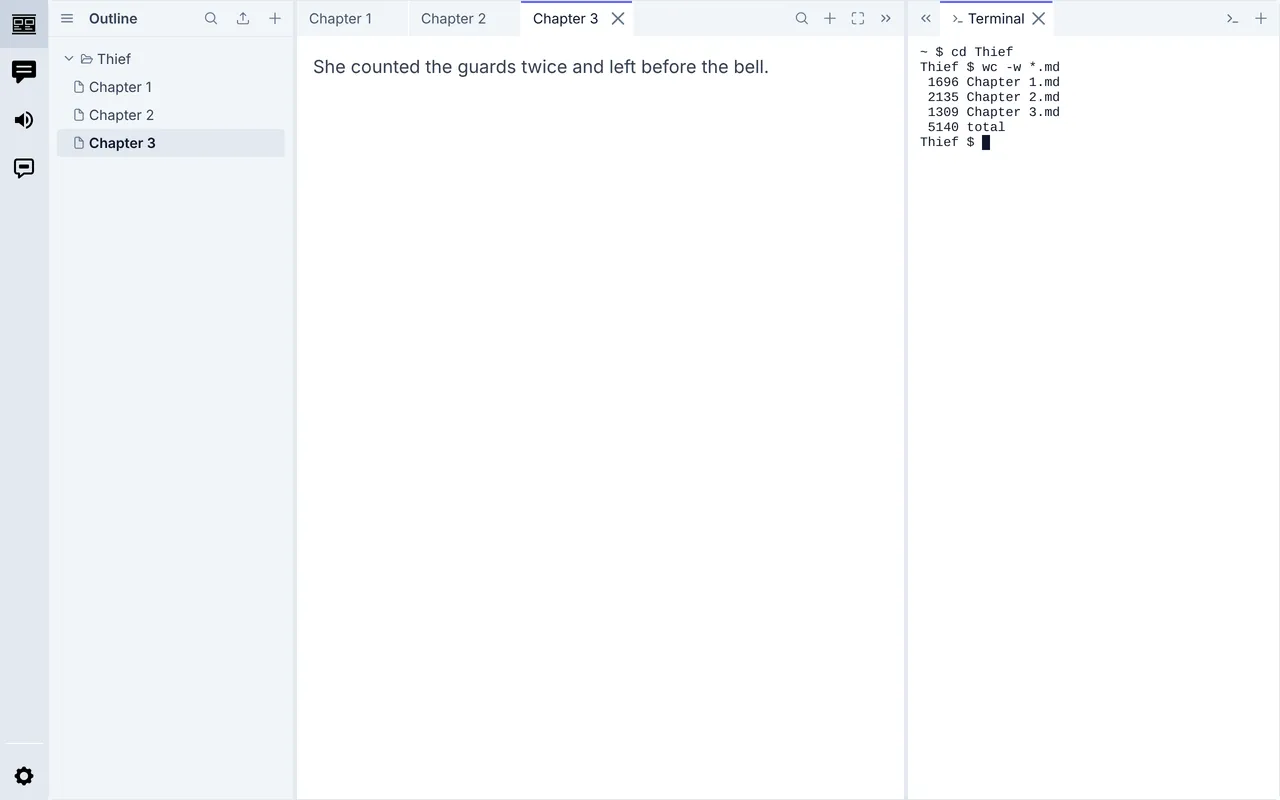
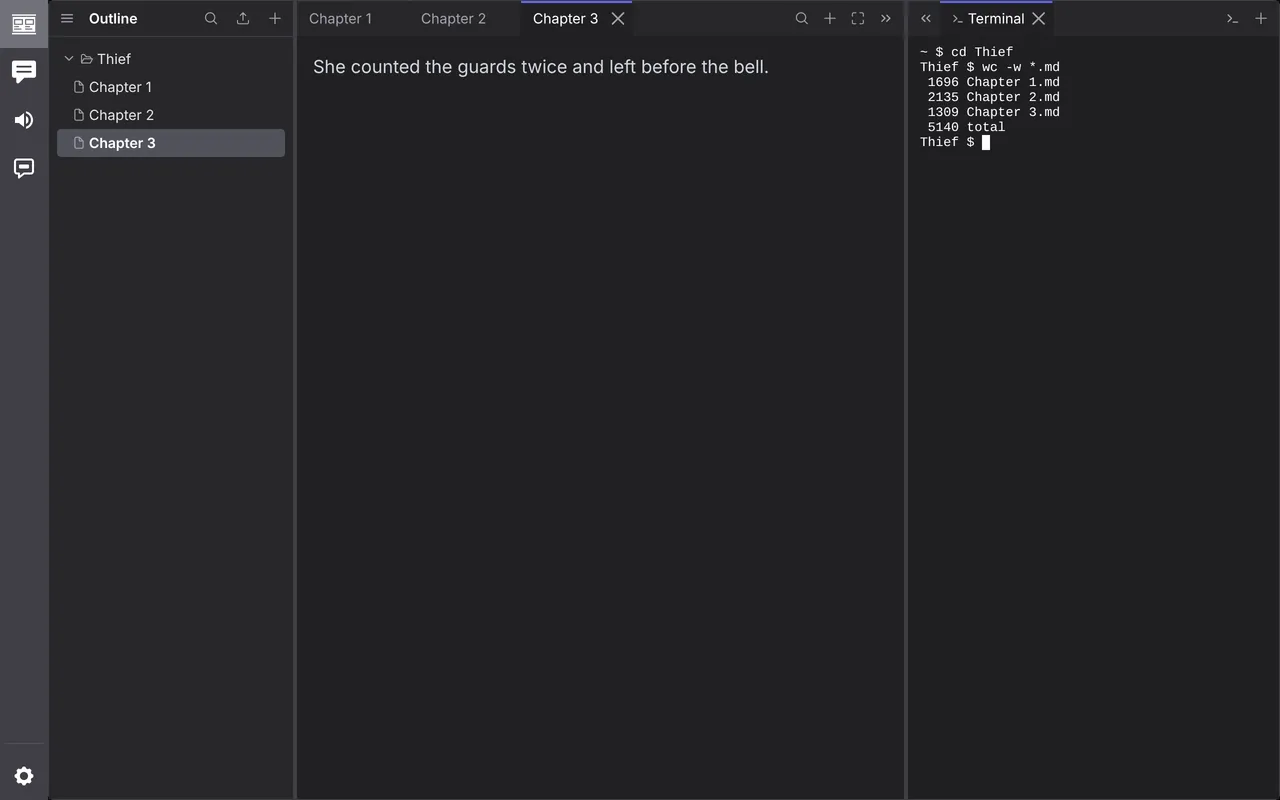
Its tab is named by the program running in it, and Terminal until one names it. Drag it, switch to it and close it as you would a chat’s.
A terminal belongs to its project
Section titled “A terminal belongs to its project”Open another project and a terminal keeps running. Come back, and its tab is where you left it, with everything printed since.
A dot on its tab means a program in it rang the bell while you were looking at something else, as a coding agent does when it needs you.
A terminal ends when:
- You close its tab. Nothing asks first, even with something running.
- Its shell ends, as on
exit. Its tab closes. - Its project goes: to the trash, or because the person who shared it with you stopped.
- You quit inksprite. Terminals aren’t there when you open it again.
What a terminal can do
Section titled “What a terminal can do”A terminal is your shell, and what you run in it can do anything you can do on your computer. It isn’t fenced the way Python is. The model has no part in it: no chat can type in a terminal or read one.
What a terminal shows is kept only while it runs, on this computer. It isn’t saved with the project, and it isn’t synced.
On a Mac, the first time a program in a terminal opens your Documents, Desktop or Downloads folder, macOS asks whether inksprite may. A yes there is for inksprite as a whole.
What you type goes to the shell, keys with Ctrl included, except the two above for opening a terminal and leaving one. Ctrl L still clears the screen. The terminal keeps these for itself:
| Action | Mac | Windows and Linux |
|---|---|---|
| Copy | ⌘ C | Ctrl Shift C |
| Paste | ⌘ V | Ctrl Shift V |
| Select all | ⌘ A | |
| Clear | ⌘ K | |
| A line break where Enter sends | ⇧ Enter | Shift Enter |
| Open a link | ⌘-click | Ctrl-click |
Point at a link and where it leads shows at the foot of the terminal. It opens in your usual browser, and an email address in your mail app.
On a Mac, inksprite’s own shortcuts work from a terminal: ⌘ W closes its tab. On Windows and Linux they’re on Ctrl, which goes to the shell while you’re in a terminal, so press Ctrl ` or click in the editor or a chat first.